EC2 Scan
Use this scan to discover your EC2 servers and look inside the operating system for installed software, dependencies and performance metrics. Complete all eight steps below — each one is required for a clean scan.
A collector host that can reach AWS, a read-only scan role in every target account, a working way for DMC to run discovery inside your servers, and the credentials to do it.
Before you start — quick checklist
- A machine inside your AWS environment to run DMC
- Permission to create IAM roles and policies in your target accounts
- A way to reach your servers (SSM, SSH or WinRM) and admin credentials for them
- The list of AWS accounts and regions you want scanned
Setup
Provide a collector host
DMC runs from a machine inside your AWS environment — usually a small EC2 instance or jump box. It runs in memory, installs nothing permanent, and stores no credentials after it closes.
Requirements:
- Windows host you control, with network line-of-sight to the servers you want to scan.
- Outbound HTTPS (port 443) to AWS service endpoints.
Create the collector identity
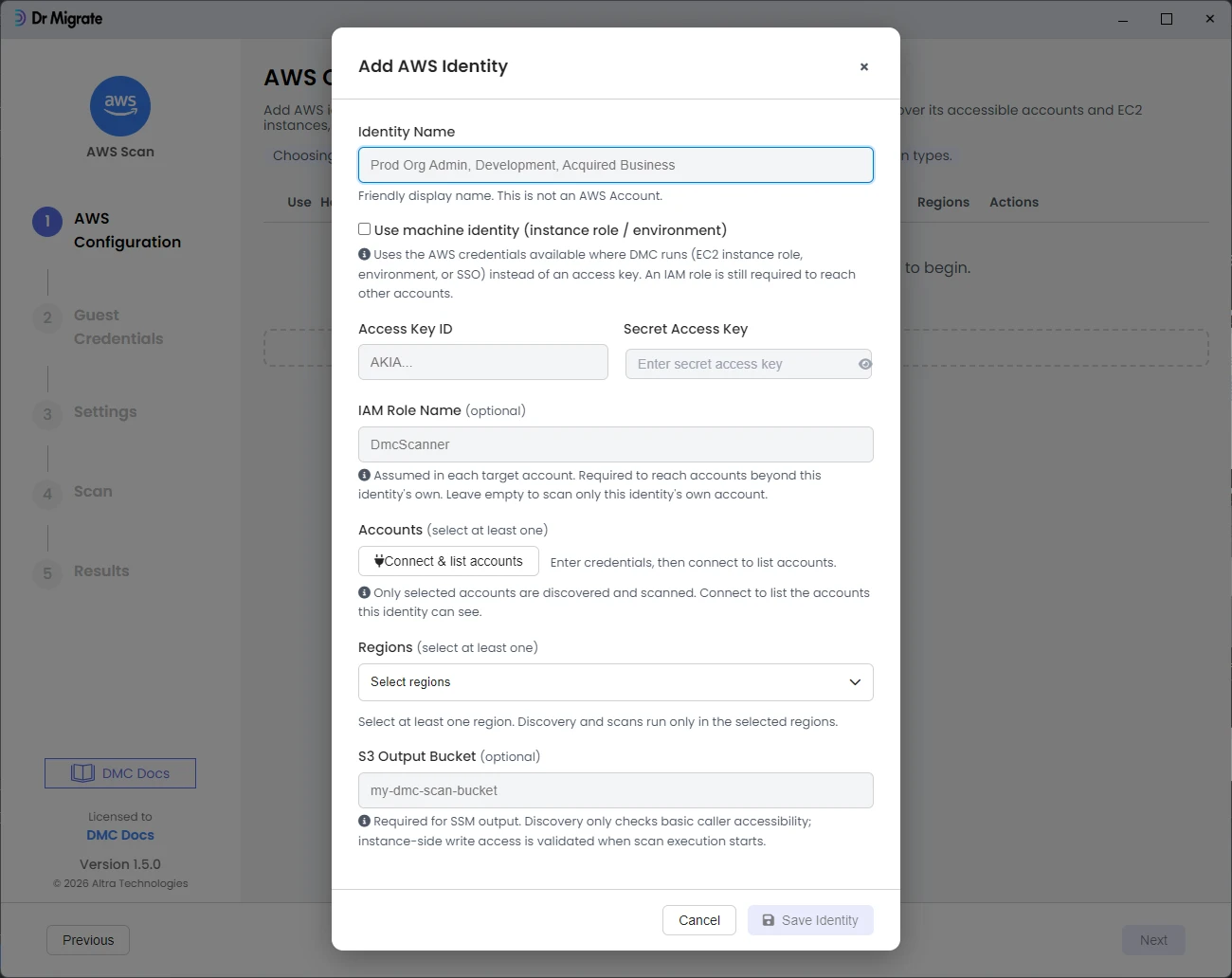
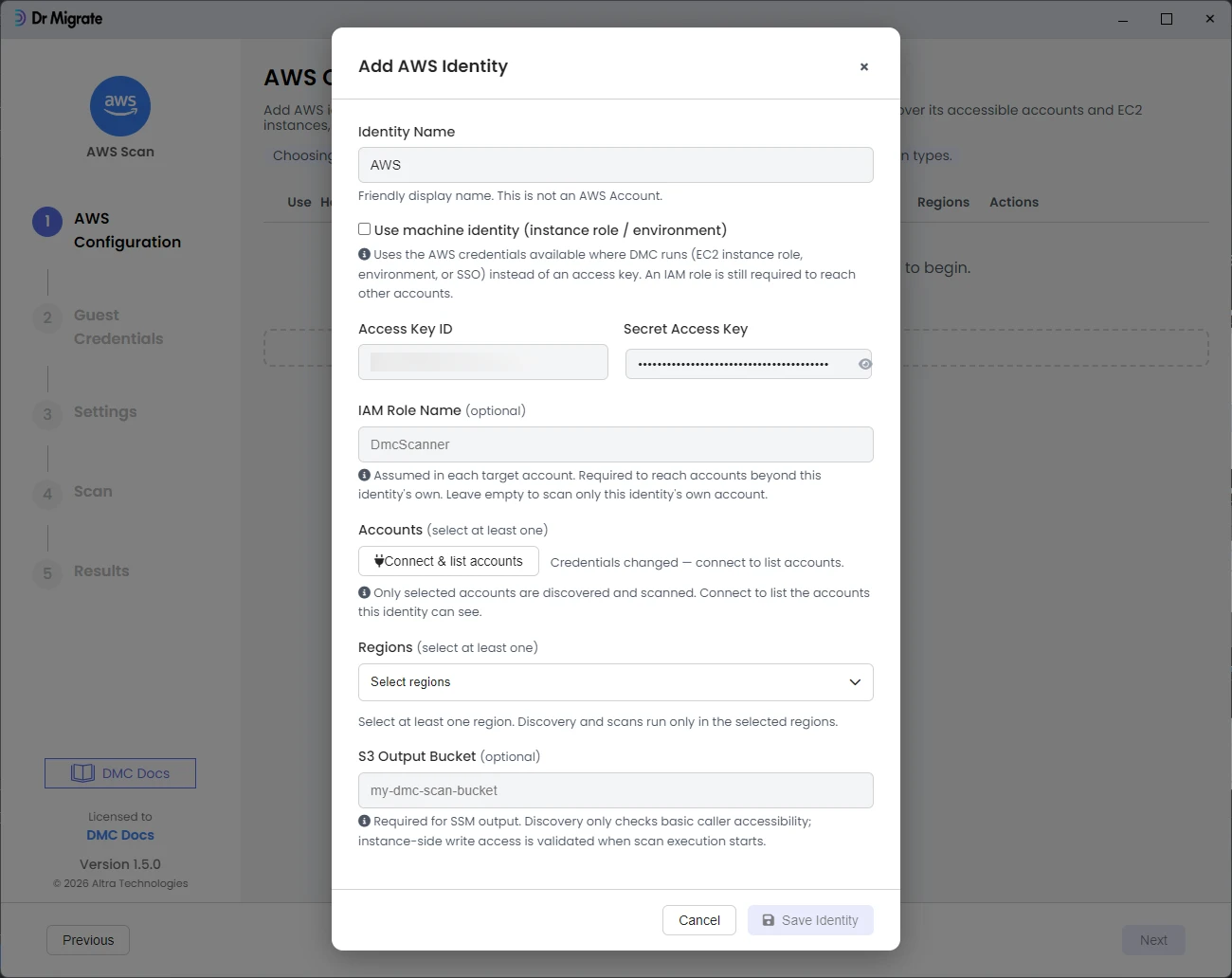
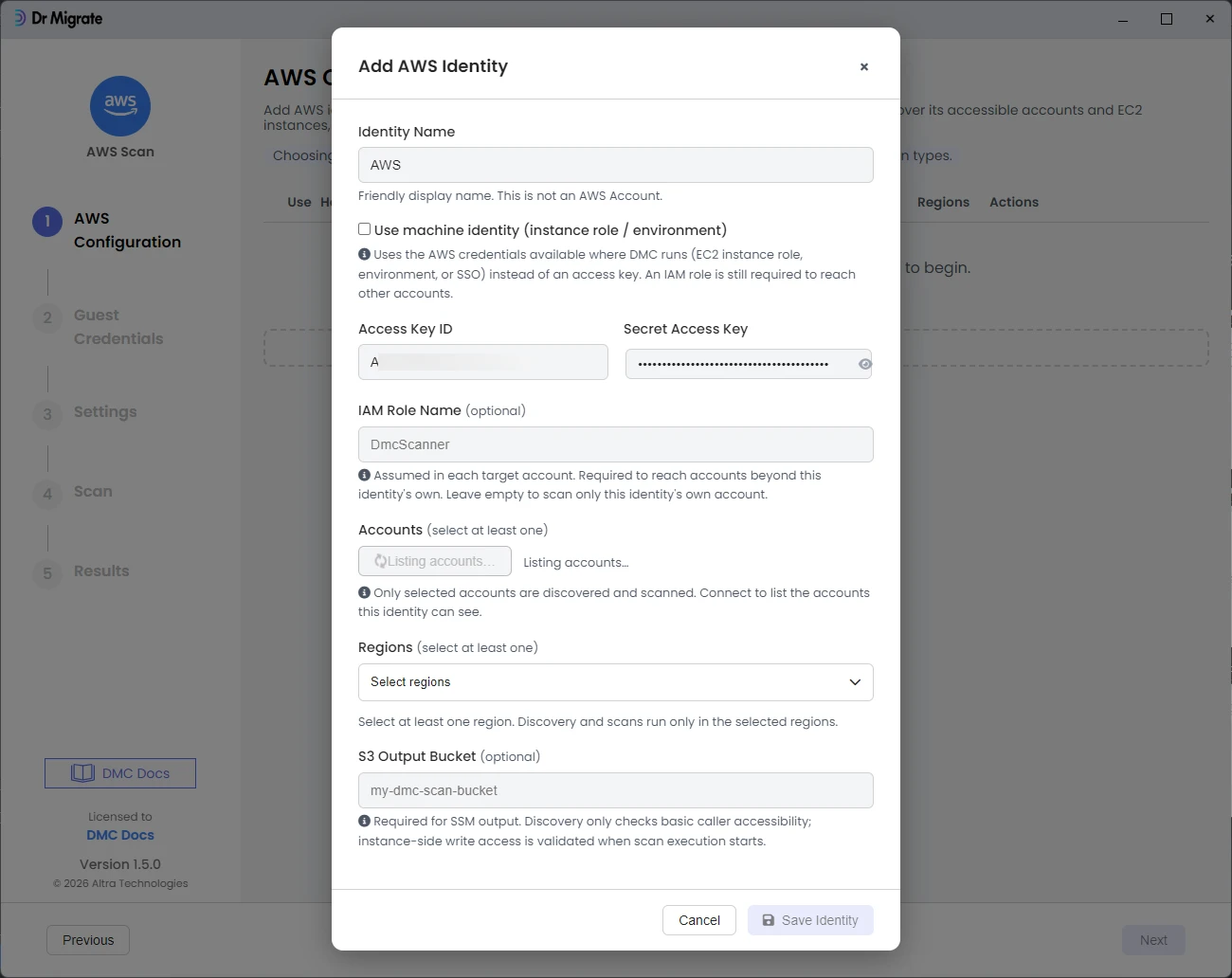
This is the IAM identity DMC uses to start the scan and reach into your target accounts. The simplest approach is an IAM role attached to the collector host (an EC2 instance role).
Create the identity, then attach the policy below.
{
"Version": "2012-10-17",
"Statement": [
{ "Sid": "AssumeScanRoleInTargetAccounts", "Effect": "Allow",
"Action": "sts:AssumeRole",
"Resource": "arn:aws:iam::*:role/<SCAN_ROLE_NAME>" },
{ "Sid": "ResolveRegionsForDiscovery", "Effect": "Allow",
"Action": "ec2:DescribeRegions", "Resource": "*" },
{ "Sid": "ListOrganizationAccounts", "Effect": "Allow",
"Action": "organizations:ListAccounts", "Resource": "*" },
{ "Sid": "ValidateAndReadSsmOutputBucket", "Effect": "Allow",
"Action": ["s3:GetBucketLocation","s3:ListBucket"],
"Resource": "arn:aws:s3:::<OUTPUT_BUCKET>" },
{ "Sid": "ReadSsmCommandOutput", "Effect": "Allow",
"Action": "s3:GetObject",
"Resource": "arn:aws:s3:::<OUTPUT_BUCKET>/dmc/*" }
]
}Replace <SCAN_ROLE_NAME> with the name you’ll use in step 3, and <OUTPUT_BUCKET> with the S3 bucket from step 4.
Create a scan role in each target account
In every AWS account you want to scan, create an IAM role with the same name (the one you used in step 2). This role gives DMC read-only access to discover EC2 and run in-server collection. Attach two things to it: the permissions policy and a trust policy that lets your collector identity assume it.
Permissions policy:
{
"Version": "2012-10-17",
"Statement": [
{ "Sid": "ValidateCallerIdentity", "Effect": "Allow",
"Action": "sts:GetCallerIdentity", "Resource": "*" },
{ "Sid": "DiscoverEc2", "Effect": "Allow",
"Action": ["ec2:DescribeInstances","ec2:DescribeRegions",
"ec2:DescribeVolumes","ec2:DescribeInstanceTypes"],
"Resource": "*" },
{ "Sid": "ReadCloudWatchMetrics", "Effect": "Allow",
"Action": "cloudwatch:GetMetricData", "Resource": "*" },
{ "Sid": "InspectAndPollSsm", "Effect": "Allow",
"Action": ["ssm:DescribeInstanceInformation","ssm:GetCommandInvocation"],
"Resource": "*" },
{ "Sid": "RunApprovedDmcDocuments", "Effect": "Allow",
"Action": "ssm:SendCommand",
"Resource": ["arn:aws:ssm:*::document/AWS-RunShellScript",
"arn:aws:ssm:*::document/AWS-RunPowerShellScript"] },
{ "Sid": "RunOnInstancesInThisAccount", "Effect": "Allow",
"Action": "ssm:SendCommand",
"Resource": "arn:aws:ec2:*:<ACCOUNT_ID>:instance/*" }
]
}Trust policy (lets the collector identity assume this role):
{
"Version": "2012-10-17",
"Statement": [
{ "Sid": "TrustDmcCollectorPrincipal", "Effect": "Allow",
"Principal": { "AWS": "<COLLECTOR_PRINCIPAL_ARN>" },
"Action": "sts:AssumeRole" }
]
}Replace <ACCOUNT_ID> with each target account ID and <COLLECTOR_PRINCIPAL_ARN> with the ARN of your collector identity from step 2.
You can give the collector identity the scan-role permissions directly and skip the assume-role step. For two or more accounts, use a scan role in each.
Set up how DMC reaches inside your servers
An EC2 scan looks inside the operating system, so DMC needs a way to run discovery commands on each server. Pick the one method that matches your environment. AWS Systems Manager (SSM) is recommended because it needs no inbound ports opened to your servers.
| Method | Use when | What it needs |
|---|---|---|
| SSM (Recommended) | Your EC2 instances are managed by Systems Manager | SSM Agent running, instances show as Managed nodes, and an S3 output bucket (set up below) |
| SSH (Linux) | SSM isn’t available and direct Linux access is allowed | Network path on TCP 22 from the collector, plus Linux credentials |
| WinRM (Windows) | SSM isn’t available and direct Windows access is allowed | WinRM listener on TCP 5986 (HTTPS), plus Windows credentials |
If you use SSM — add an output bucket and writer permission
SSM writes its command output to an S3 bucket so DMC can collect it. Create (or pick) a bucket, then attach this policy to the instance profile on your target EC2 servers so they can write their output:
{
"Version": "2012-10-17",
"Statement": [
{ "Sid": "WriteDmcSsmOutput", "Effect": "Allow",
"Action": "s3:PutObject",
"Resource": "arn:aws:s3:::<OUTPUT_BUCKET>/dmc/*" },
{ "Sid": "ReadOutputBucketEncryptionConfiguration", "Effect": "Allow",
"Action": "s3:GetEncryptionConfiguration",
"Resource": "arn:aws:s3:::<OUTPUT_BUCKET>" }
]
}Provide admin credentials for your servers
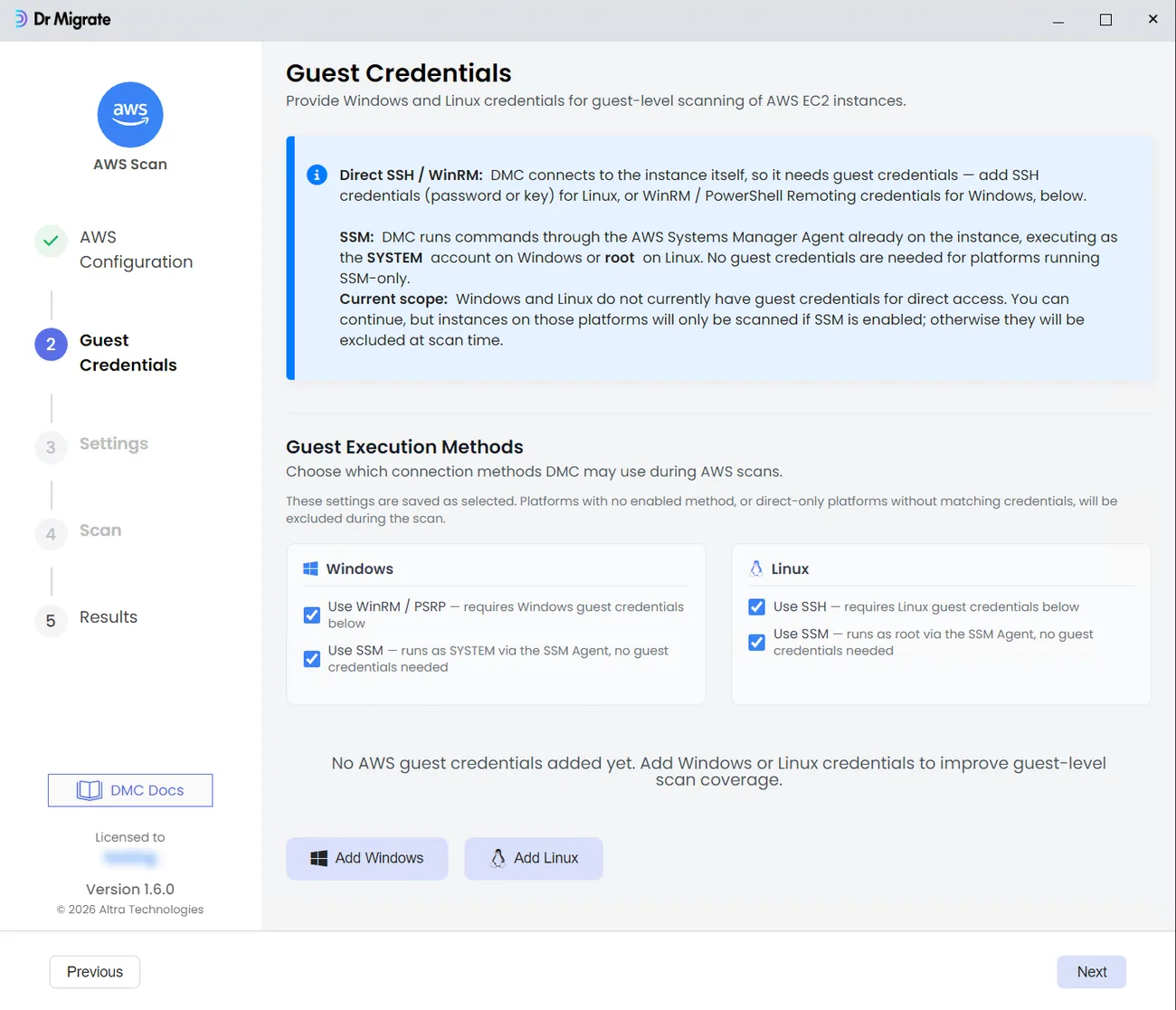
The in-server scan reads software, processes, network connections and patch levels. Some of that data is only visible to an administrator, so DMC needs admin-level credentials for the servers it scans.
| Server type | Required credential |
|---|---|
| Windows | An account with local administrator rights |
| Linux | root, or a user with passwordless sudo |
Lower-privilege accounts return incomplete data, which leads to gaps and rework in your migration plan. Providing admin credentials up front gives you a complete, accurate scan the first time.
Open the required network ports
All connections start from the collector host and go outbound — nothing needs to connect in to the collector.
| From | To | Port | Needed for |
|---|---|---|---|
| Collector | AWS service APIs | TCP 443 | Always |
| Collector | SSM output bucket | TCP 443 | SSM method |
| Collector | Linux servers | TCP 22 | SSH method |
| Collector | Windows servers | TCP 5986 | WinRM method |
Run the scan and export
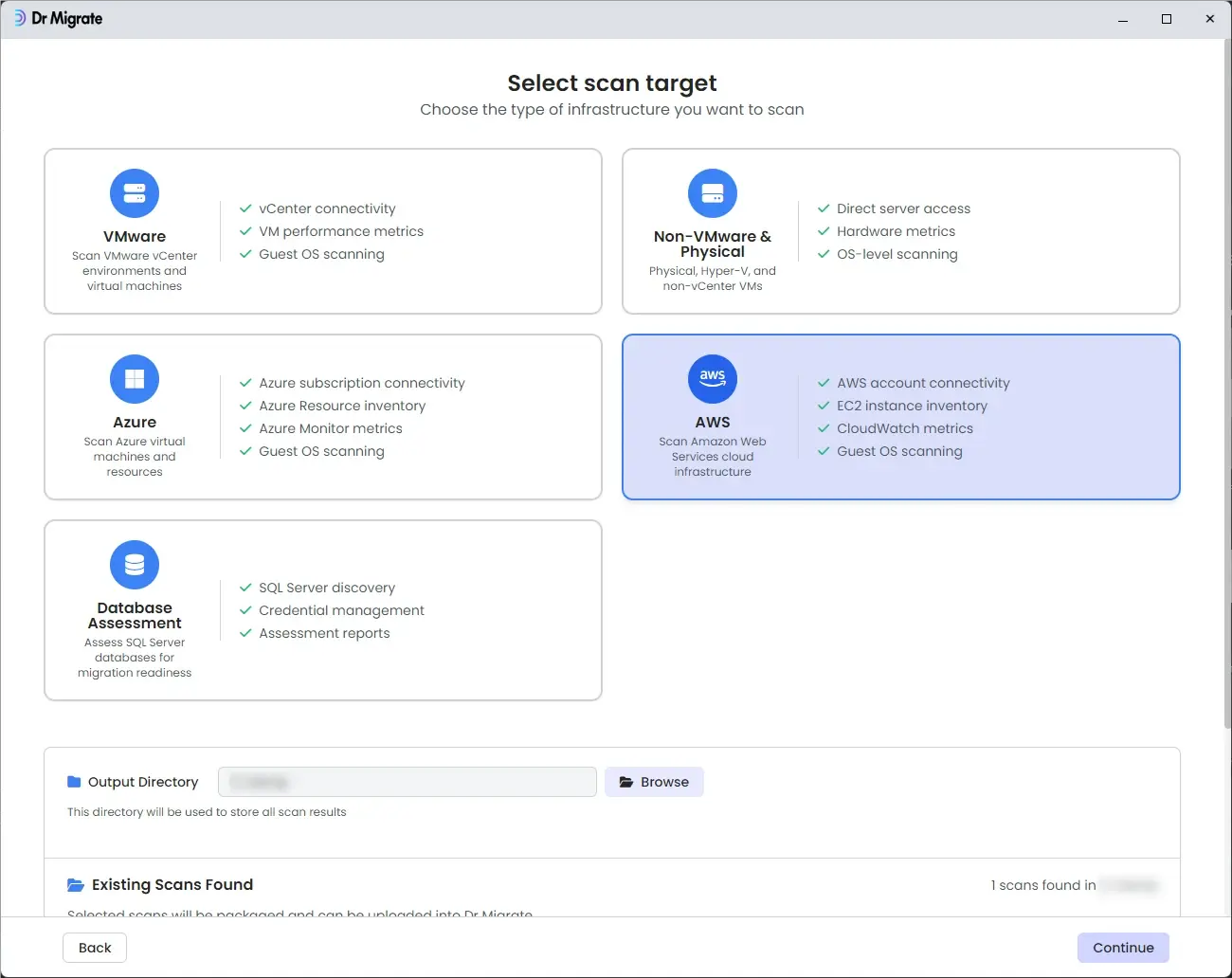
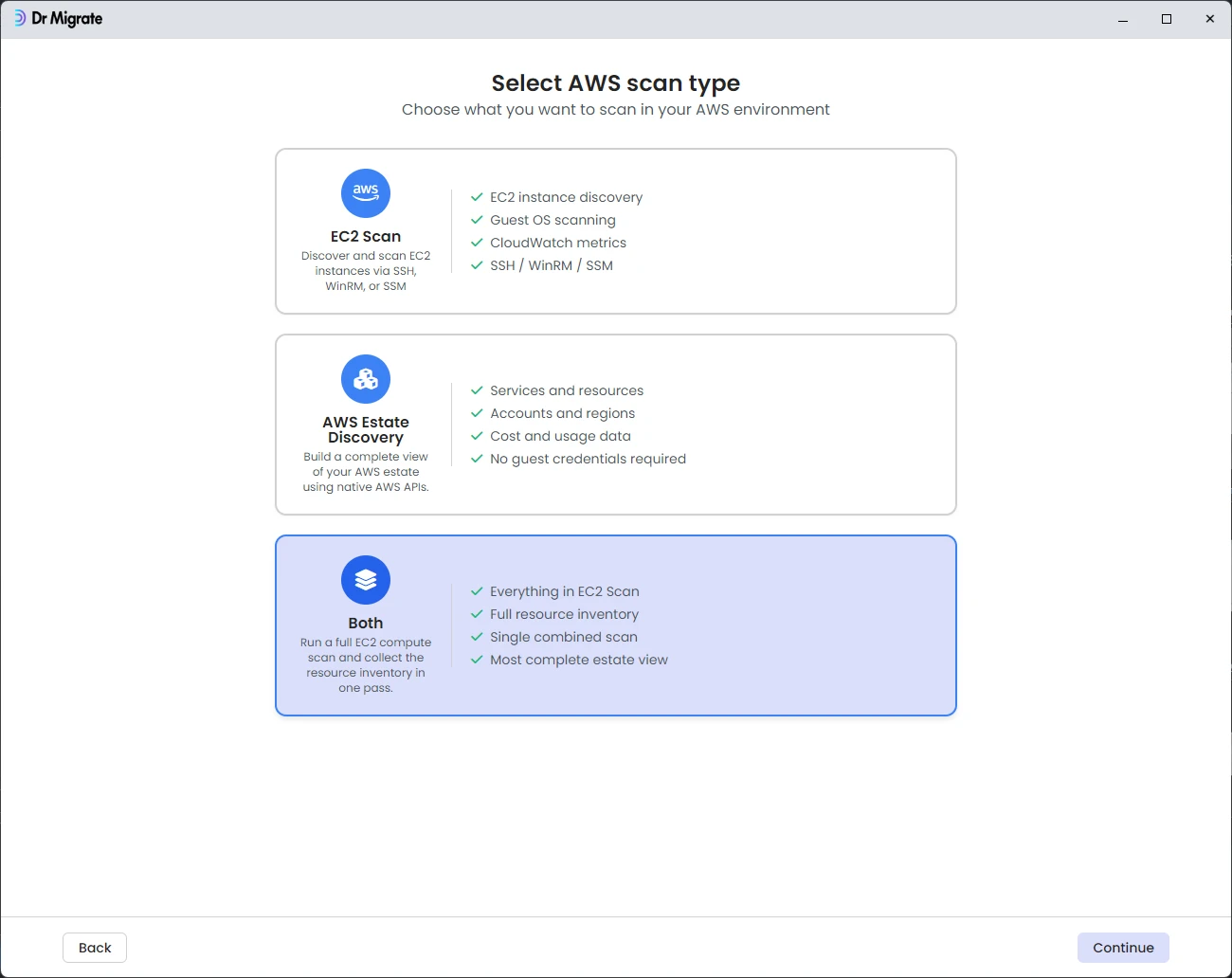
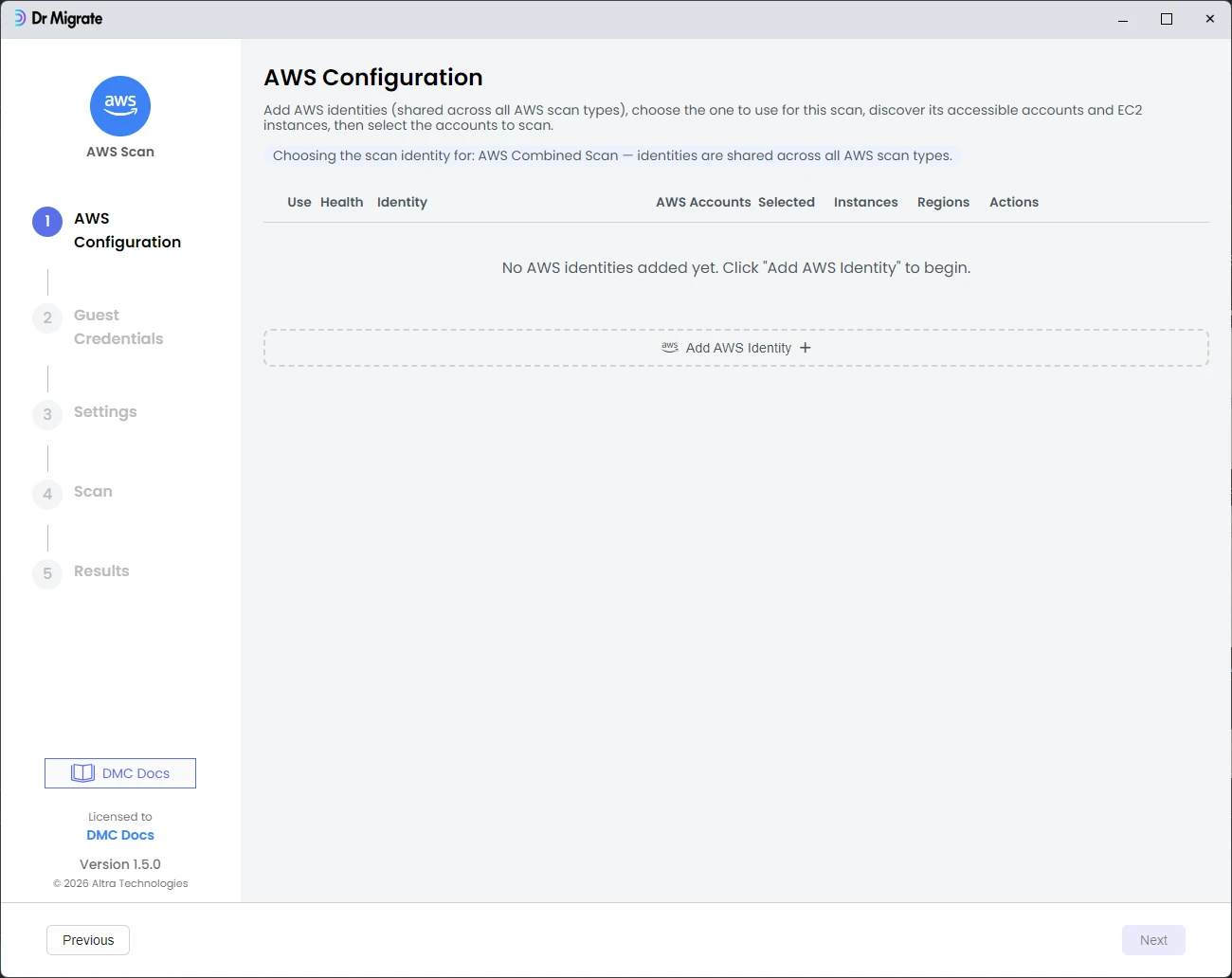
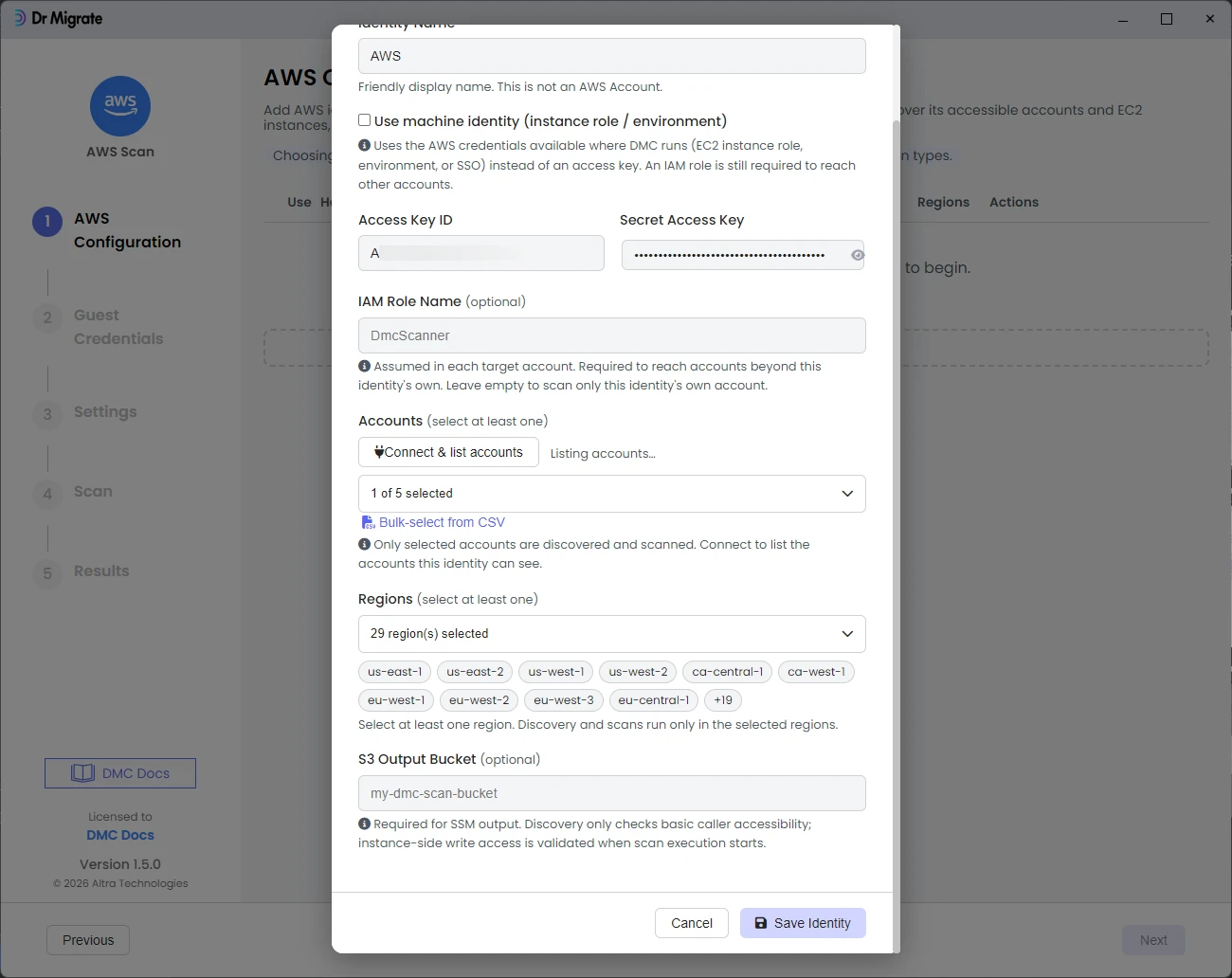
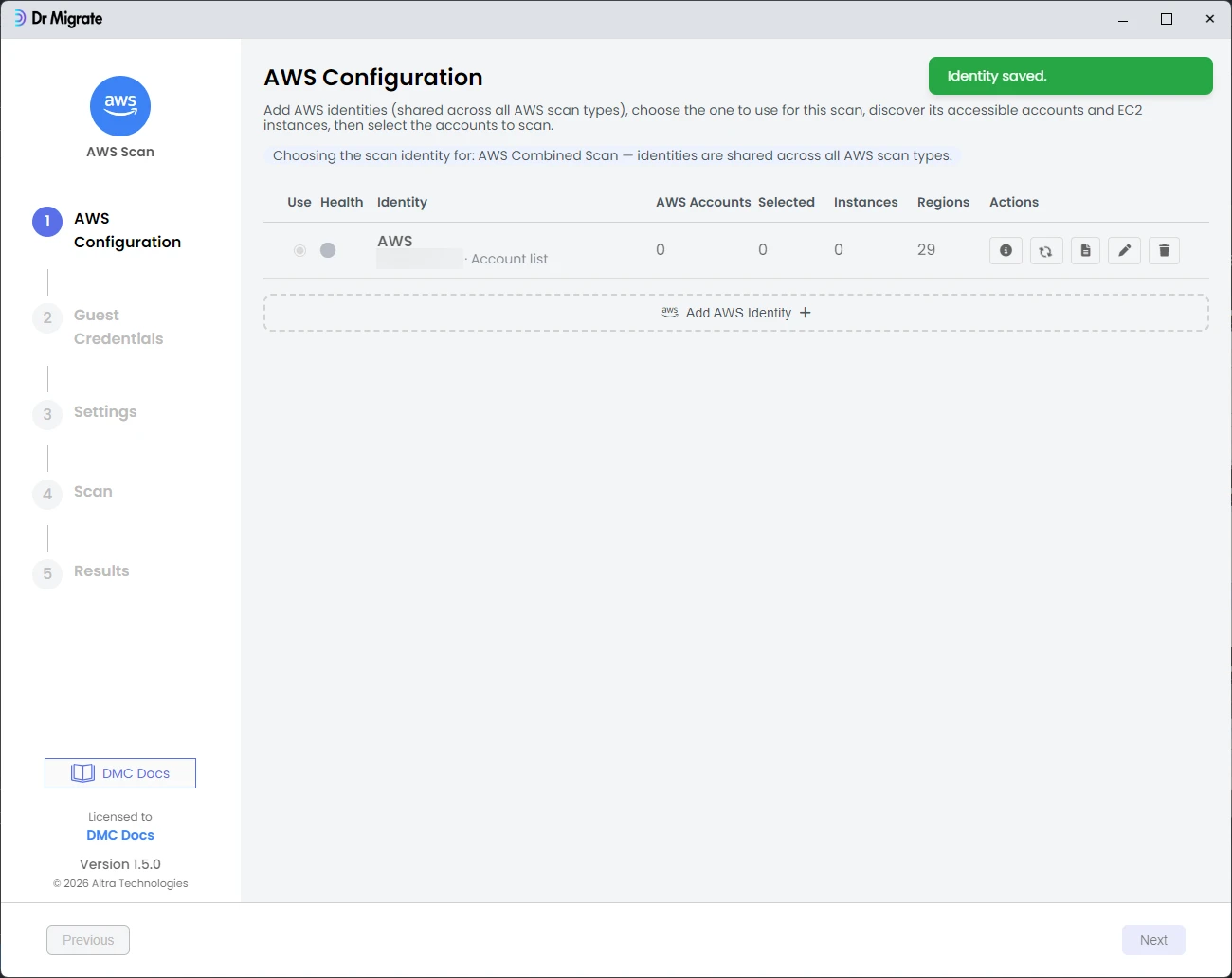
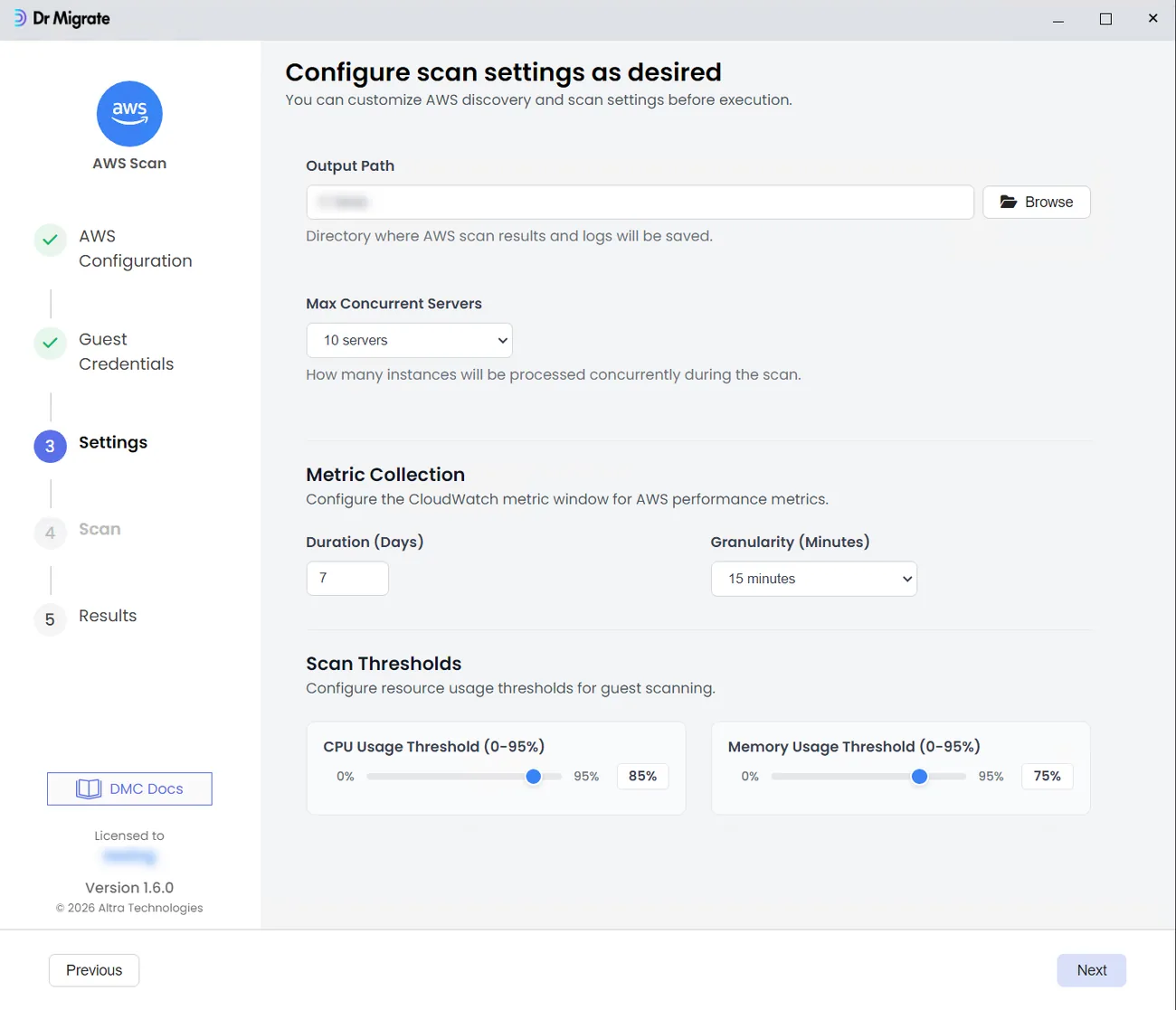
Launch DMC on the collector host, choose EC2 Scan, select your accounts, regions and in-server method, then run. When it finishes, DMC produces a password-protected ZIP of the collected data. Hand that file to your Dr Migrate contact, or import it into Dr Migrate yourself.
Confirm it worked
Before you finish, check these — they catch the most common issues:
- The collector host can reach AWS APIs on port 443
- The collector identity can assume the scan role with no “access denied”
- Your target instances appear (and show as Managed if using SSM)
- A test server returns software and network data — not just the EC2 record
- The export ZIP is created and you have its password
Permissions at a glance
Every IAM action DMC uses for an EC2 scan, and why. All are read-only except ssm:SendCommand (which runs approved discovery commands) and s3:PutObject (which writes scan output to your bucket). DMC never reads S3 object contents, database records or application data.
Collector identity — collector-identity-policy.json
| Action | What it does |
|---|---|
sts:AssumeRole |
Assume the scan role in each target account |
ec2:DescribeRegions |
Discover which regions to scan |
organizations:ListAccounts |
List accounts when scanning an AWS Organization |
s3:GetBucketLocation, s3:ListBucket |
Locate and validate the SSM output bucket |
s3:GetObject |
Read SSM command output from the bucket |
Scan role — scan-role-policy.json
| Action | What it does |
|---|---|
sts:GetCallerIdentity |
Confirm which account the scan is running in |
ec2:DescribeInstances |
Discover EC2 instances and their details |
ec2:DescribeRegions |
Confirm regions in the target account |
ec2:DescribeVolumes |
Discover attached storage volumes |
ec2:DescribeInstanceTypes |
Read instance sizing for right-sizing analysis |
cloudwatch:GetMetricData |
Read CPU, memory and other performance metrics |
ssm:DescribeInstanceInformation |
Check which instances are SSM-managed nodes |
ssm:SendCommand |
Run approved discovery commands inside the servers |
ssm:GetCommandInvocation |
Retrieve the results of those commands |
Scan role trust policy — scan-role-trust-policy.json
| Action | What it does |
|---|---|
sts:AssumeRole |
Allow the collector identity to assume this scan role |
Target EC2 instance profile — ssm-output-writer-policy.json (SSM only)
| Action | What it does |
|---|---|
s3:PutObject |
Write SSM command output to the approved bucket |
s3:GetEncryptionConfiguration |
Check the bucket’s encryption before writing |
Common issues
| Symptom | Fix |
|---|---|
| “AssumeRole denied” | Check the scan role trust policy names the correct collector identity ARN. |
| No regions found | Confirm ec2:DescribeRegions is allowed, or select regions manually. |
| SSM scan fails | Confirm the instance is a Managed node and the output bucket permission (step 4) is attached. |
| Linux/Windows scan returns little data | Use root/sudo (Linux) or a local administrator account (Windows) — see step 5. |