

Unsubscribe from your SaaS Plan
In situations where your activation fails or you have issues with SaaS plan activation, you will need to follow these steps in order to successfully link your subscription to your SaaS plan.
Unsubscribing is immediate and cannot be undone. This is different from Canceling Your License, which keeps your instance active and billable until the end of your current term, with a 30-day data retention window afterward. Only use Unsubscribe to recover from a failed or broken activation.
Navigate to SaaS Subscription Portal
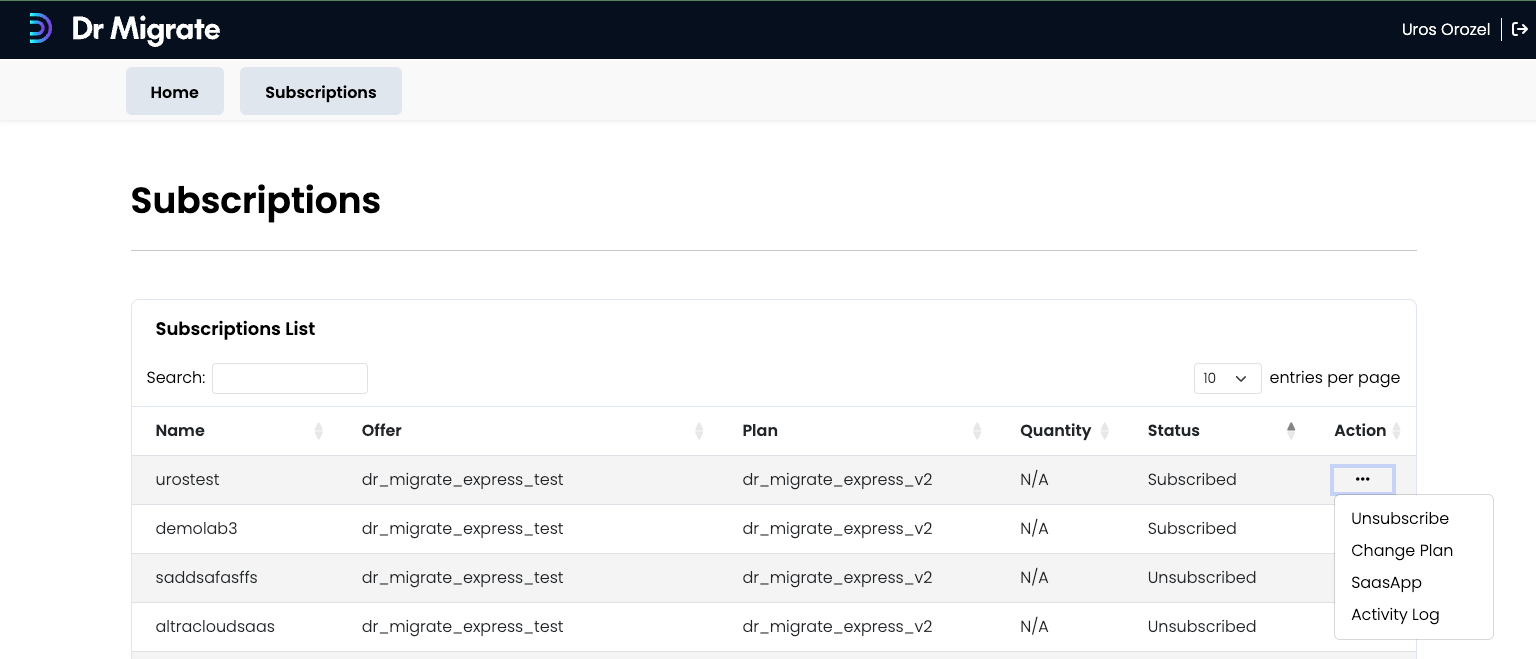
Navigate to the Customer Subscription Portal ↗ and open the Subscriptions tab.
Open the Action ("...") menu on the subscription row you want to unsubscribe from, and select Unsubscribe.
Review Subscription Summary
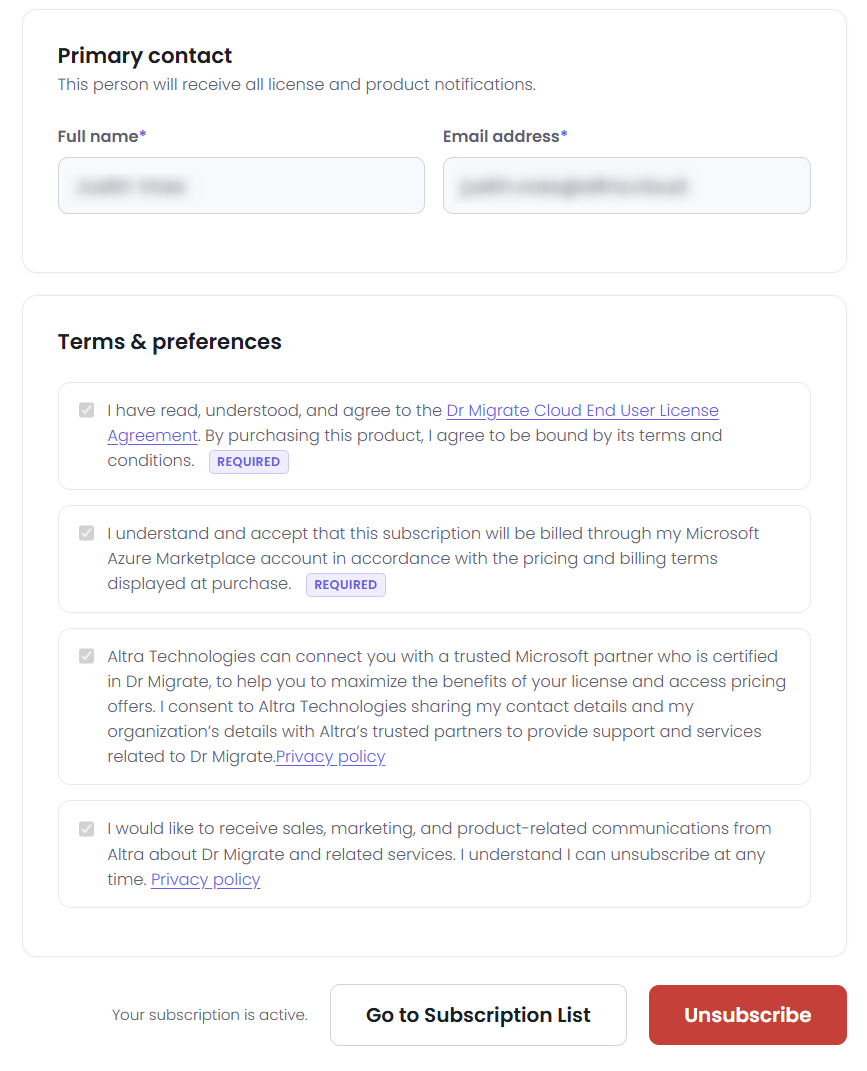
A read-only summary of your subscription configuration opens (Subscription, Offer, Plan, Contract, Subscriber, your original activation situation, primary contact, and terms and preferences). Confirm this is the subscription you intend to unsubscribe, then click Unsubscribe.

Confirm Unsubscription
A final confirmation dialog appears: "Are you sure? You are about to unsubscribe from subscription [Name]. Once you unsubscribe this can't be undone." Click Confirm to proceed, or Cancel to back out.
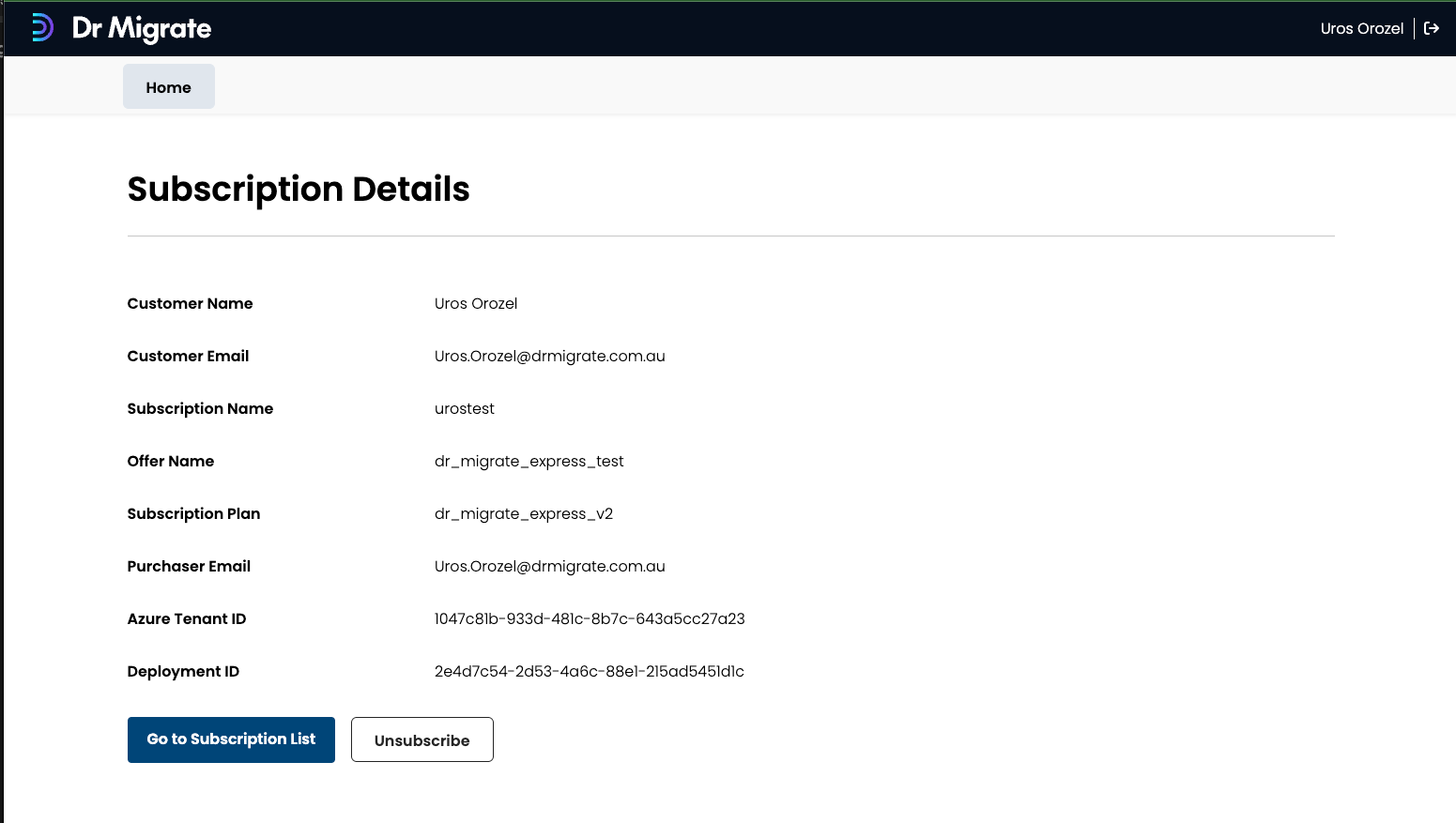
Once confirmed, you are unsubscribed from Dr Migrate SaaS, and your instance is immediately no longer accessible.