

DMC (Dr Migrate Collector)
Access your Dr Migrate instance and select DMC as your data collection source. Download and scan steps are covered in the Data Collection section.
Prerequisites
| Requirement | Learn More | |
|---|---|---|
| Access to your Dr Migrate Customer Hosted instance. | Learn More | |
| Windows-based VM (Jump Box) with required specifications. | Learn More | |
| Network connectivity to target systems. | Learn More | |
| Appropriate credentials for target systems. | Learn More |
For full system, network, and credential requirements, see System and Access Requirements.
Access Your Marketplace Instance
Access to Dr Migrate is provided through the deployed Azure Bastion instance. Connect to the virtual machine via Bastion using the credentials you specified during deployment, or provided to you by an Administrator.
For connection steps, see Connect to a Windows VM using Bastion ↗ on Microsoft Learn.
If you have forgotten your credentials, contact Altra Support.
Log In to Dr Migrate
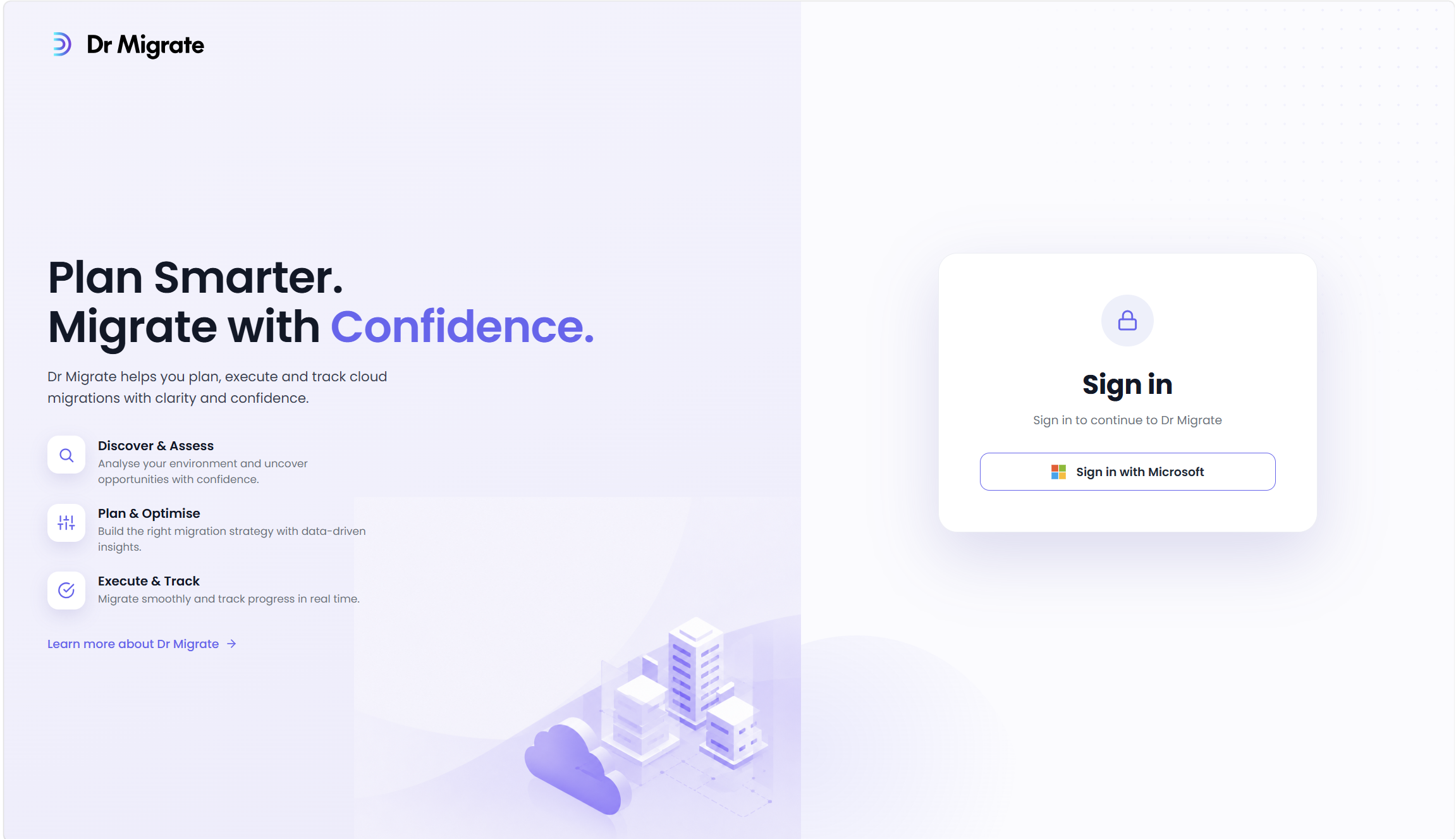
Open the Dr Migrate application via the shortcut on the desktop and log in with the same credentials used for Bastion.
Choose DMC as Your Data Collection Source
When logging in for the first time, you will be prompted to select a data source. Choose DMC.
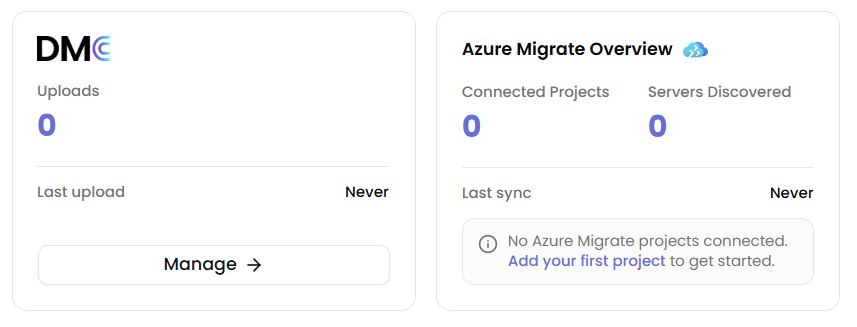
See Selecting DMC as Your Data Source for the full steps.