AWS Estate Discovery
Use this scan to build a complete picture of your AWS estate — every service, account, region and your cost profile — using native AWS APIs. No server credentials are needed. Complete all six steps below.
A collector host that can reach AWS, a read-only scan role in every target account, and AWS Config and Cost Explorer turned on so the scan returns full inventory and cost data.
Before you start — quick checklist
- A machine inside your AWS environment to run DMC
- Permission to create IAM roles and policies in your target accounts
- Ability to enable AWS Config and Cost Explorer
- The list of AWS accounts and regions you want scanned
Setup
Provide a collector host
DMC runs from a machine inside your AWS environment — usually a small EC2 instance or jump box. It runs in memory, installs nothing permanent, and stores no credentials after it closes.
Requirements:
- Windows host you control.
- Outbound HTTPS (port 443) to AWS service endpoints.
Create the collector identity
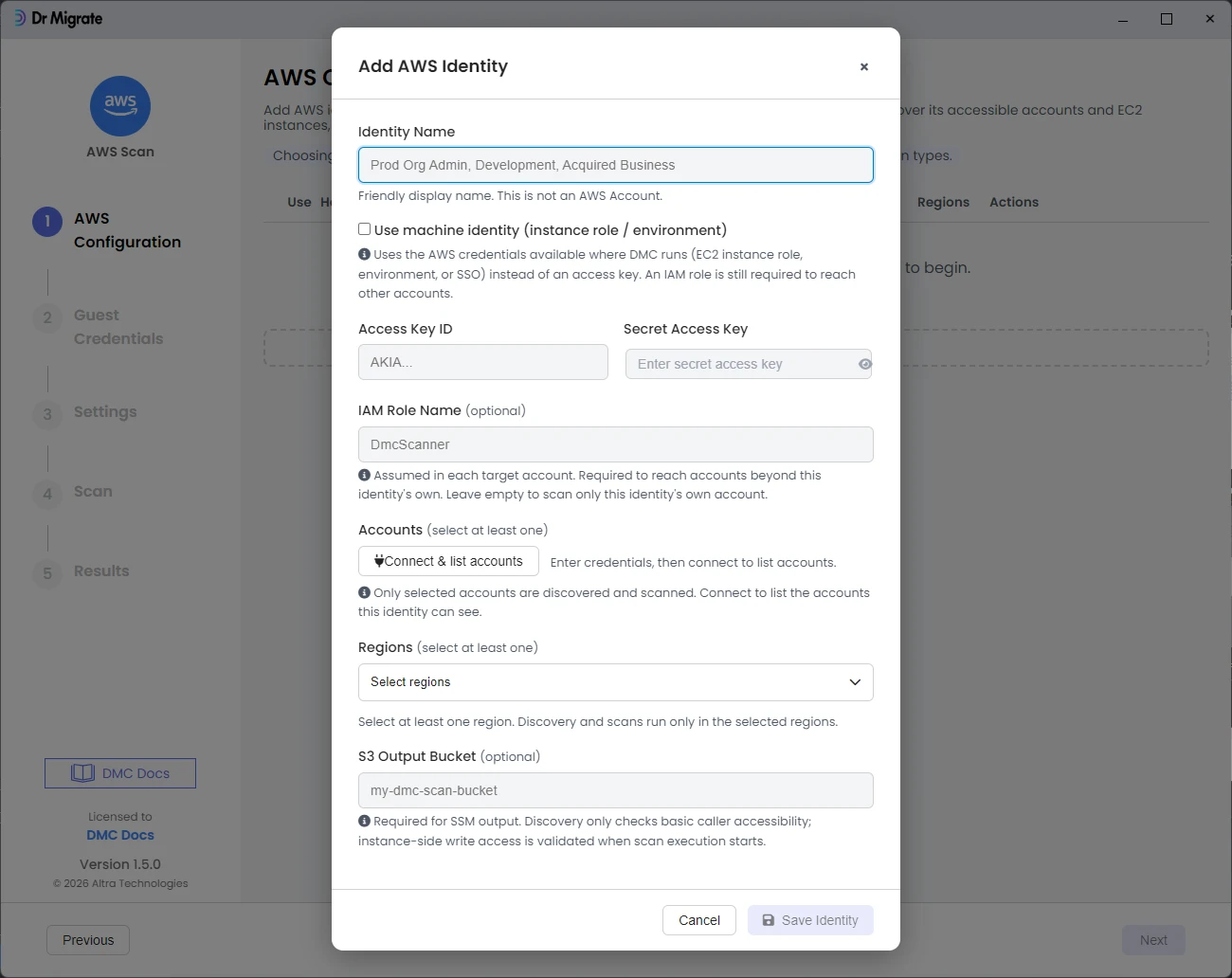
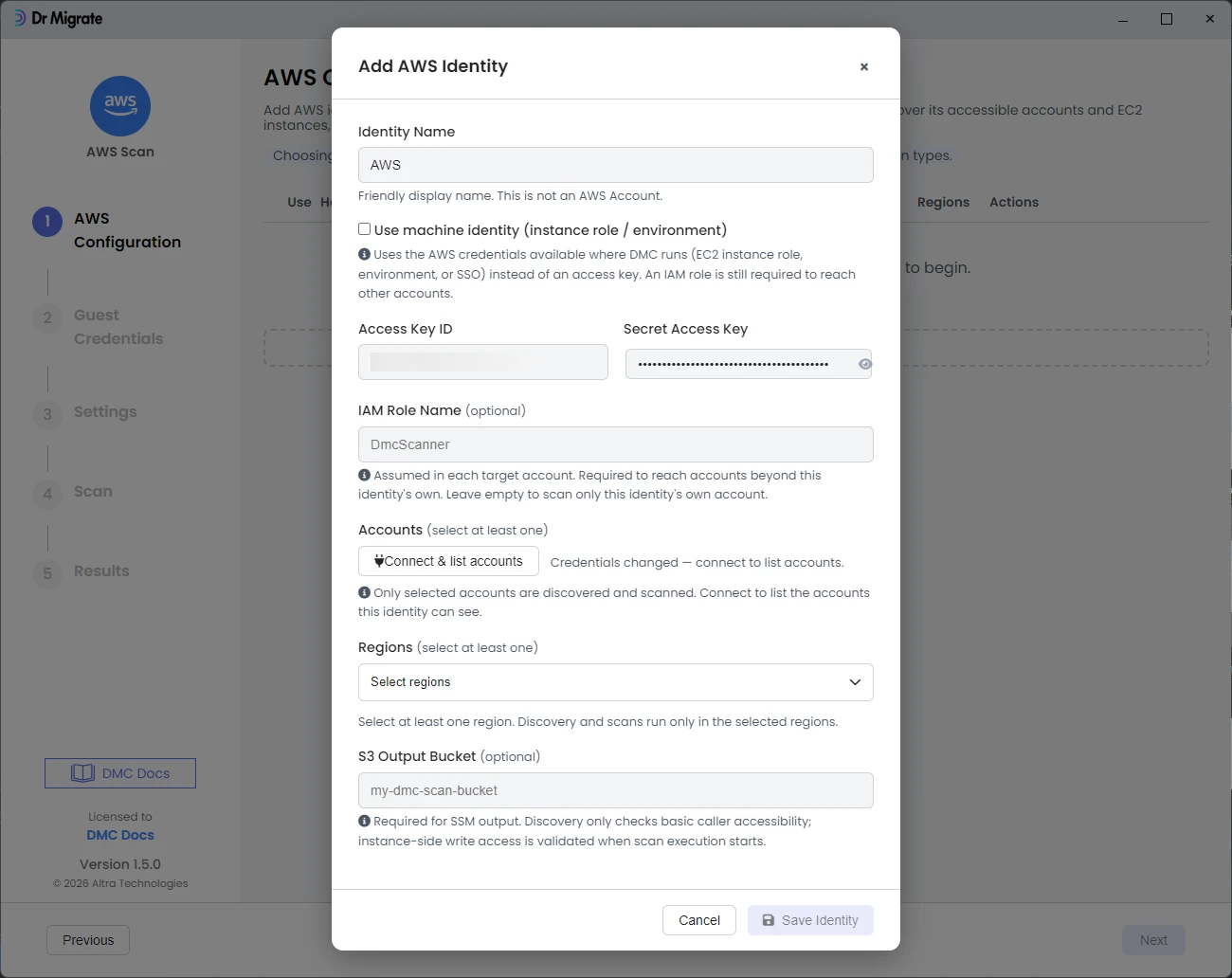
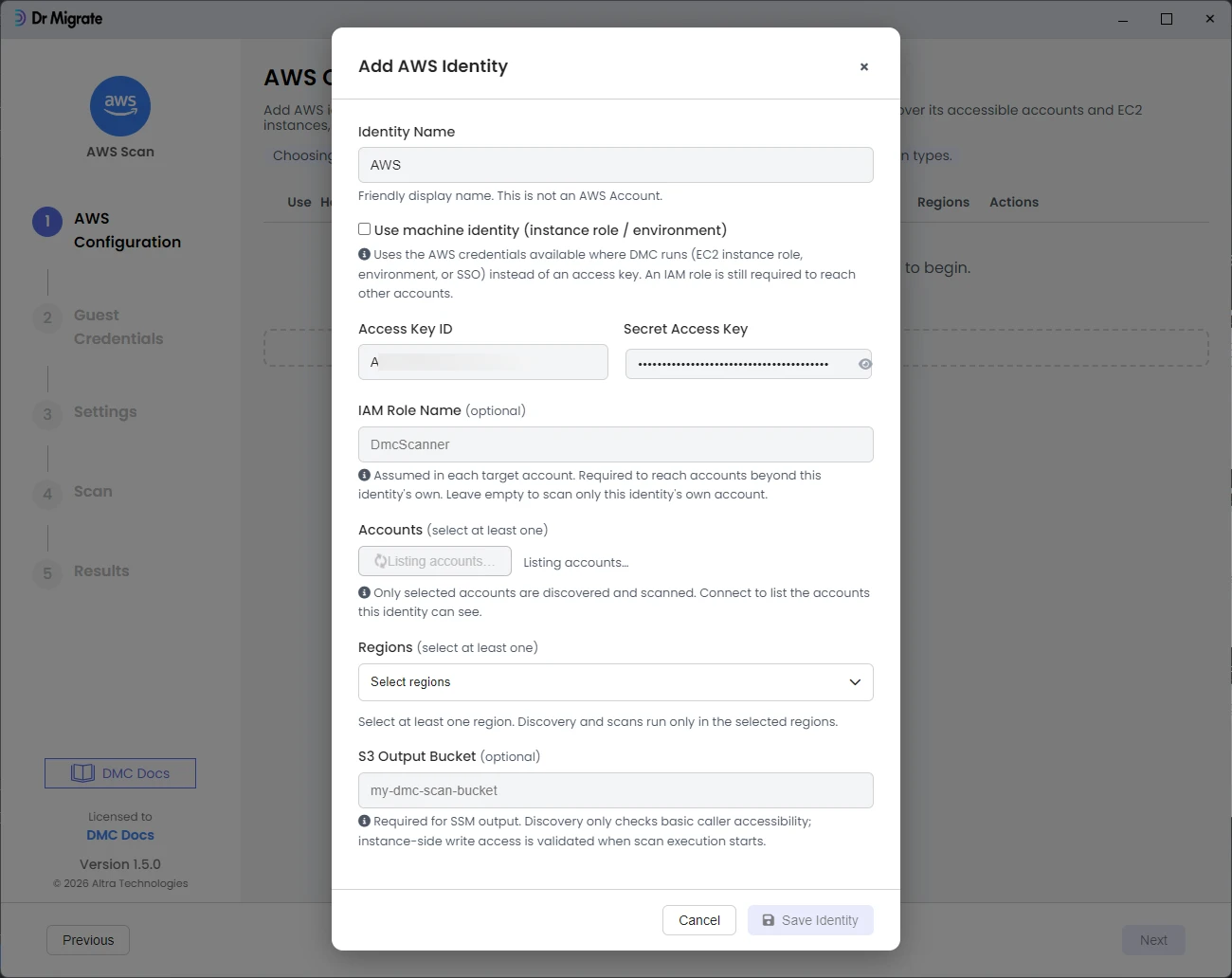
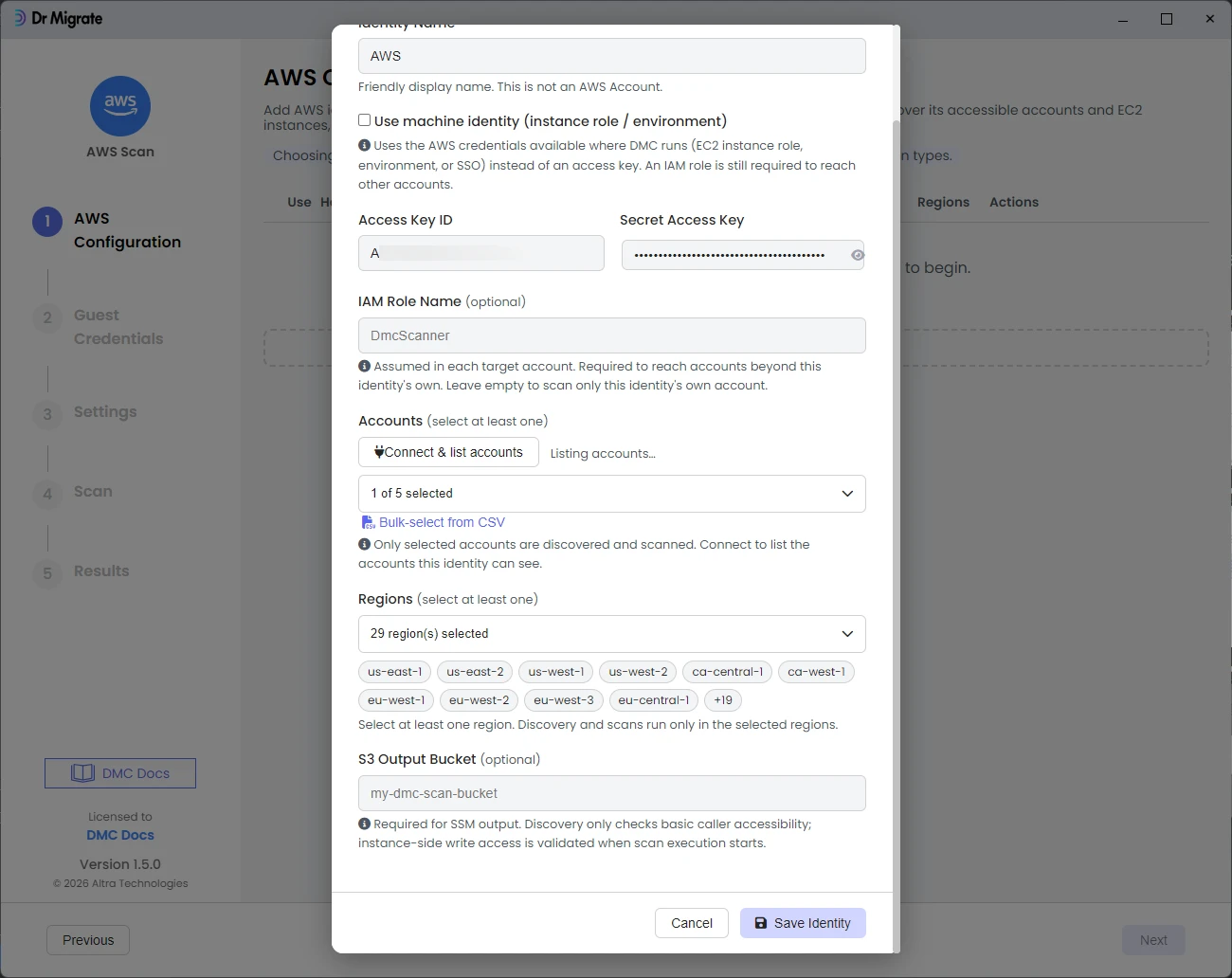
This is the IAM identity DMC uses to start the scan and reach into your target accounts. The simplest approach is an IAM role attached to the collector host (an EC2 instance role). Create it, then attach the policy below.
{
"Version": "2012-10-17",
"Statement": [
{ "Sid": "AssumeScanRoleInTargetAccounts", "Effect": "Allow",
"Action": "sts:AssumeRole",
"Resource": "arn:aws:iam::*:role/<SCAN_ROLE_NAME>" },
{ "Sid": "ResolveRegionsForDiscovery", "Effect": "Allow",
"Action": "ec2:DescribeRegions", "Resource": "*" },
{ "Sid": "ListOrganizationAccounts", "Effect": "Allow",
"Action": "organizations:ListAccounts", "Resource": "*" }
]
}Replace <SCAN_ROLE_NAME> with the name you’ll use in step 3.
Create a scan role in each target account
In every AWS account you want to scan, create an IAM role with the same name (the one from step 2). This role gives DMC read-only access to inventory your resources, RDS and S3, AWS Config records, and Cost Explorer. Attach the permissions policy and the trust policy below.
Permissions policy:
{
"Version": "2012-10-17",
"Statement": [
{ "Sid": "ValidateCallerIdentity", "Effect": "Allow",
"Action": "sts:GetCallerIdentity", "Resource": "*" },
{ "Sid": "DiscoverEc2", "Effect": "Allow",
"Action": ["ec2:DescribeInstances","ec2:DescribeRegions",
"ec2:DescribeVolumes","ec2:DescribeInstanceTypes"],
"Resource": "*" },
{ "Sid": "ReadCloudWatchMetrics", "Effect": "Allow",
"Action": "cloudwatch:GetMetricData", "Resource": "*" },
{ "Sid": "ListS3Buckets", "Effect": "Allow",
"Action": "s3:ListAllMyBuckets", "Resource": "*" },
{ "Sid": "InspectS3BucketConfiguration", "Effect": "Allow",
"Action": ["s3:GetBucketLocation","s3:GetBucketVersioning",
"s3:GetLifecycleConfiguration","s3:GetEncryptionConfiguration",
"s3:GetReplicationConfiguration","s3:GetBucketPublicAccessBlock",
"s3:GetBucketObjectLockConfiguration","s3:GetBucketNotification",
"s3:GetBucketTagging","s3:GetMetricsConfiguration",
"s3:GetBucketWebsite","s3:GetBucketCORS"],
"Resource": "arn:aws:s3:::*" },
{ "Sid": "DiscoverRds", "Effect": "Allow",
"Action": ["rds:DescribeDBInstances","rds:DescribeDBClusters",
"rds:ListTagsForResource"], "Resource": "*" },
{ "Sid": "ReadAwsConfigInventory", "Effect": "Allow",
"Action": ["config:DescribeConfigurationRecorders",
"config:DescribeConfigurationRecorderStatus",
"config:SelectResourceConfig",
"config:DescribeConfigurationAggregators",
"config:SelectAggregateResourceConfig"], "Resource": "*" },
{ "Sid": "ReadCostExplorer", "Effect": "Allow",
"Action": ["ce:GetCostAndUsage","ce:GetCostAndUsageWithResources",
"ce:GetDimensionValues"], "Resource": "*" }
]
}Trust policy (lets the collector identity assume this role):
{
"Version": "2012-10-17",
"Statement": [
{ "Sid": "TrustDmcCollectorPrincipal", "Effect": "Allow",
"Principal": { "AWS": "<COLLECTOR_PRINCIPAL_ARN>" },
"Action": "sts:AssumeRole" }
]
}Replace <COLLECTOR_PRINCIPAL_ARN> with the ARN of your collector identity from step 2.
You can give the collector identity the scan-role permissions directly and skip the assume-role step. For two or more accounts, use a scan role in each.
Turn on AWS Config
AWS Config gives DMC the full inventory of supported resource types across your estate — the backbone of estate discovery. Enable Config in each target account (or use an existing organization-wide aggregator) and confirm it is recording.
This covers compute, containers, storage, databases, networking and more — for example EC2, Lambda, ECS/EKS, EBS, S3, RDS, DynamoDB, VPCs, load balancers and CloudFront.
Without Config recording, estate discovery returns only the resources reachable through direct APIs and your inventory will have gaps. Enable it before you scan.
Turn on Cost Explorer
Cost Explorer provides your spend and usage by account, service and region — the cost profile that makes estate discovery useful for planning and prioritisation. Enable Cost Explorer and confirm it has finished its first data refresh.
- For a single account, enable it in that account.
- For multiple accounts, enable it in the management/payer account for a consolidated view.
Open the port, run the scan, and confirm
Estate discovery only needs one outbound path:
| From | To | Port |
|---|---|---|
| Collector | AWS service APIs | TCP 443 |
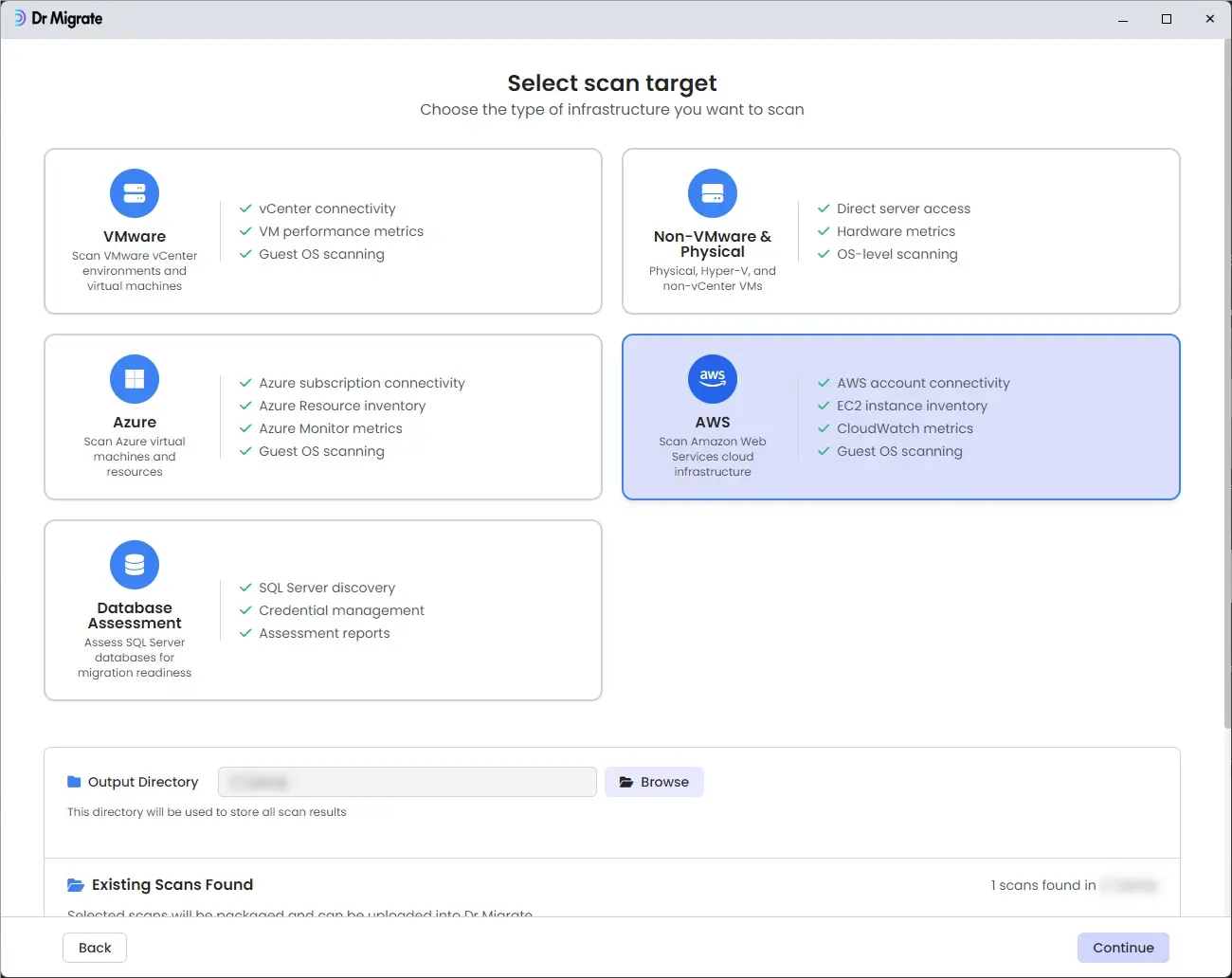
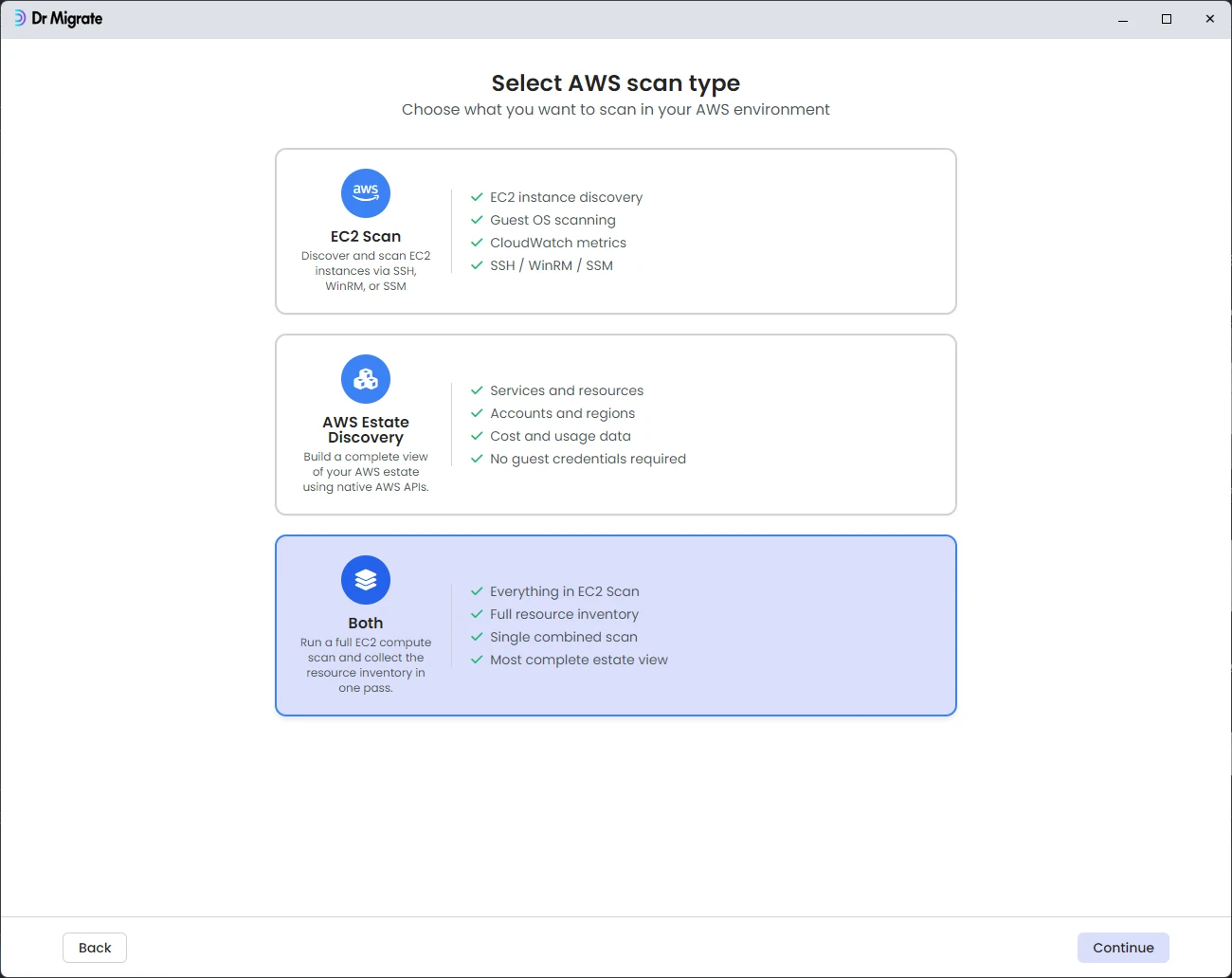
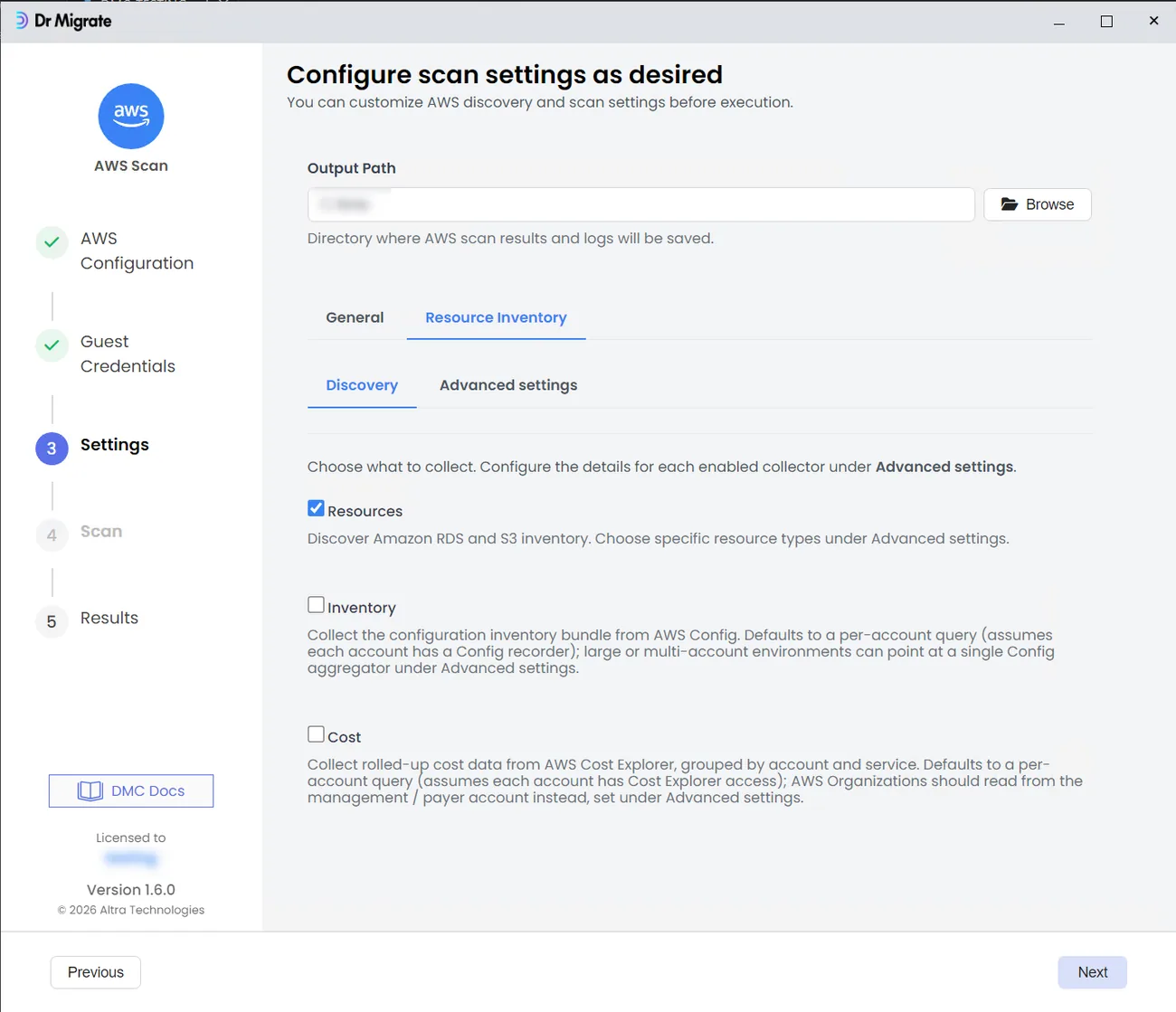
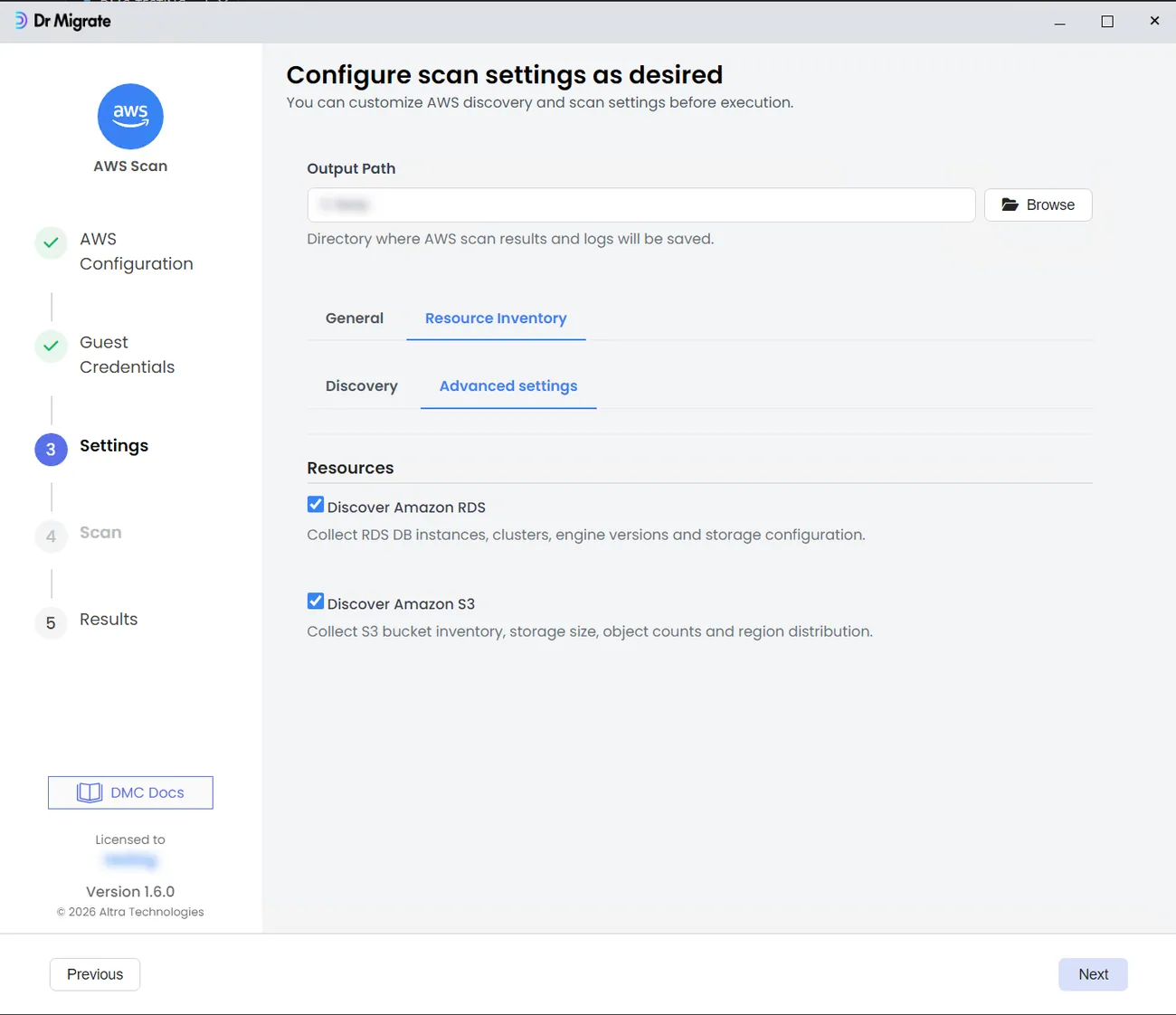
Launch DMC on the collector host, choose AWS Estate Discovery, select your accounts and regions, then run. DMC produces a password-protected ZIP — hand it to your Dr Migrate contact or import it yourself.
Before you finish, confirm:
- The collector host can reach AWS APIs on port 443
- The collector identity can assume the scan role with no “access denied”
- AWS Config returns resources (not empty)
- Cost Explorer returns cost data for the selected accounts
- The export ZIP is created and you have its password
Permissions at a glance
Every IAM action DMC uses for estate discovery, and why. All actions are read-only — DMC reads configuration, inventory, metrics and cost data only. It never reads S3 object contents, database records or application data.
Collector identity — collector-identity-policy.json
| Action | What it does |
|---|---|
sts:AssumeRole |
Assume the scan role in each target account |
ec2:DescribeRegions |
Discover which regions to scan |
organizations:ListAccounts |
List accounts when scanning an AWS Organization |
Scan role — scan-role-policy.json
| Action | What it does |
|---|---|
sts:GetCallerIdentity |
Confirm which account the scan is running in |
ec2:DescribeInstances |
Discover EC2 instances and their details |
ec2:DescribeRegions |
Confirm regions in the target account |
ec2:DescribeVolumes |
Discover attached storage volumes |
ec2:DescribeInstanceTypes |
Read instance sizing for right-sizing analysis |
cloudwatch:GetMetricData |
Read performance and storage metrics |
s3:ListAllMyBuckets |
List S3 buckets in the account |
s3:GetBucket* / configuration reads |
Read bucket settings — encryption, versioning, lifecycle, public access, replication, tags and more |
rds:DescribeDBInstances, rds:DescribeDBClusters |
Discover RDS databases and clusters |
rds:ListTagsForResource |
Read RDS tags for ownership and cost attribution |
config:Describe*, config:Select* |
Read the AWS Config resource inventory across the estate |
ce:GetCostAndUsage, ce:GetCostAndUsageWithResources, ce:GetDimensionValues |
Read Cost Explorer spend and usage data |
Scan role trust policy — scan-role-trust-policy.json
| Action | What it does |
|---|---|
sts:AssumeRole |
Allow the collector identity to assume this scan role |
Common issues
| Symptom | Fix |
|---|---|
| “AssumeRole denied” | Check the scan role trust policy names the correct collector identity ARN. |
| AWS Config inventory empty | Confirm Config is enabled and recording the resource types you expect (step 4). |
| Cost Explorer returns no data | Confirm it’s enabled, the billing scope is correct, and the first refresh has completed (step 5). |
| No regions found | Confirm ec2:DescribeRegions is allowed, or select regions manually. |