

SaaS Plan Setup
Prerequisites
Ensure you login to Azure using an account within your Tenant that has appropriate permissions to deploy and configure resources as per this article. https://learn.microsoft.com/en-us/marketplace/purchase-saas-offer-in-azure-portal ↗
Azure Portal Configuration
Navigate to Azure Marketplace
Log in to the Azure Marketplace portal ↗.
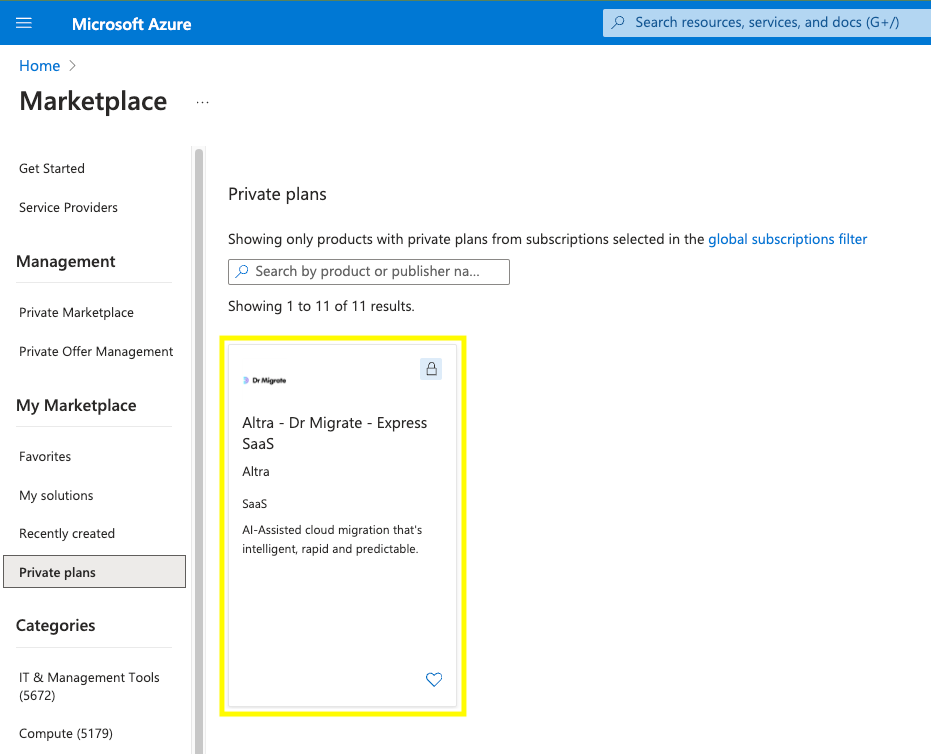
From the Azure Marketplace, search for Altra - Dr Migrate - Express SaaS, or use this link to go directly to the plan: Subscribe to Dr Migrate SaaS ↗.
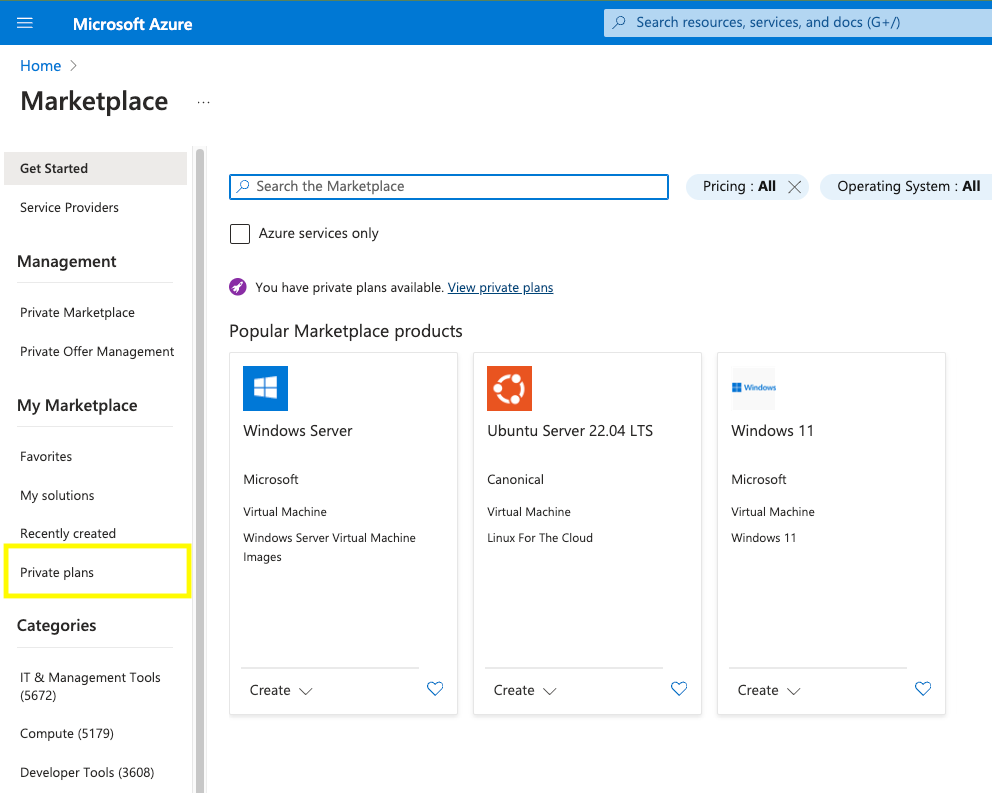
Can't find the Dr Migrate - Express SaaS plan?
If your Azure environment is managed under the Cloud Solution Provider (CSP) program, and you cannot locate the Altra - Dr Migrate - Express SaaS plan in the Azure Marketplace, you may need to contact your Cloud Solution Provider (CSP) to enable it. View troubleshooting steps for more information.
Complete Project Details
To activate your Dr Migrate license, you'll need to complete the Project details section in the Azure Marketplace form. This tells Azure where to deploy the required resource and enables your license.
Required Fields:
- Select a Subscription: Determines where usage and billing (if applicable) are recorded
- Choose or Create a Resource Group
- This container manages your Dr Migrate SaaS subscription resource
- You may create a new one if needed
A Dr Migrate SaaS subscription resource will be created in your Azure environment. This is a lightweight placeholder that links your Azure subscription to the Dr Migrate SaaS platform and enables license activation.
Pricing Tiers
You'll be billed according to the highest number of unique servers (virtual and physical) discovered and/or processed by Dr Migrate during the order period. Each server is counted once regardless of operating system, location, power state or hosting model. The nominal price shown against the plan on the Marketplace listing is a placeholder only - the actual amount charged reflects your applicable tier, or pricing agreed with Altra Technologies prior to transaction. Tier bands apply identically to Monthly and Annual plans.
| Tier | Servers |
|---|---|
| X-Small | 0-149 |
| Small | 150-499 |
| Medium | 500-1,199 |
| Large | 1,200-2,999 |
| X-Large | 3,000-5,999 |
| XX-Large | 6,000+ |
Hibernate Monthly follows the same tier bands at a reduced rate.
Custom Pricing is reserved for pre-agreed bespoke pricing, one-off arrangements and billing corrections. It isn't available for general purchase and carries no standard entitlement or tier.
For current rates at each tier, refer to the Pricing Tiers section on the Marketplace listing or your License Information page - do not rely on figures in this article, as pricing can change independently of this documentation.
-
SaaS Details: Enter any name for your resource (any name is fine)
-
Set Auto-renew to ON - if this is not enabled, the plan will expire after 30 days and you will need to repeat the activation process.
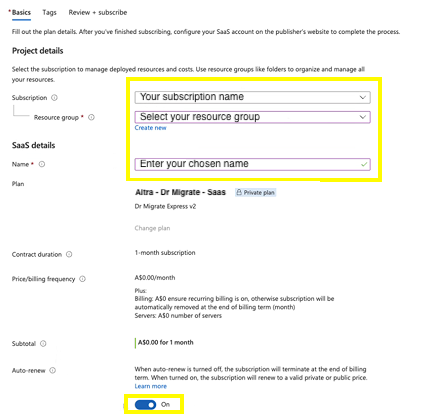
The Tags tab between Basics and Review + subscribe is optional - you can leave it blank and continue.
Click Review and Subscribe
Confirm Details
On the Review + subscribe tab, complete the Contact details section (Name, Email address, Primary phone number) alongside reviewing your plan and pricing summary. Click Subscribe.
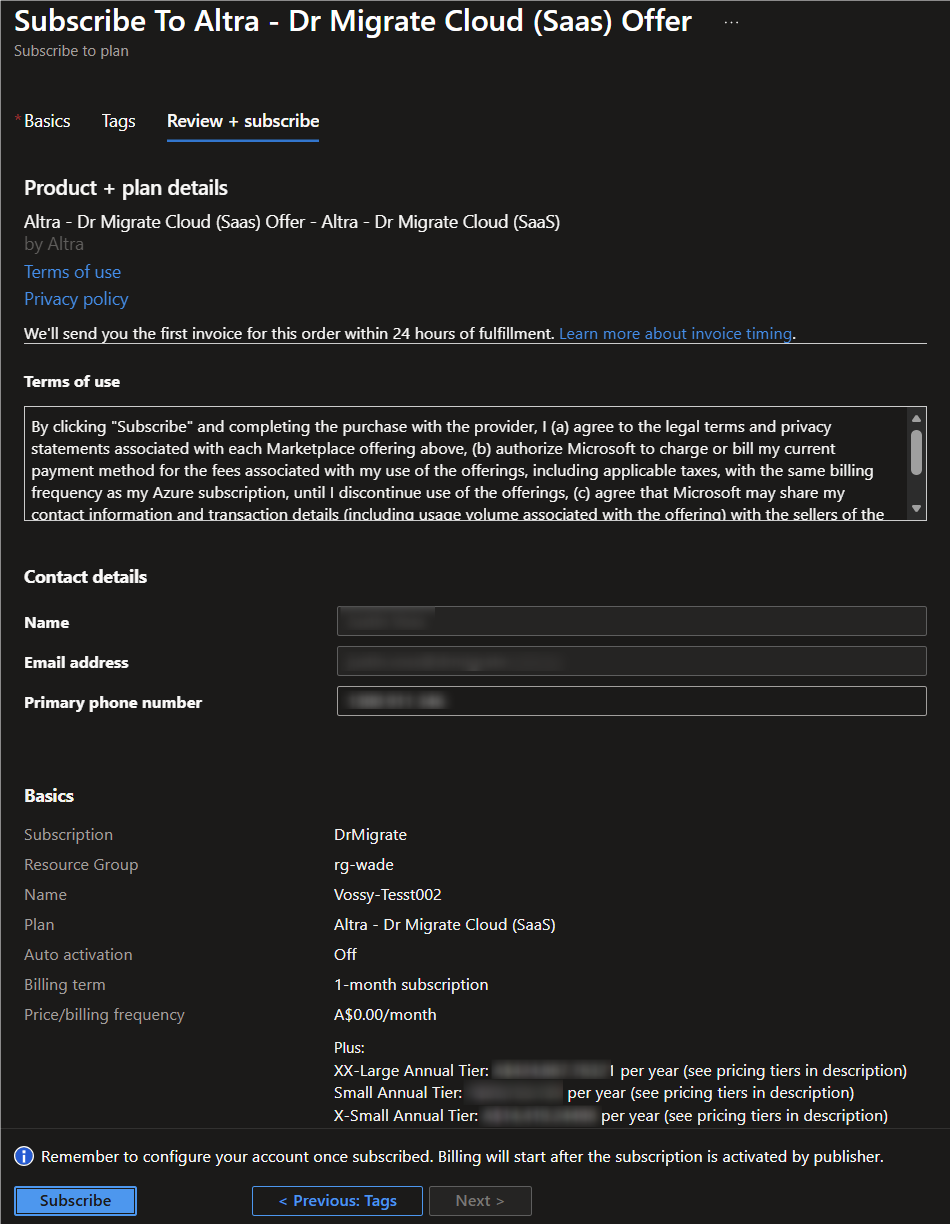
After clicking Subscribe, your purchase isn't complete yet. Billing starts only after you configure your account (next section). If no action is taken within 30 days, the SaaS subscription is automatically deleted - this is separate from the Auto-renew requirement above.
Configure Account
Configure Account
Click on Configure account now.
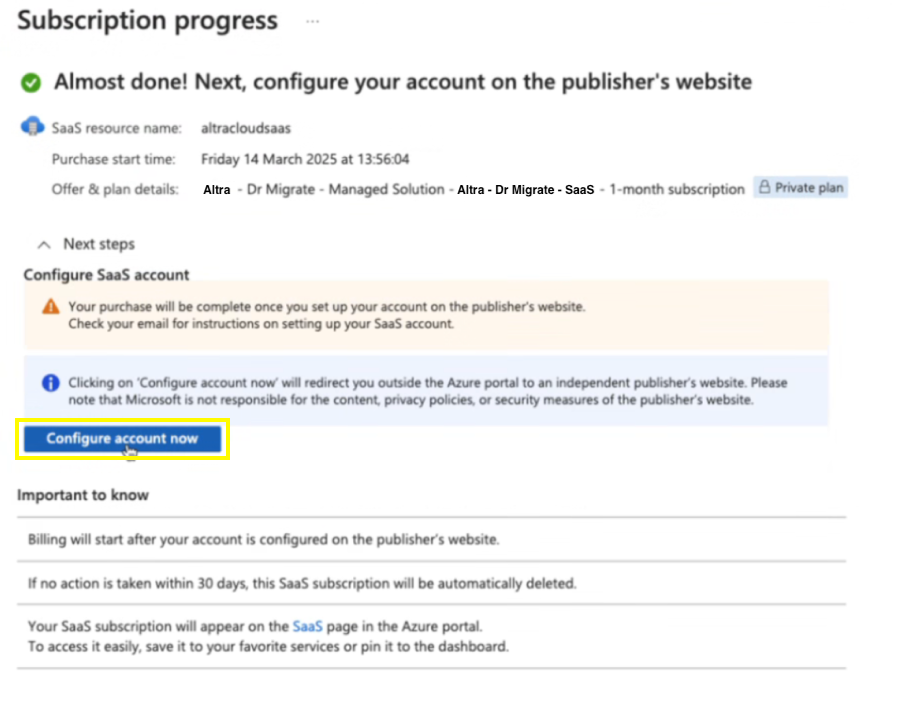
Unable to click "Configure account now?
Expand to see troubleshooting tips
If you aren't able to click on Configure account now after the subscription has processed, please ensure all the below criteria is met and, and ensure all sections in Step 3 are complete.
- Check the permissions to the subscription and resource group you have selected on the Purchase your SaaS in the Azure Portal ↗ page under the requirements section.
- Ensure you are set as Contributor on the resource group.
- Start a new session by navigating through this link to the Azure Portal and repeat this work instruction.
If you are still experiencing issues, still need help? Reach out to us on our Support page and we’ll get you sorted.
If the "Configure account now" button remains unavailable after subscription processing:
- Verify Completion: Confirm every section in Step 4 - Complete Project Details are correct and complete.
- Check Permissions: Refer to Purchase your SaaS in the Azure Portal ↗ under the requirements section and check your permissions for the subscription and resource group
- Required Role: You must have Contributor access on the resource group
- Refresh Session
- Start a new session by accessing Azure Marketplace ↗
- Repeat this work instruction
Some organizations require admin approval for new apps. In that case:
- Ask a Tenant Admin to approve the enterprise app "DRM SAS app multi-tenant".
- Path: Microsoft Entra admin center → Enterprise applications → Admin consent requests (or All applications, then open the app and grant consent).
- After approval, return to this page and click Configure account now again.
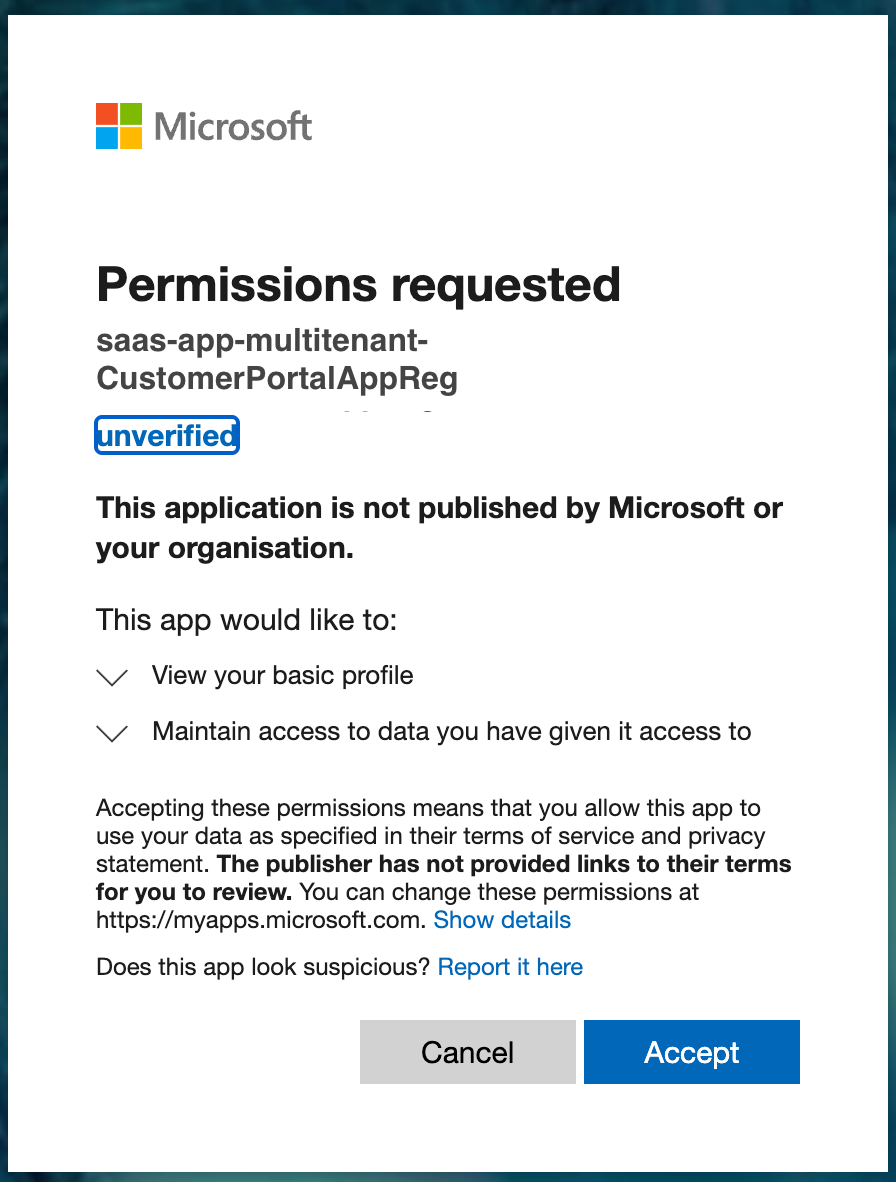
What is being requested? Delegated permissions for basic profile + maintain access.
Still Having Issues? Contact our Support team for assistance.
Complete Microsoft Authorization
Log in using your Microsoft account credentials. Click 'Accept' on the pop-up authorization box to proceed.
Setup Instance
Configure Your Subscription
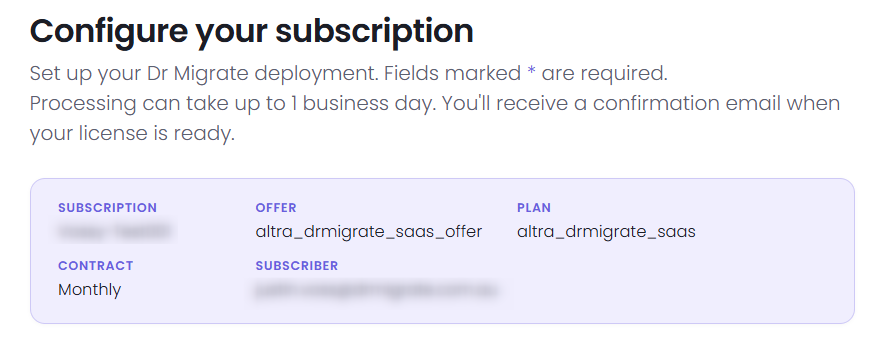
You'll be automatically redirected to the Dr Migrate Customer Subscription Portal ↗ to complete a Configure your subscription form. Processing can take up to 1 business day - you'll receive a confirmation email when your license is ready.
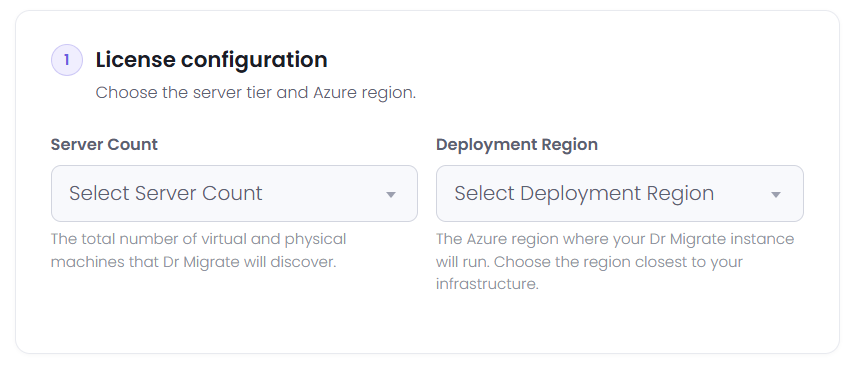
License configuration - Choose your Server Count range and Deployment Region (the Azure region where your Dr Migrate instance will run).
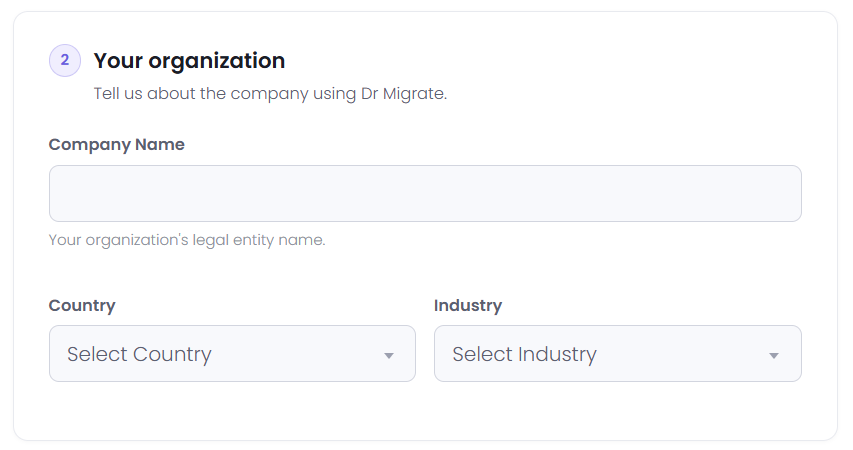
Your organization - Enter your Company Name, Country and Industry.
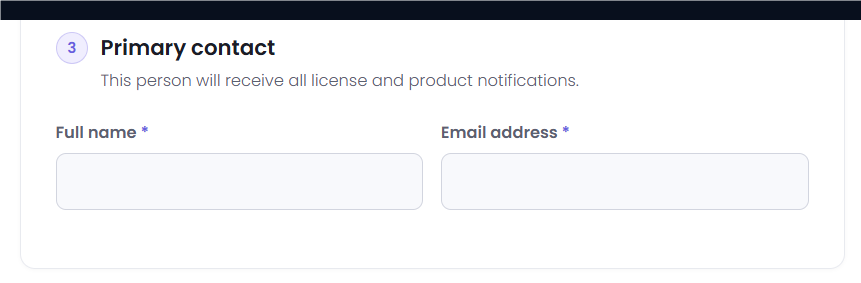
Primary contact - Enter the Full name and Email address of the person who will receive all license and product notifications.
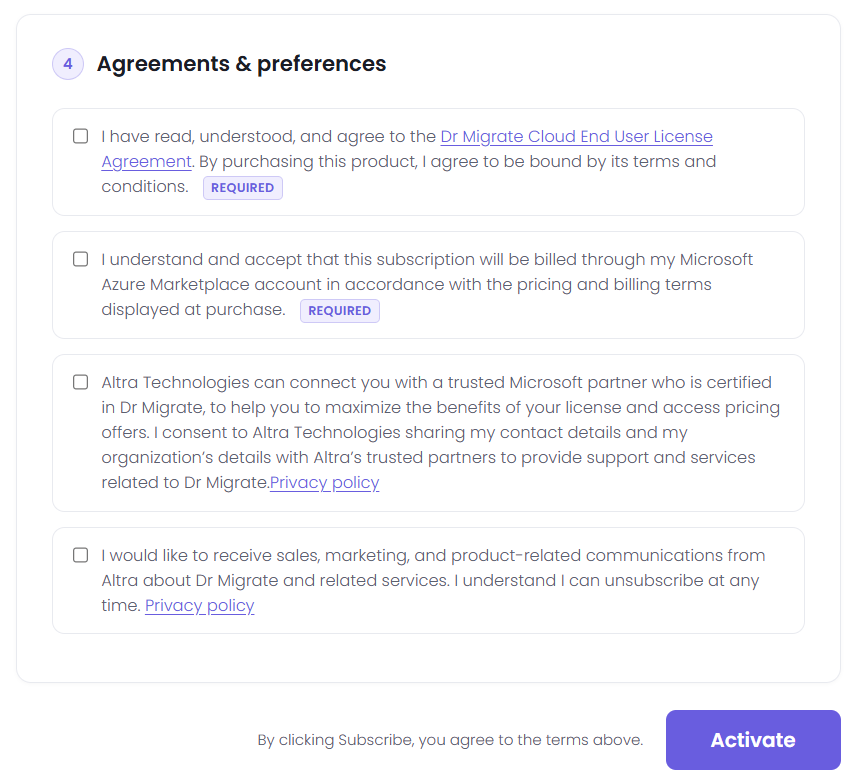
Agreements & preferences - Agree to the Dr Migrate Cloud End User License Agreement and acknowledge Azure Marketplace billing (both required). Optionally, consent to being connected with a trusted Altra partner, and opt in to marketing communications. Click Activate to submit.
Manage Your Subscription
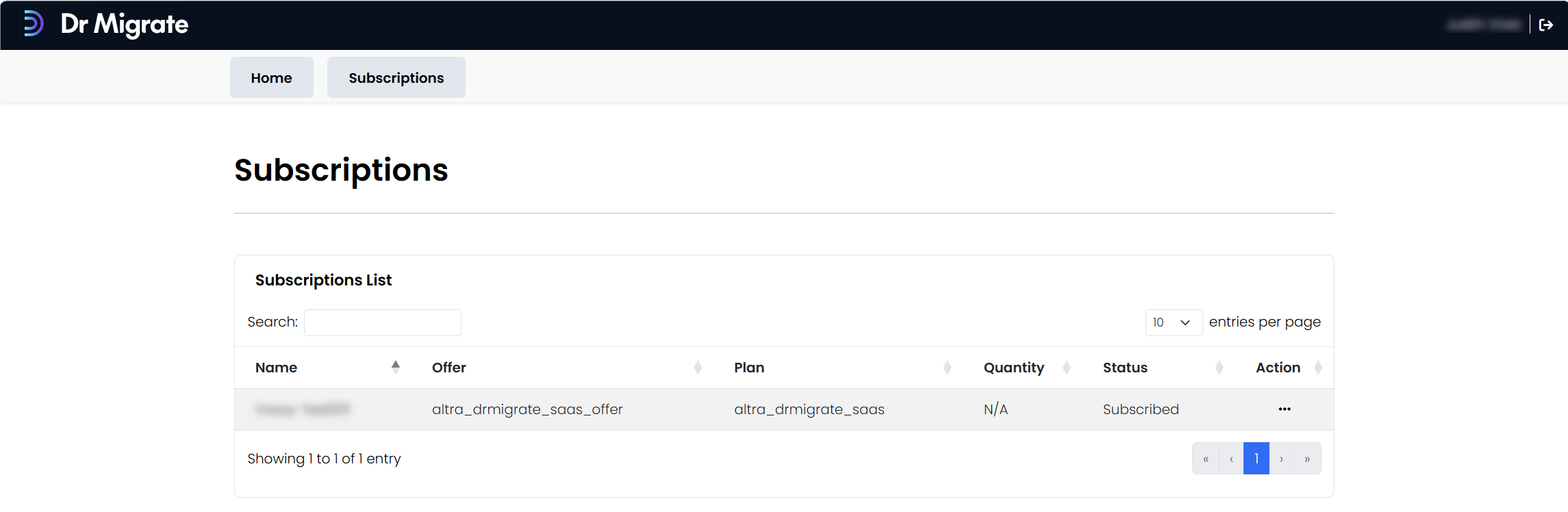
The Subscriptions tab in the Dr Migrate Customer Subscription Portal lists all your subscriptions (Name, Offer, Plan, Quantity, Status) and gives you access to further actions from there at any time.
Return to the Dr Migrate Portal ↗ - your subscription will be activated within 1 business day. If you don't receive a confirmation email or run into issues, contact admin@altra.cloud.