

Technology Domains
The Technologies tab answers two questions: what is the customer running, and what can they modernise? It works without any setup (no need to map workloads first) because it runs on Dr Migrate's signature mapping. That makes it one of the first places worth exploring right after discovery.
Because signature mapping does the heavy lifting, Technologies is reliable from day one, making it a strong way to validate that discovery saw the software you expected.
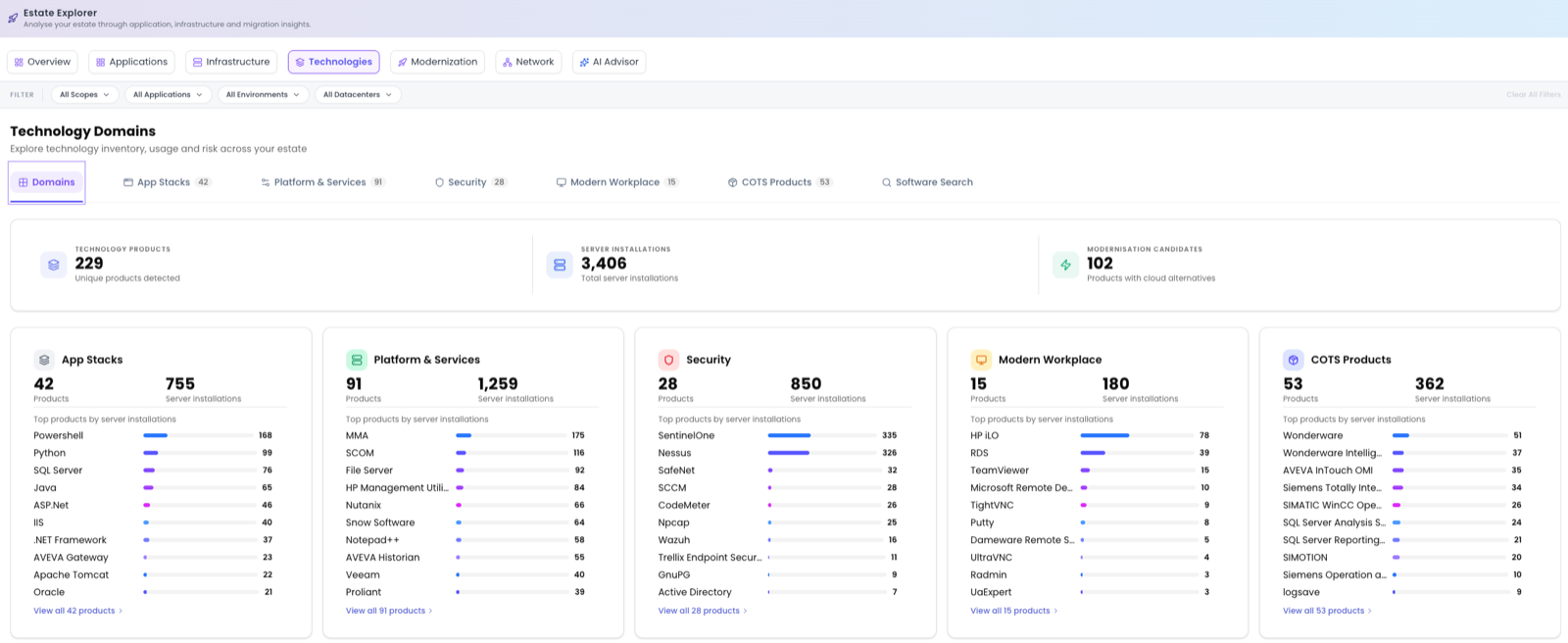
Tabs and summary tiles
Technologies is organised into tabs: Domains, App Stacks, Platform & Services, Security, Modern Workplace, COTS Products and Software Search. Across the top, summary tiles count Technology Products, Server Installations and Modernisation Candidates, so you can see the scale of the inventory and how much of it has a forward path.
Domains
The Domains view groups the estate's technology into broad areas and shows each domain's top products by server installations, the quickest way to see what dominates the estate. From here you drill in two steps: first pick a domain, then pick a technology within it.
Drilling down
Choosing a domain (for example App Stacks) opens its categories: Databases, Runtimes, Middleware, Web Servers and Containers. Pick a technology within a category (say SQL) for the detailed analysis: how many servers run it, which versions are present, their support status and the modernisation pathways available for that technology (the Azure targets it could move to).
SQL Server versions show as the release year (for example SQL Server 2014) for every edition, including Express and Developer. When the release year is unknown, the version shows as the edition name instead (for example SQL Server Standard). When neither is known, the version shows as SQL Server. Running a DB-MSSQL scan on the server records both.
A server that runs more than one SQL Server edition is listed under each edition, with the newest release year found for that edition. A server with a Standard 2019 instance and an Express 2017 instance appears under SQL Server Standard with version SQL Server 2019 and under SQL Server Express with version SQL Server 2017. Each listing has its own support status and modernisation target. On Azure, SQL Server Express defaults to Azure SQL and the other editions default to SQL Managed Instance.
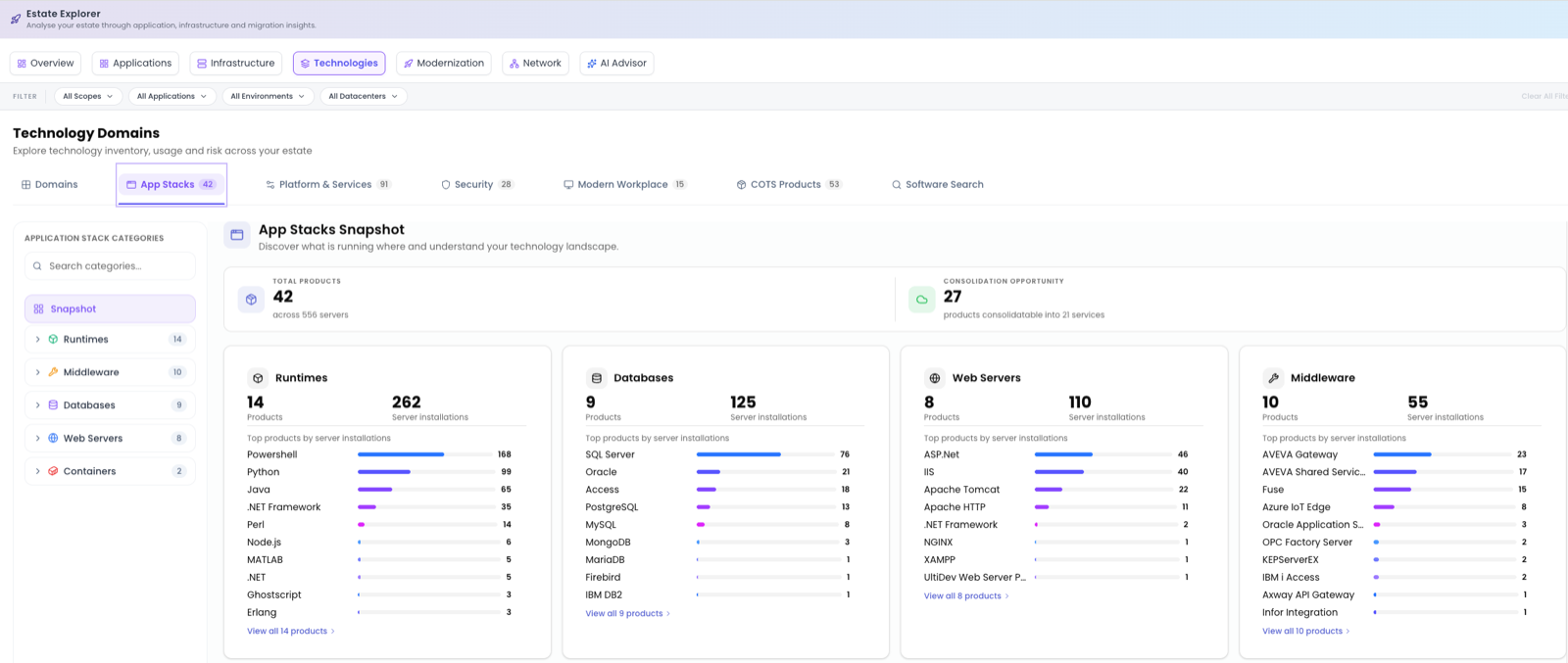
Lenses on the detail view
On the technology detail view, switch perspective with lenses:
- By server: every server running this technology.
- By application: which applications depend on it.
- By treatment: how those servers are currently being treated, so you can spot inconsistencies before planning.
Software Search
When you need to find a specific technology across the whole estate, for a licensing question, a security advisory or a vendor end-of-life, use Software Search. It returns a table you can Export, with these columns:
| Column | What it shows |
|---|---|
| Category | The technology category. |
| Package | The software package name. |
| Description | What it is. |
| Version | The version installed. |
| Provider | The vendor. |
| Related COTS App | The COTS product it belongs to, if any. |
| Total Servers | How many servers it's installed on. |
Where to go next
When you've seen what's running and where it can go, the Modernization tab prioritises those opportunities and assesses cloud readiness for Servers, SQL, Java and .NET.