

AI Advisor
The AI Advisor is an intelligent AI agent that helps you better understand your infrastructure and make faster, more informed cloud migration decisions. By combining the detailed assessment data collected by Dr Migrate with advanced AI analysis, AI Advisor transforms complex technical information into clear insights, explanations, and actionable recommendations.
AI Advisor allows you to interact with your assessment data in a more intuitive and conversational way. Instead of manually reviewing reports or dashboards, you can ask questions about your infrastructure and receive clear, contextual responses. This makes it easier to explore large environments, understand the reasoning behind recommendations, and quickly identify opportunities for optimisation or risk reduction.
AI Advisor surfaces key findings automatically and guides you to the insights that matter most, so you spend less time on manual analysis and more on decisions and planning.
How it works
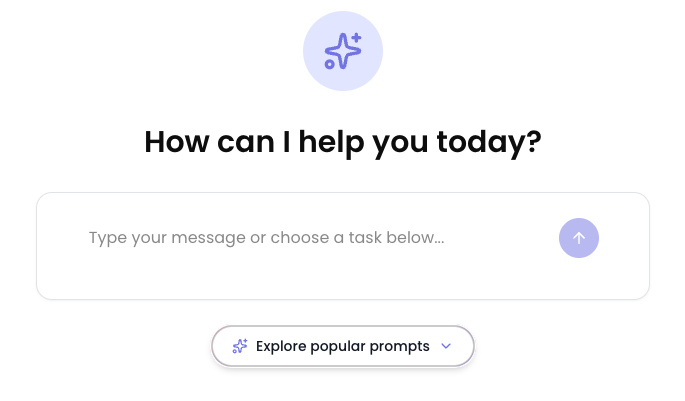
The Advisor opens with a simple prompt, "How can I help you today?" Type your own question straight into the message box, or select Explore popular prompts to start from a curated prompt. Because the Advisor is wired into your Dr Migrate data (not just a server list), it understands support status, dependencies, treatments and wave plans, and can return graphs, tables and exports as well as text. It also suggests follow-on questions to help you go deeper. Every conversation is saved to your Dr Migrate instance, so you can start a fresh one at any time and come back to an earlier one from Chat history.
Popular prompts
Selecting Explore popular prompts opens a library of curated prompts for common migration tasks.
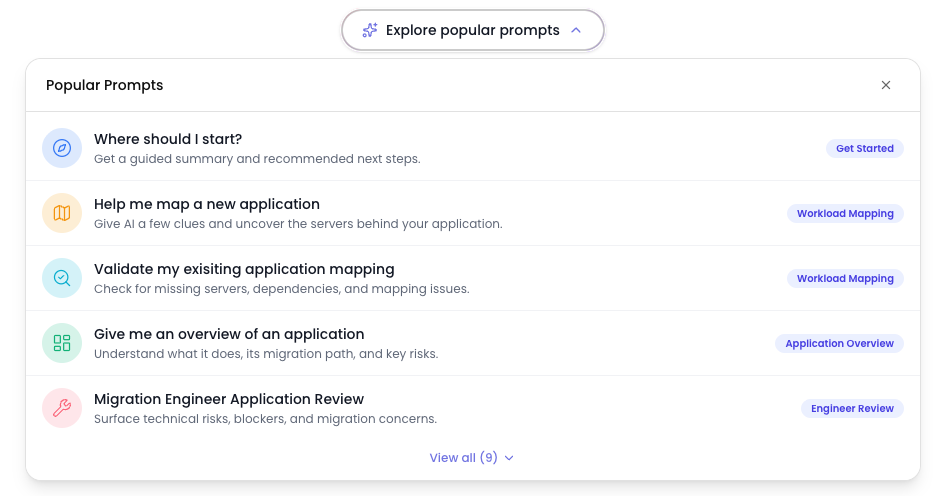
Each prompt is tagged by scenario, such as Get Started, Workload Mapping, Application Overview and Engineer Review, and you can select View all to browse the full list.
Two kinds of AI in Dr Migrate
Dr Migrate uses AI in two distinct ways, and the two are often confused:
| Embedded intelligence | AI Advisor | |
|---|---|---|
| What it is | Machine learning inside the product | A user-facing Azure OpenAI assistant |
| Used for | Pattern detection, auto-mapping, recommendations | Answering your questions, contextual help |
| Visible to you? | Works behind the scenes | Yes, you chat with it |
| Optional? | No, it's core to analysis | Yes, opt-in |
The AI Advisor is independent from the AI/ML used within the product's analysis. Turning the Advisor off does not affect auto-detection or recommendations.
What it can do
The Advisor can:
- Summarise and answer about the whole estate or a specific application, for example "summarise risk in the security domain" or "list the out-of-support servers for this app".
- Produce graphs, tables and exports, not just prose, so the answer is ready to use in a review or pack.
- Suggest follow-on questions to guide the next step of your analysis.
Estate level vs application level
The Advisor runs at two scopes:
- Estate level: reachable from the side menu, it reasons across the whole estate.
- Application level: opened from the Application Drawer, it's already aware of the application you're in, so you can ask about "this app" without re-specifying it.
You'll also find an entry point on the dashboard and within Estate Explorer.
Conversations and chat history
A control ribbon is attached to the edge of the chat panel wherever the AI Advisor appears. It has two controls:
- New chat (the plus icon) starts a fresh, empty conversation.
- Chat history (the history icon) opens a drawer listing your saved conversations.

Starting a new chat
Select New chat to return to the welcome screen and start again with a clean context. The Advisor forgets the tables, tasks and application scope of the previous conversation, so it will not carry answers across. If a response was still being written when you selected New chat, it finishes in the background and is saved to the conversation it belonged to. A new conversation appears in Chat history after you send your first message.
Chat history
Select Chat history to open the drawer. It lists every conversation you have started, ordered by most recent activity, with a title and the date and time of its last activity. Titles are generated automatically from the first few exchanges, so a conversation that opens with a greeting still gets a meaningful title once your request is clear. The conversation you are currently in is highlighted.
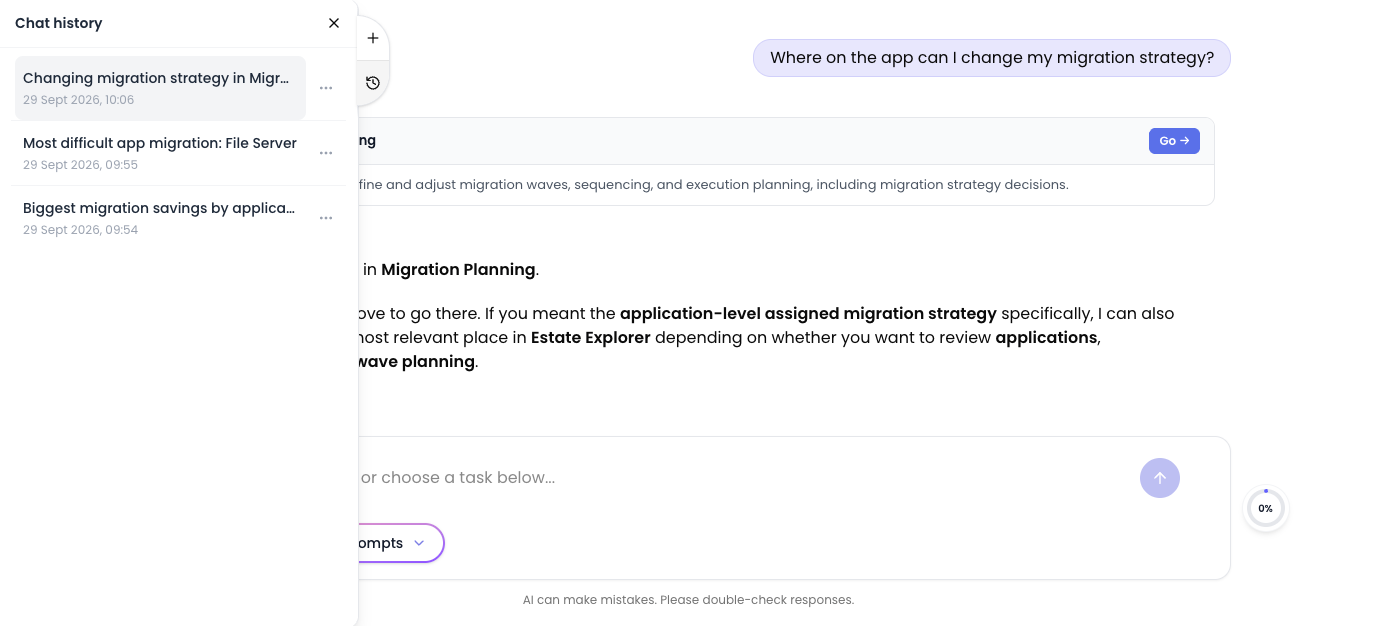
Select a conversation to reopen it. The chat shows Restoring conversation... while the transcript is loaded, then the full history returns, including any tables and graphs the Advisor produced, and you can continue where you left off. Reopening a conversation applies everywhere the AI Advisor is open, so the estate-level chat and an Application Drawer chat always show the same conversation.
Each conversation has an actions menu (the three-dot icon) with two options:
- Rename replaces the title with an inline editor. Press Enter or select the tick to save, or press Escape or select the cross to cancel. Clear the title and save to go back to the generated one. Titles are limited to 200 characters.
- Archive removes the conversation from the list. Archiving the conversation you are currently in starts a new chat. A conversation cannot be archived while the Advisor is still writing a response; wait for it to finish and try again.
Chat history is personal. Only the user who started a conversation can see, reopen, rename or archive it. If a conversation cannot be reopened, for example because it was archived from another session, the Advisor tells you and returns you to a fresh chat.
Security and data handling
The answers below cover the most common questions about how the AI Advisor works, where your data goes and who controls it.
Where does my data go and is it safe?
AI Advisor is built on Azure OpenAI and operates within a secure, managed architecture designed to keep your data protected at all times. Requests from your Dr Migrate instance are sent through a dedicated, managed connection to Azure OpenAI. Depending on the complexity of each task, the system dynamically selects between available models to optimise speed and quality. While the underlying Azure OpenAI service is shared, all processing is logically isolated, meaning your data and context remain strictly separated from other customers. Combined with controlled access, encrypted communication, and Microsoft's enterprise-grade security standards, this ensures your data is handled safely, securely, and in line with best practices.
What data do you save and where do you save it?
Two kinds of data are kept, both within your dedicated Dr Migrate instance and never shared outside it:
- Conversation history. Your prompts, the Advisor's responses and any tables or graphs it produced are stored in the instance database so that a conversation can be reopened from Chat history. Each conversation is tied to the user who started it and is not visible to other users.
- Interaction logs. Altra retains logs of prompts, responses and related system interactions to improve the accuracy, usability and performance of the feature. Any analysis is conducted in a controlled and privacy-conscious manner, and the logs remain isolated to your environment.
Can I opt out of the AI Advisor at a later stage?
A customer admin can enable or disable the AI Advisor at any time. Partner and Microsoft accounts cannot. Opting out will also permanently delete all AI Advisor data held on your instance, including every user's conversation history, any tables and graphs saved with those conversations, and the interaction logs collected while the feature was enabled. Other than usage records kept for billing, nothing is retained for later recovery, so re-enabling the Advisor starts with an empty Chat history.
Who can use the AI Advisor?
Any user with access to your Dr Migrate instance can use the AI Advisor, if enabled. Access is governed by your existing user permissions and roles, ensuring that only authorised users within your organisation can interact with the feature. Teams can use the AI Advisor within their existing workflows without additional accounts or separate access controls. Each user's conversations are private to them: other users, including admins, do not see them in Chat history.
Is my data being used to train future models?
No. Data processed through Azure OpenAI is not used to train OpenAI or Microsoft foundation models. Your prompts, responses, and any associated data remain private to your environment and are not shared with OpenAI (see the official documentation ↗ for more information).