Azure Resource Discovery
Azure Resource Discovery inventories all resources across your Azure subscription using Azure Resource Manager (ARM) APIs. No VM credentials or guest access are required, only an Azure Service Principal with Reader access.
Before you start
Complete all steps in Azure Requirements before running this scan.
You will need:
- An Azure Service Principal with Tenant ID, Client ID, Client Secret, and Subscription ID
- The Service Principal assigned a
Readerrole at subscription or resource group scope
Resource Discovery does not connect to any VMs. It calls ARM APIs only, so no NSG rules or VM agent configuration is needed.
What gets collected
DMC queries ARM APIs to collect configuration and metadata for the following resource types:
| Category | Resource Types |
|---|---|
| Networking | Network Interfaces, Network Security Groups, Virtual Networks, Public IP Addresses, Private Endpoints, Application Gateways, Load Balancers, VNet Gateways, NAT Gateways, Azure Firewalls, Front Door Profiles |
| Compute | Virtual Machines, Managed Disks, VM Scale Sets, AKS Clusters |
| Storage | Storage Accounts |
| Web | App Service Plans, Web Apps, Function Apps |
| Containers | Container Instances, Container Registries |
| Security | Key Vaults |
| Databases | SQL Servers & Databases, SQL Managed Instances, Cosmos DB Accounts, PostgreSQL Flexible Servers, MySQL Flexible Servers |
| Messaging | Event Hub Namespaces, Service Bus Namespaces |
| Cache | Redis Caches |
| DNS | DNS Zones, Private DNS Zones |
| Recovery | Recovery Services Vaults |
| Monitoring | Log Analytics Workspaces, Application Insights |
For a complete list of collected fields per resource type, see Azure Resource Inventory.
Running the scan
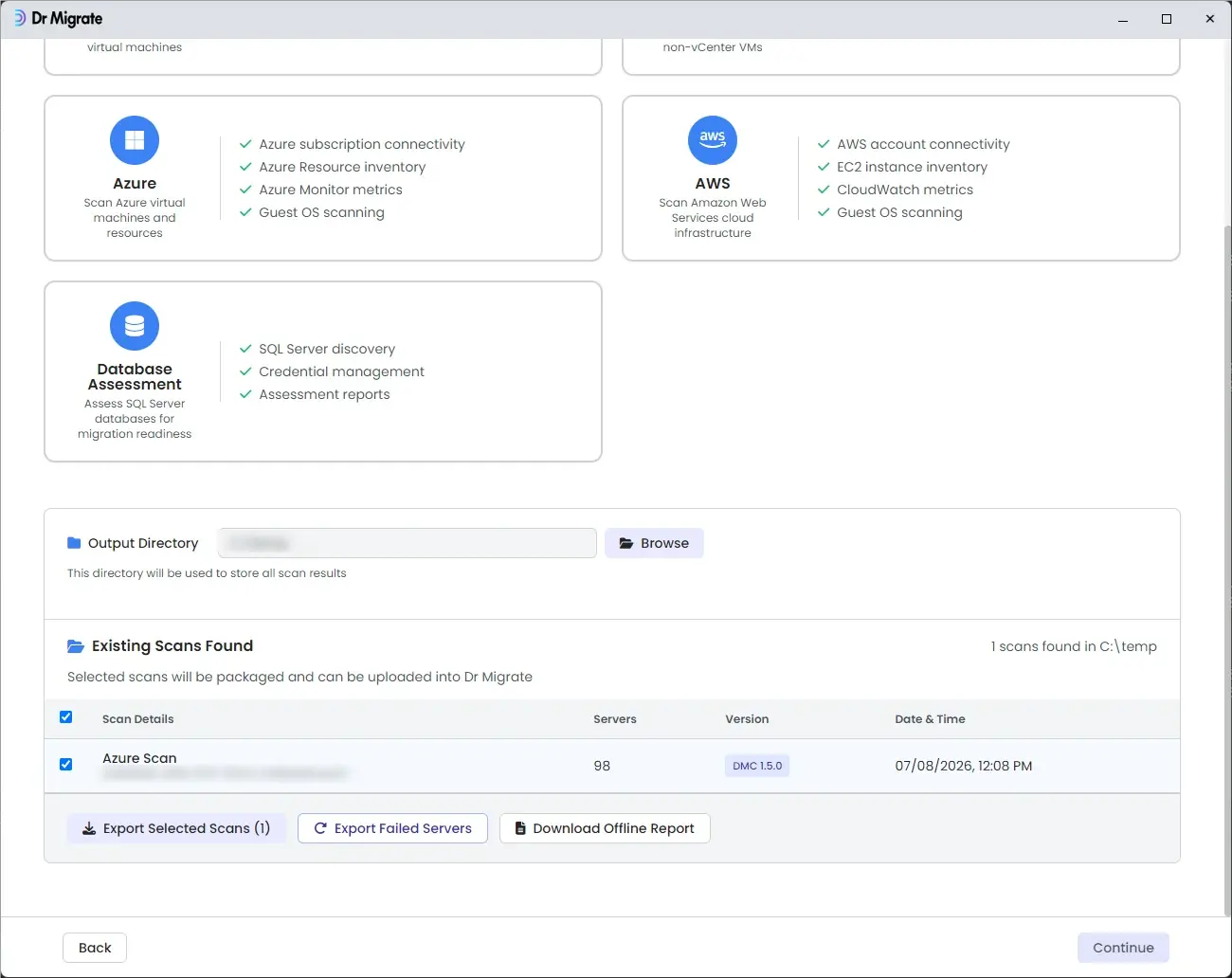
If you also want to scan Azure VMs, select Both on the scan type screen instead of Resource Inventory, which runs both in a single pass. See Scan Azure for guidance on choosing between the three options.
The Resource Inventory wizard runs three steps. The Guest Credentials step is skipped entirely compared to a Compute Scan.
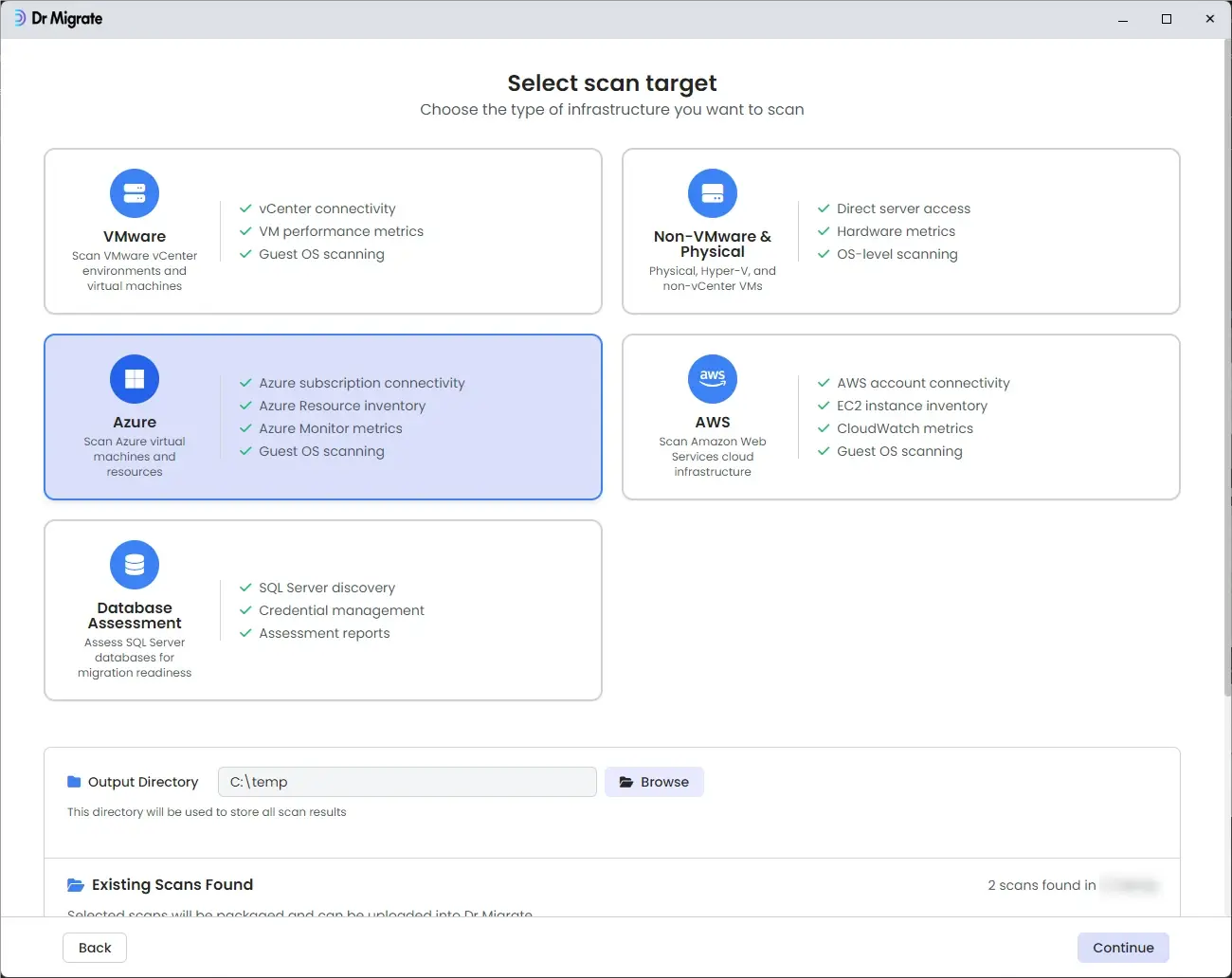
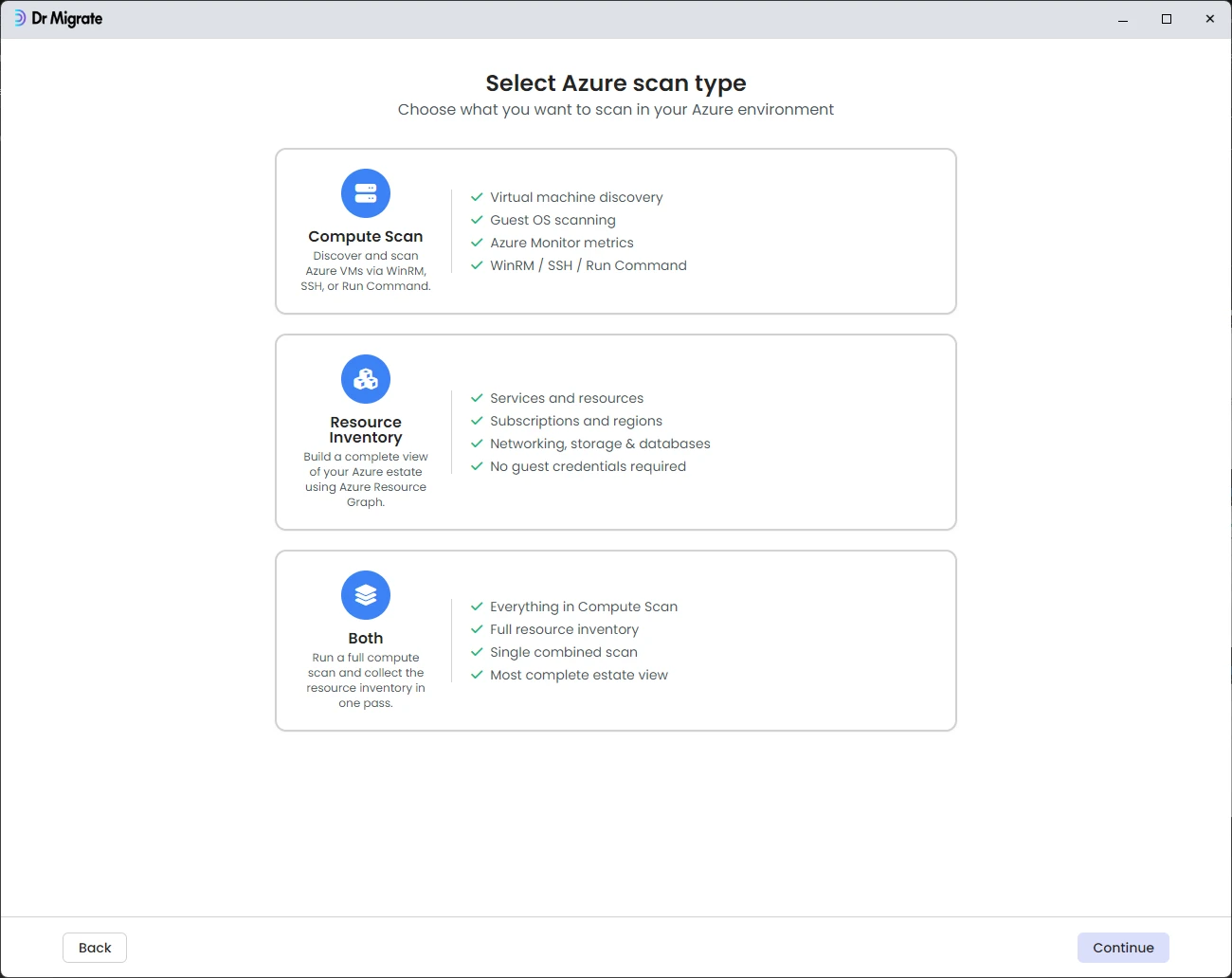
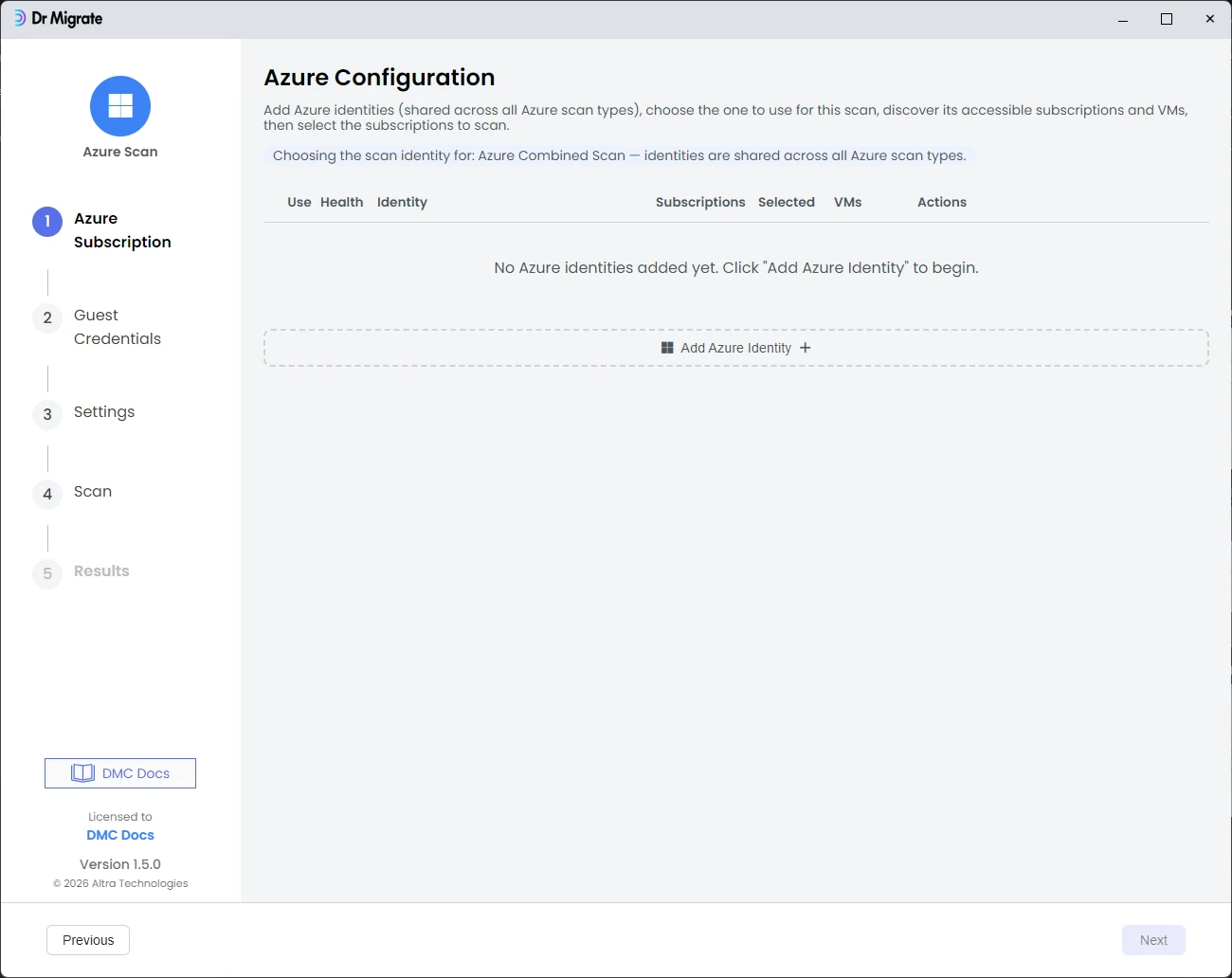
Azure Subscription
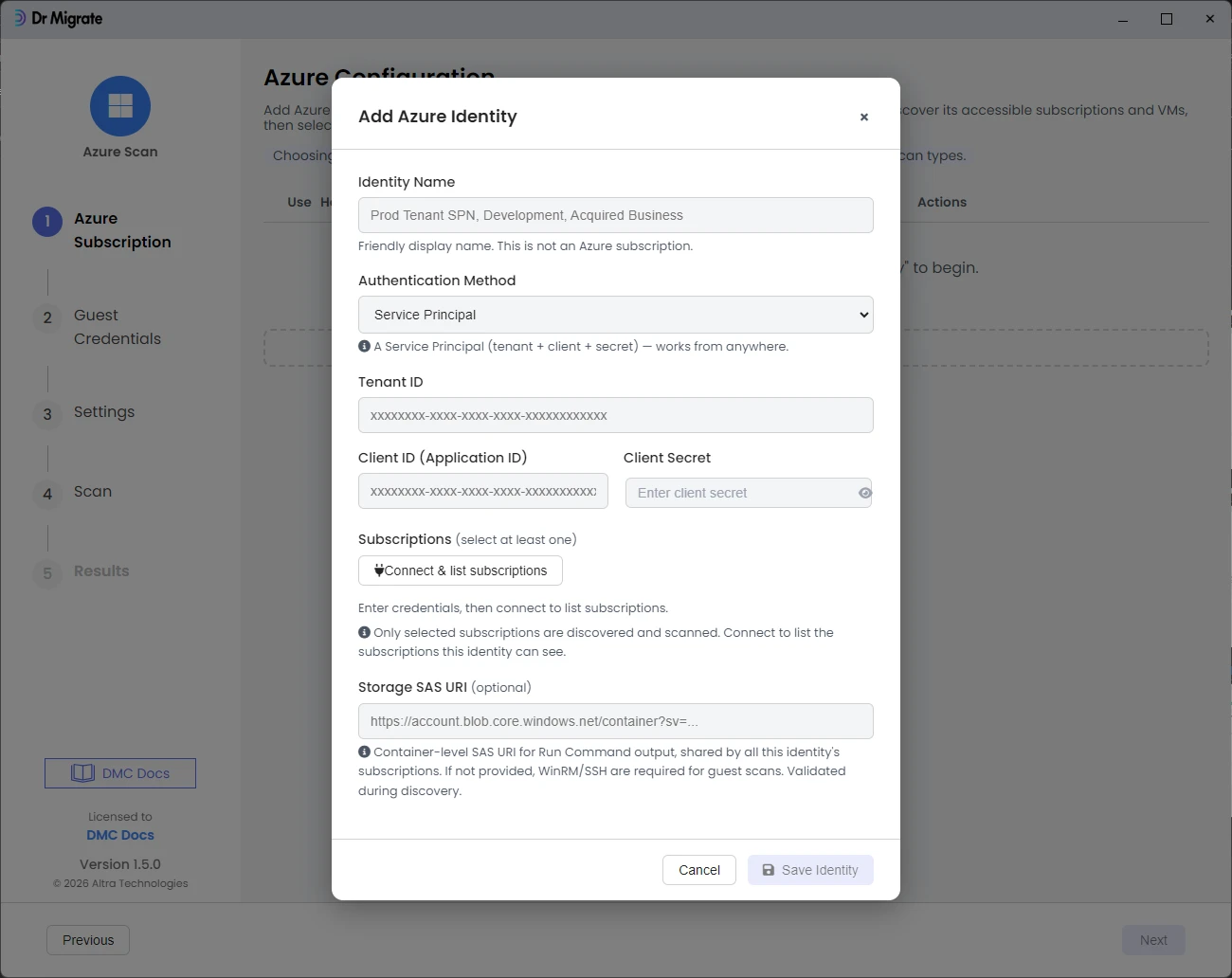
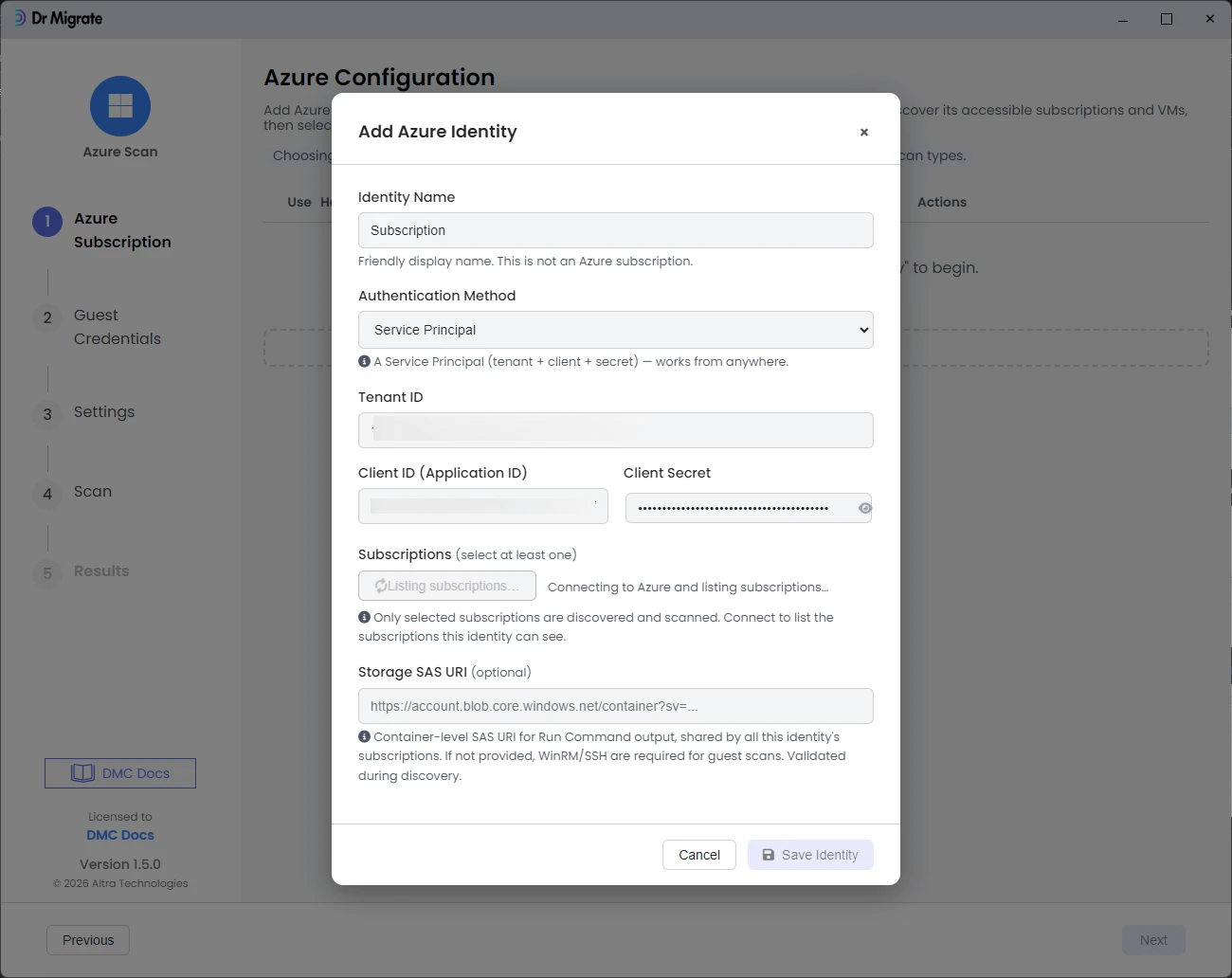
Click Add Azure Identity + and choose your authentication method:
- Manual SPN: Enter Tenant ID, Client ID (Application ID), Client Secret, and Subscription ID. Optionally restrict scope to specific resource groups by entering them comma-separated.
- Managed Identity: DMC uses the managed identity of the Azure VM it runs on. Optionally specify a user-assigned Client ID, then click Connect & list subscriptions to select which subscriptions to include.
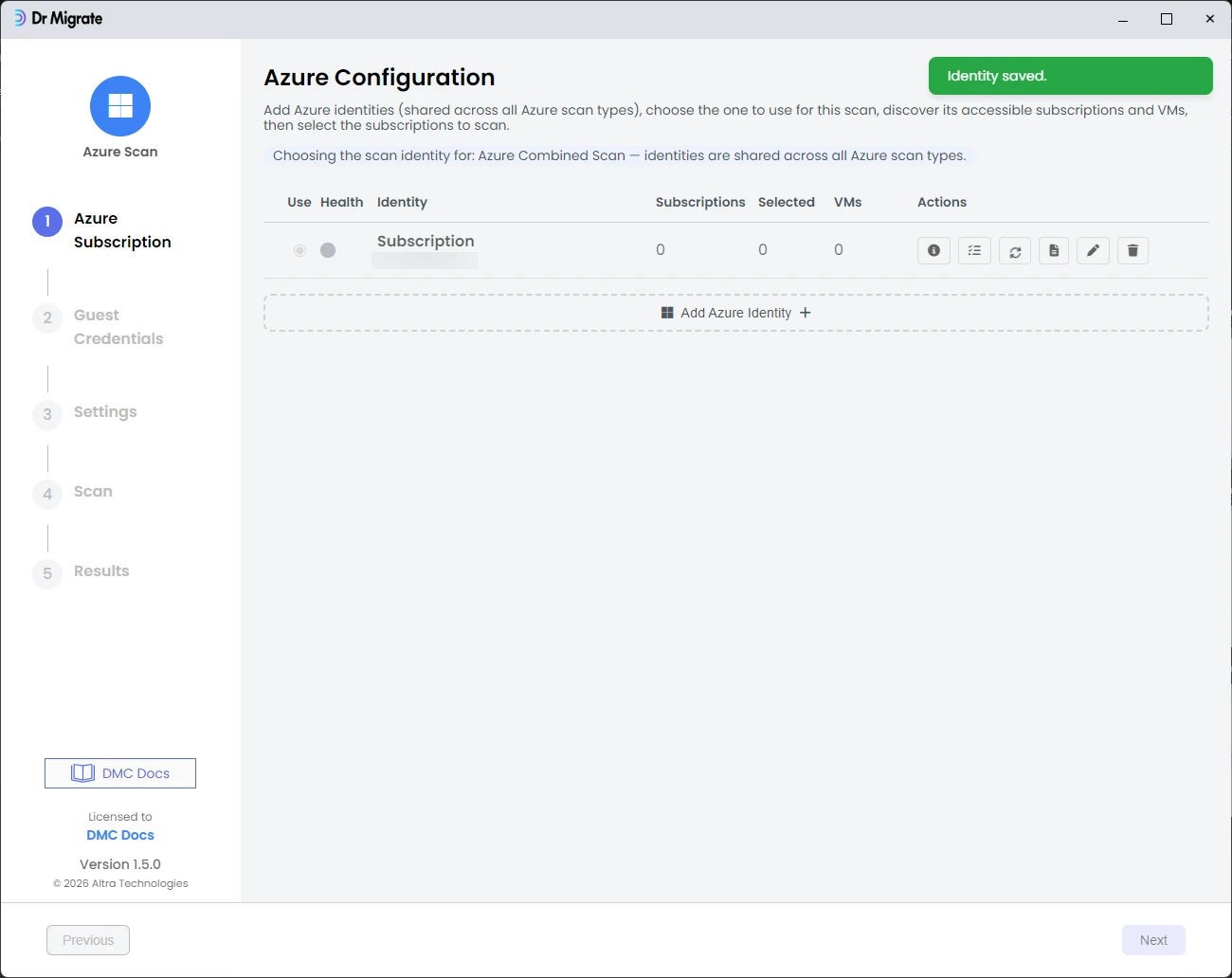
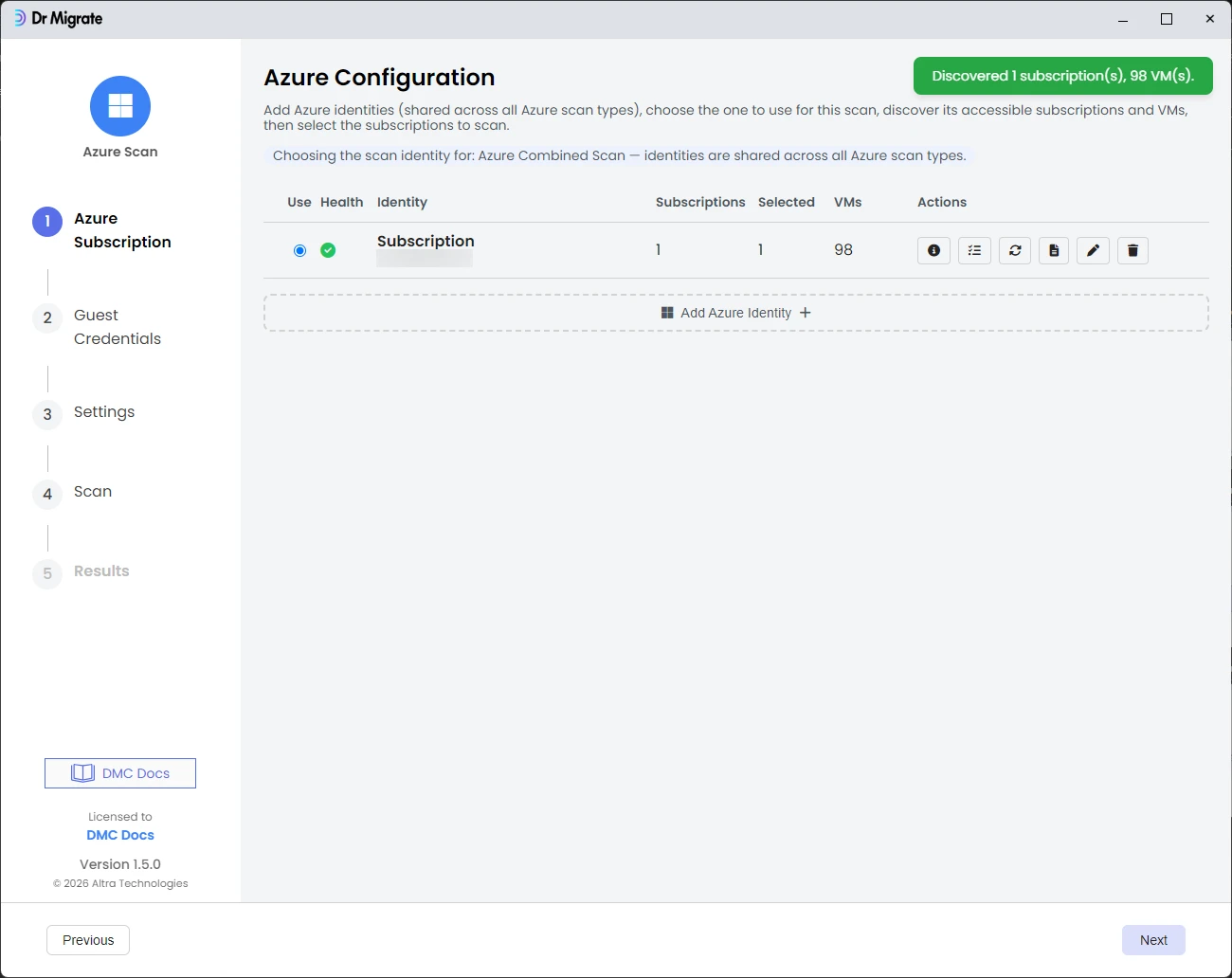
Click Test & Save. DMC validates connectivity and RBAC permissions, then displays the number of VMs and resource groups found in the subscription.
Settings
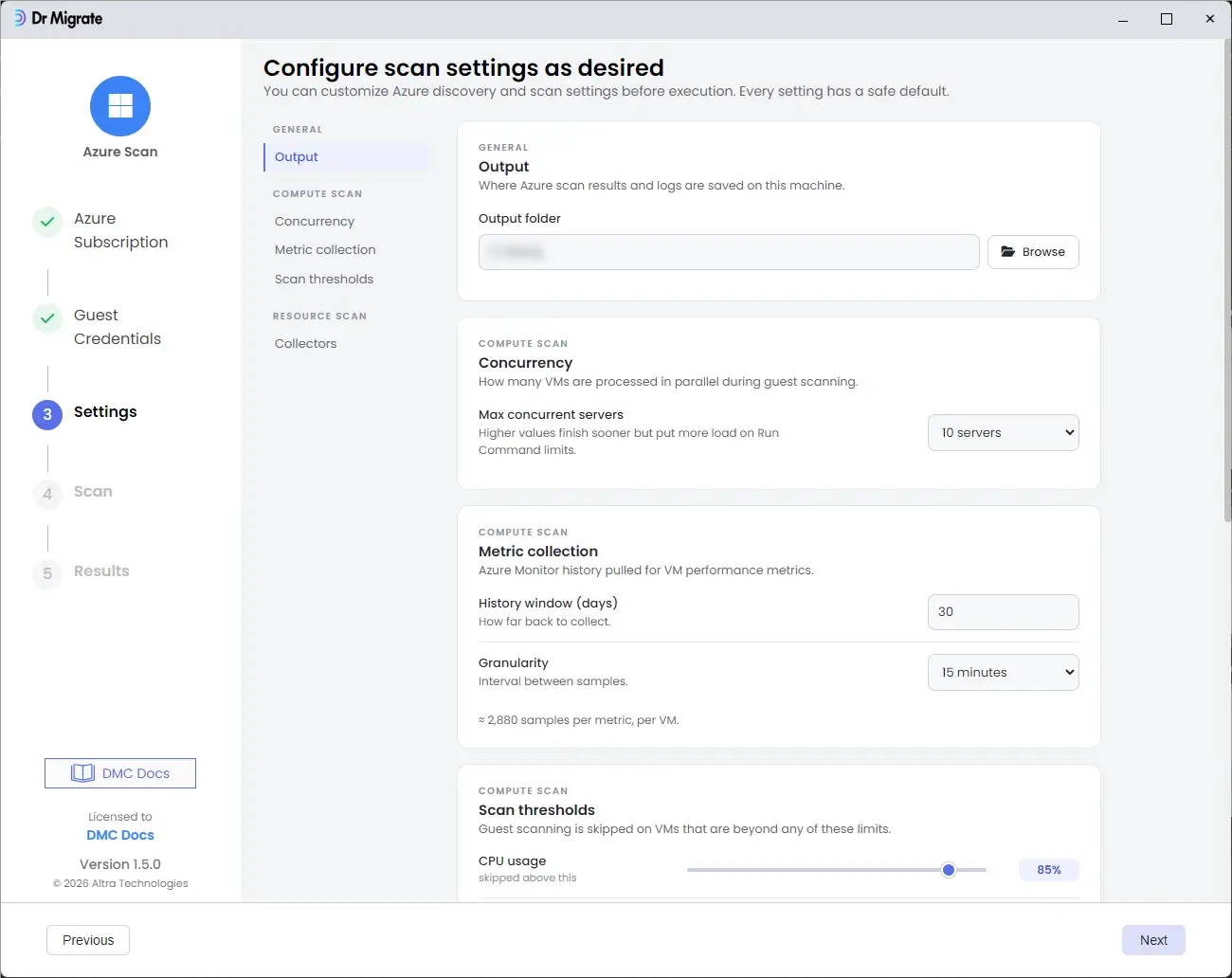
Configure two tabs:
- General: Output path for scan results and logs; maximum concurrent servers.
- Resource Inventory: Cost data collection (requires
Cost Management Readerrole; configurable collection scope and period). Select which Azure resource types to include. All types are selected by default.
Run the scan
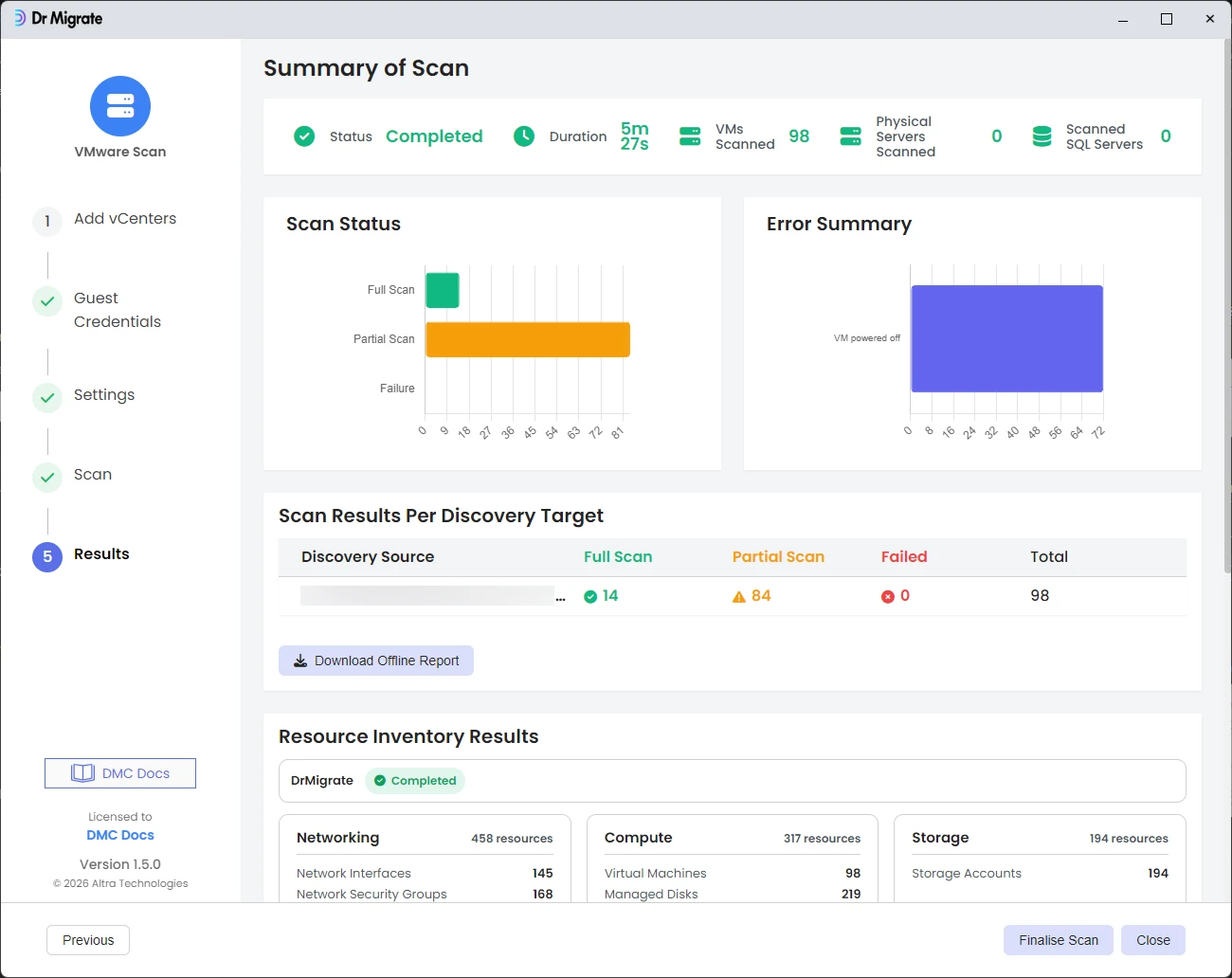
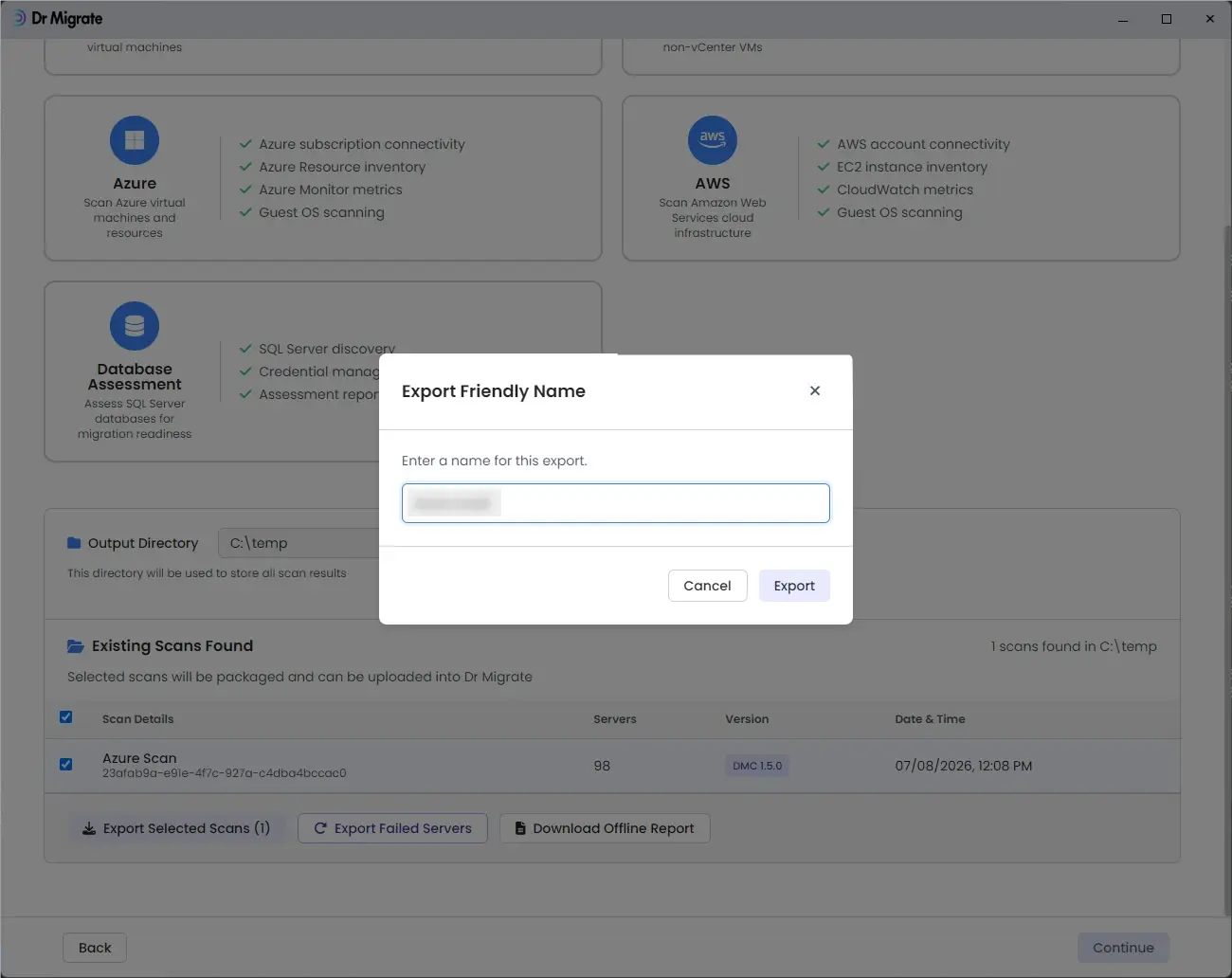
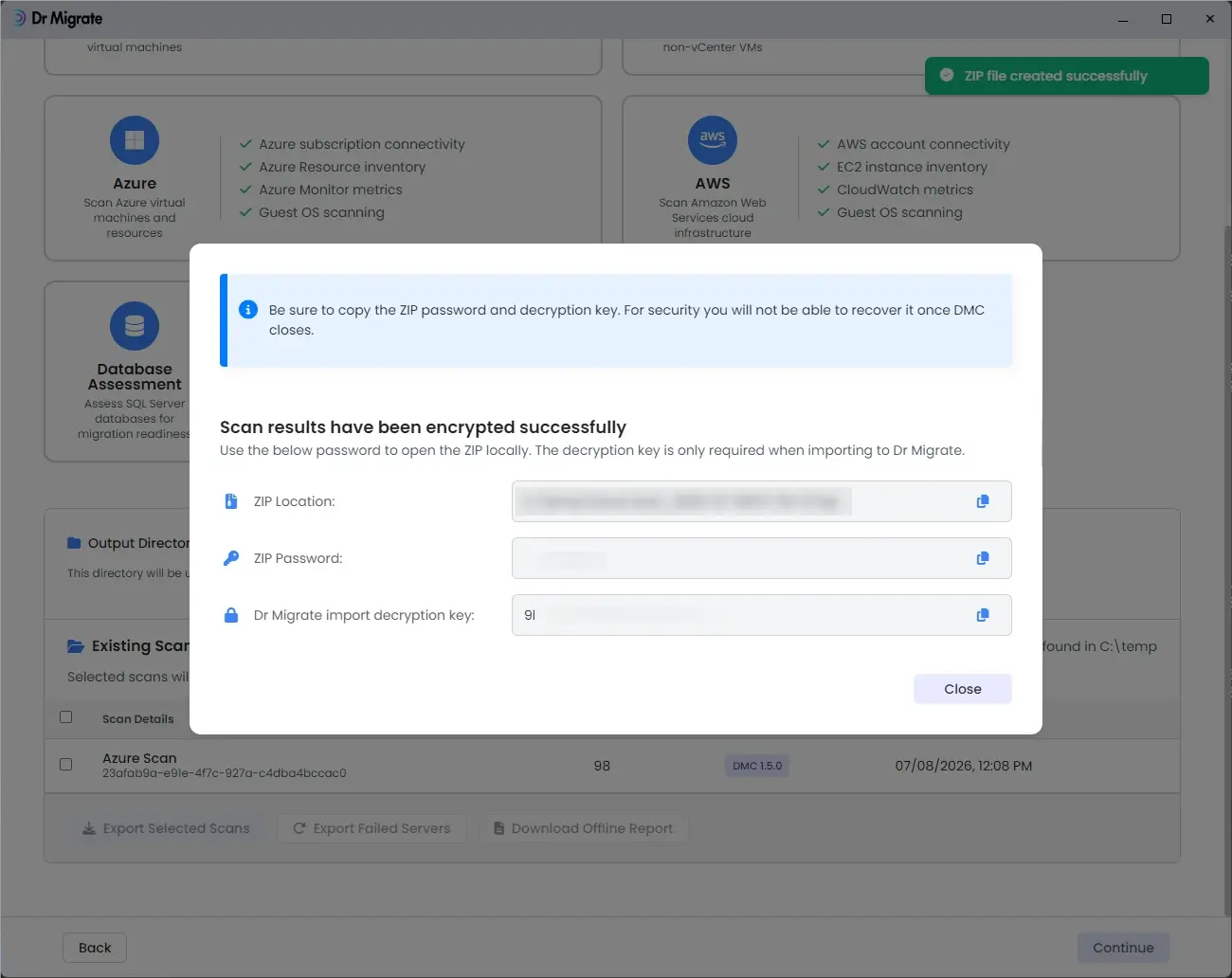
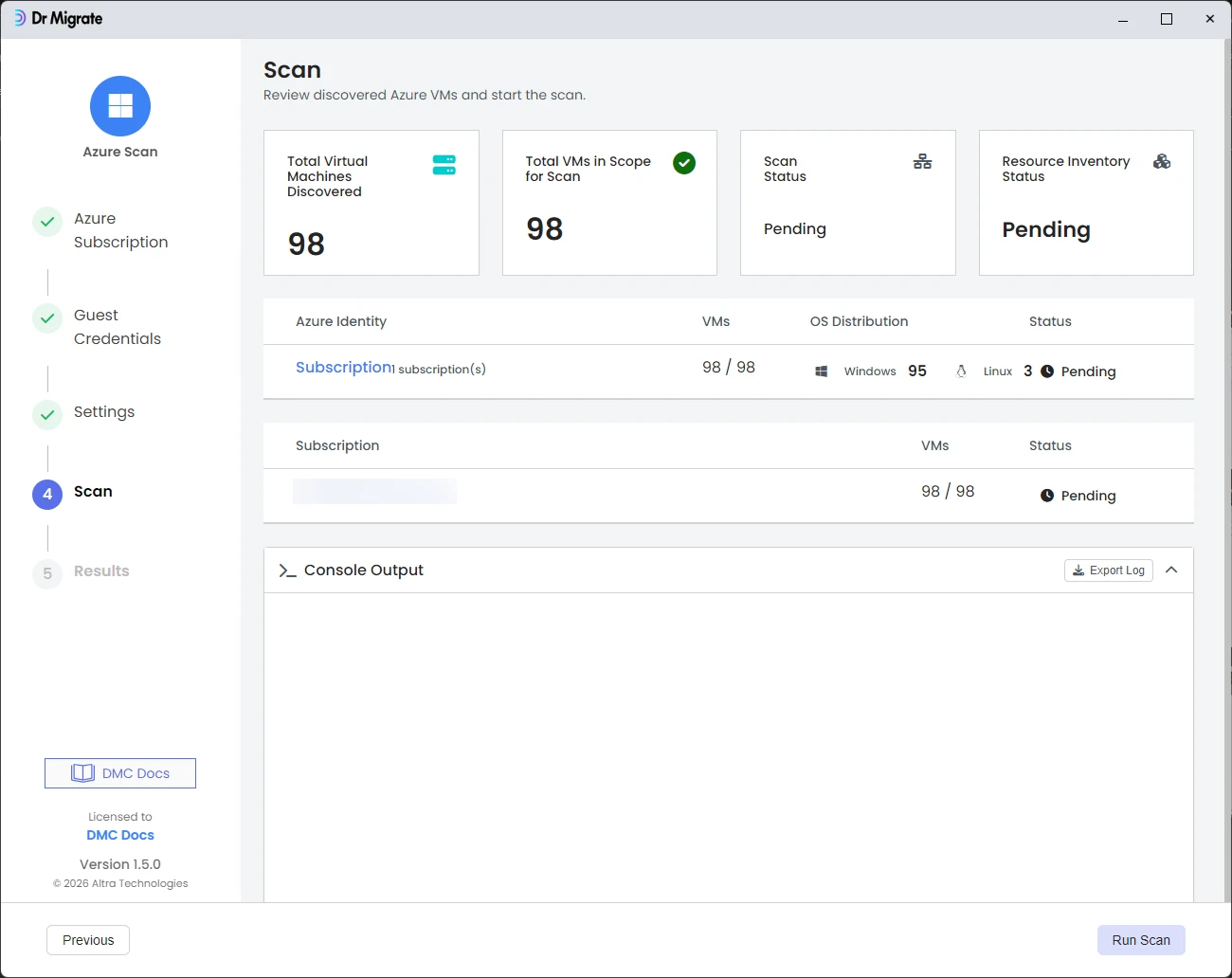
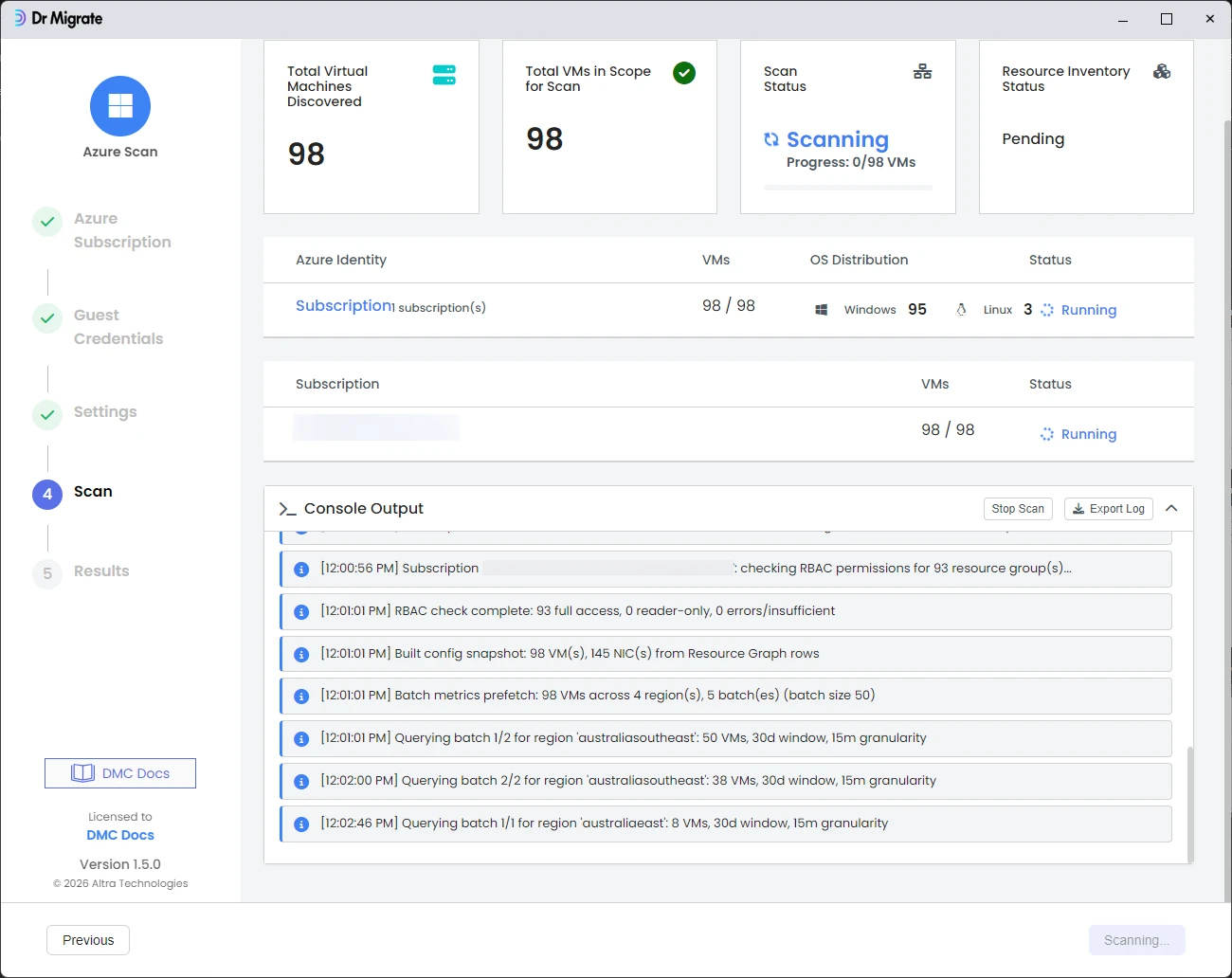
The Scan screen shows the subscription scope and status. Click Run Scan. DMC displays real-time progress in the console output as it queries each resource type. When complete, proceed to the Results screen to export your scan file and import it into Dr Migrate.
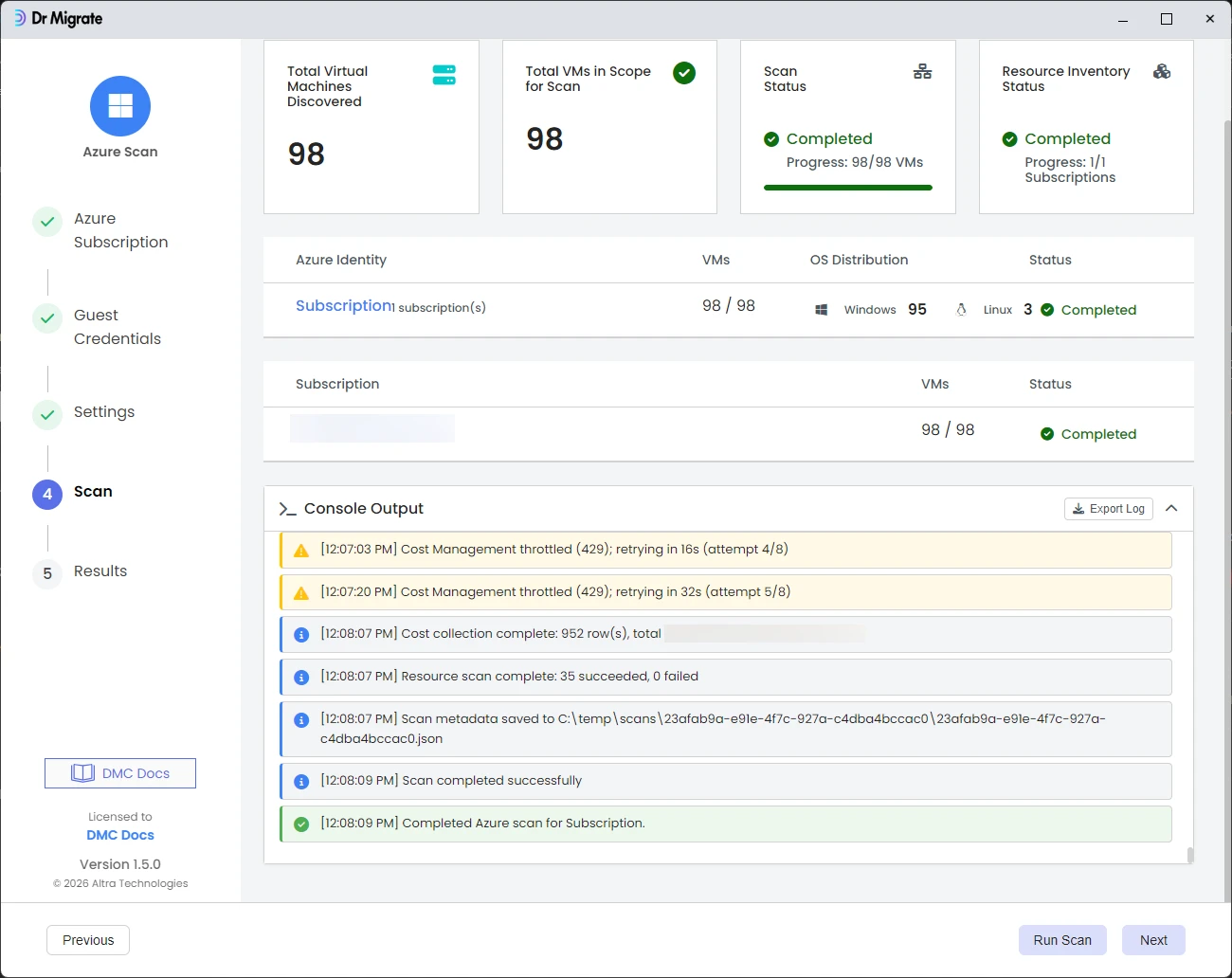
Azure Cost Management API throttling (HTTP 429) is expected and handled automatically. DMC retries with exponential backoff. Throttling warnings in the console output do not indicate a failure.