

Configure Private Endpoint
If your Azure Migrate project uses Private Endpoints, Dr Migrate cannot read assessment data from the project's storage account until the network is adjusted. The right adjustment depends on where the Dr Migrate virtual machine sits in your network. Use the table below to pick your path, then follow the matching section.
Private Endpoint configured Azure Migrate Projects are only supported in Marketplace deployments.
Choose your configuration
Every configuration starts with the same step: enable public network access on the Azure Migrate project. After that, the storage account connected to the project needs one of the changes below.
| Where is the Dr Migrate virtual network? | Azure Migrate region | Path to follow | Who makes the change |
|---|---|---|---|
| Its own virtual network, created by the Marketplace deployment and not peered to your network | Same region as Dr Migrate | Option 1: Add a storage service endpoint (recommended) | Your Azure administrator |
| Its own virtual network, created by the Marketplace deployment and not peered to your network | Different region from Dr Migrate | Option 2: Allow public network access | Your Azure administrator |
| Your existing virtual network, or a virtual network peered to it, where the storage account's private endpoint is reachable | Any | Option 3: Route through the private endpoint | Your Azure administrator. Also an Altra support ticket if Dr Migrate's own virtual network is peered to yours |
To tell which configuration you have, open the Dr Migrate virtual machine in the Azure portal and check its virtual network under Networking. A Marketplace deployment places the virtual machine in a managed resource group. If that virtual network was created by the deployment and has no Peerings, use Option 1 or Option 2. If you deployed Dr Migrate into a subnet you already owned, or you added a peering afterwards, use Option 3.
Altra recommends Option 1 wherever it applies. It keeps the storage account closed to the internet and needs no change on the Dr Migrate virtual machine.
Why this is needed
The Azure Migrate API is designed so that no third-party ISV, including Dr Migrate, can work with the base Private Endpoint configuration. See Azure Migrate documentation on integrated tools ↗.
Dr Migrate reads two kinds of data from the project's storage account:
- Assessment reports, which supply recommended sizes and costs for right-sizing and the TCO views.
- Performance and network dependency data, which drive application dependency mapping, application complexity and wave planning.
When the storage account refuses the Dr Migrate virtual machine, these symptoms appear:
- Azure costs and TCO views stay empty after a data load.
- Servers show no recommended size.
- The data load log records
Cannot download Assessment filewith anAuthorizationFailureresponse from the storage account.
Configure Azure Migrate Project Settings
Do this step for every configuration. The Azure Migrate project must allow traffic from all networks so that Dr Migrate can call the Azure Migrate API.
Sign into Azure Portal
Sign into the Azure portal as a user that has permissions to the Azure Migrate project.
Find Azure Migrate Properties
Open the Azure Migrate project and select Properties.
Change Public Network Access Settings
Set Disable public network access to No.

This allows Dr Migrate to connect to the Azure Migrate API.
Option 1: Add a storage service endpoint to the Dr Migrate virtual network
This is the recommended option when Dr Migrate runs in its own virtual network in the same region as the Azure Migrate project. A service endpoint routes traffic from the Dr Migrate virtual network to Azure Storage over the Azure backbone, and the storage account's firewall then allows that virtual network. The storage account stays closed to the internet and the private endpoint keeps working for everyone else.
To learn more about service endpoints, see Virtual network service endpoints ↗.
If your Azure Migrate project is deployed in a different region than Dr Migrate, you cannot use this option due to cross-regional ACL limitations. Use Option 2 instead.
Locate Azure Migrate Storage Account
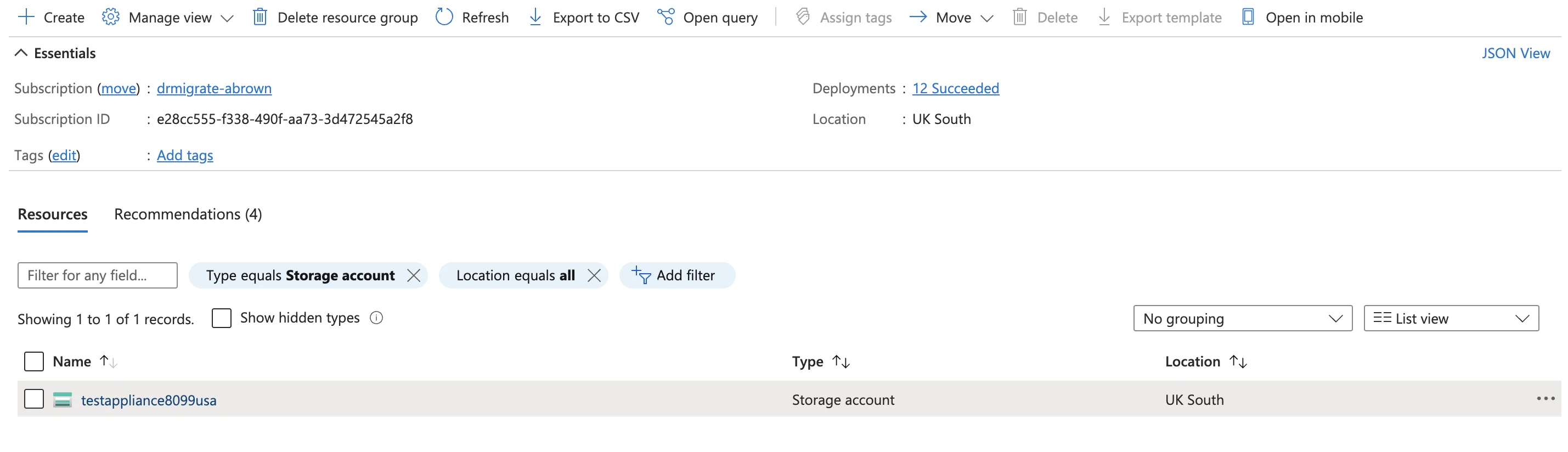
Locate the Azure Migrate storage account within the resource group that Azure Migrate is in.
Attach vNet to Storage Account
Open the storage account's Networking section and select Manage. Select Enable, then Enabled from selected networks, and add the Dr Migrate virtual network and its subnet. The Dr Migrate virtual network sits in the managed resource group created by the Marketplace deployment.
If the subnet does not yet have the Microsoft.Storage service endpoint, the portal offers to enable it as part of adding the network. Accept that prompt.
Confirm the data load
Wait for the next scheduled data load, then run Refresh TCO in Dr Migrate. Recommended sizes and Azure costs should now populate.
Option 2: Allow public network access on the storage account
Use this option when Dr Migrate runs in its own virtual network but the Azure Migrate project is in a different region, so a service endpoint cannot be used. It opens the storage account to all networks, so check that this is acceptable under your security policy first.
Locate Azure Migrate Storage Account
Locate the Azure Migrate storage account within the resource group that Azure Migrate is in.
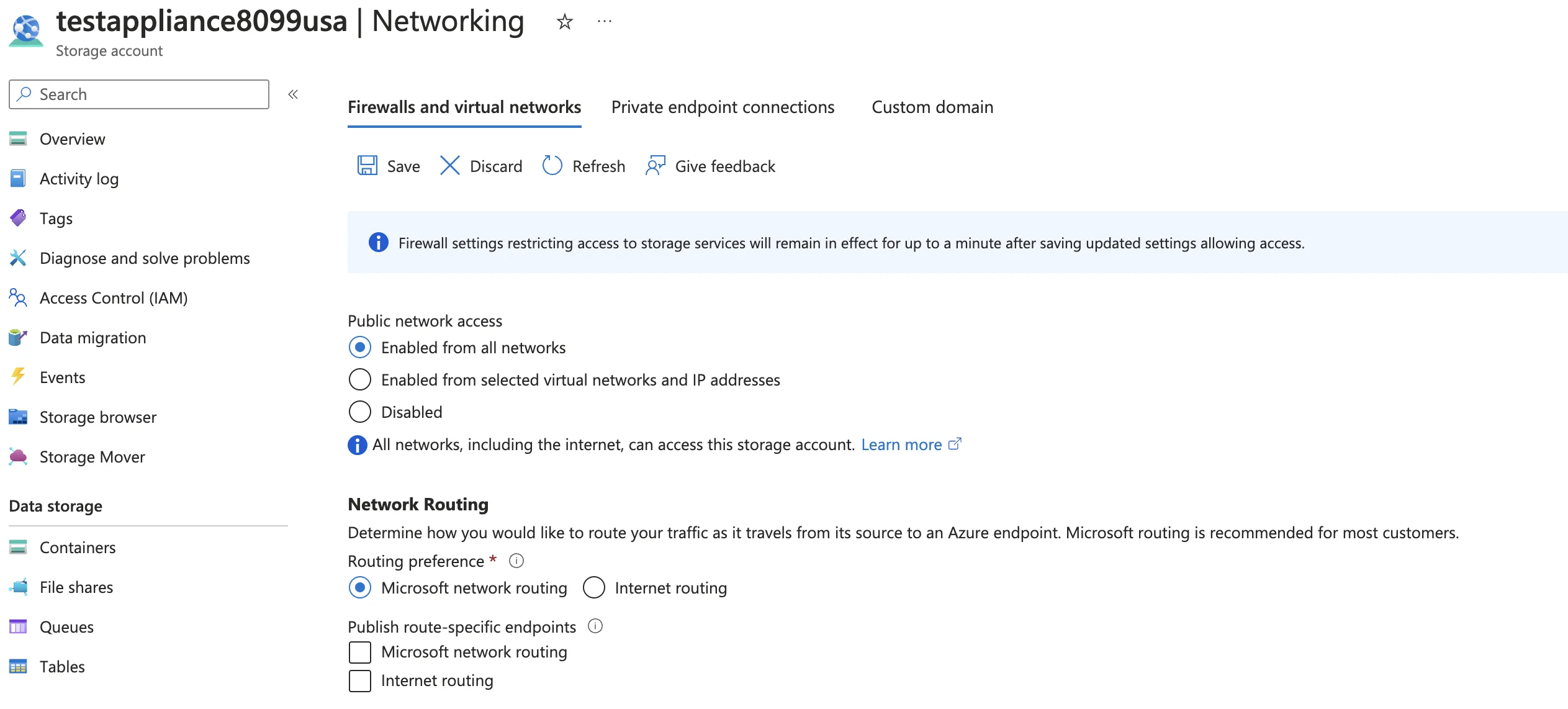
Enable Public Network Access
Within the Networking section, set Public network access to Enabled from all networks.
Confirm the data load
Wait for the next scheduled data load, then run Refresh TCO in Dr Migrate.
Option 3: Dr Migrate on your existing network
Use this option when Dr Migrate was deployed into a subnet of your existing virtual network, or its virtual network is peered to your network, and the storage account's private endpoint is reachable from there. Options 1 and 2 do not reliably apply in this configuration, because your network's DNS may already send storage traffic to the private endpoint.
In this configuration the Dr Migrate virtual machine must reach the storage account through its private endpoint. Two things have to be true:
- Network path. TCP port 443 is open from the Dr Migrate subnet to the private endpoint's IP address, across any peering, network security group or firewall in between.
- Name resolution. The storage account name resolves to the private endpoint's IP address on the Dr Migrate virtual machine.
The second point is what usually fails, and the fix depends on which virtual network the Dr Migrate virtual machine is on.
- Your existing virtual network. That virtual network stays in your own resource group and uses your DNS settings. If the storage account still resolves to its public IP address from the Dr Migrate subnet, your administrator links the private DNS zone
privatelink.blob.core.windows.netto that virtual network, or adds the record to your DNS servers. No hosts file entry or support ticket is needed. - Dr Migrate's own virtual network, peered to yours. That virtual network sits in the managed resource group and uses Azure-provided DNS, and the private DNS zone for the private endpoint is normally not linked to it. The virtual machine then resolves the storage account to its public IP address, and the storage account refuses the request with
AuthorizationFailure. Altra resolves this by adding a hosts file entry on the Dr Migrate virtual machine that maps the storage account name to the private endpoint's IP address.
In the peered case the hosts file change is made by Altra, not by the customer. Raise a ticket through the Dr Migrate support portal once you have found the private endpoint IP address and confirmed the network path. Dr Migrate does not ingest the assessment data until the entry is in place.
Find the private endpoint IP address
Open the Azure Migrate storage account, select Networking, then Private endpoint connections. Open the private endpoint for the blob sub-resource and select DNS configuration. Note the private IP address and the storage account's full name, which ends in .blob.core.windows.net.
Confirm the network path
Confirm that TCP port 443 is allowed from the Dr Migrate subnet to the private endpoint IP address. Check the peering between the two virtual networks, the network security groups on both subnets, and any firewall on the route.
Link the private DNS zone on your own virtual network
Do this step only when Dr Migrate is on your existing virtual network. Open the private DNS zone privatelink.blob.core.windows.net, select Virtual network links, and add a link to the virtual network that holds the Dr Migrate subnet. If your network uses custom DNS servers, add the storage account record there instead. Then skip the support ticket and go to Confirm the data load.
Raise an Altra support ticket
Do this step only when Dr Migrate has its own virtual network peered to yours. Raise a ticket through the Dr Migrate support portal and ask for the private endpoint hosts file entry. Include:
- The storage account's full name.
- The private endpoint IP address from the previous step.
- Confirmation that port 443 is open from the Dr Migrate subnet to that address.
Altra adds the entry on the Dr Migrate virtual machine, confirms that the name now resolves to the private endpoint, and starts a data load.
Confirm the data load
If you linked the DNS zone, wait for the next scheduled data load. If Altra added the hosts file entry, wait for Altra to confirm the data load has completed. Then run Refresh TCO in Dr Migrate. Recommended sizes and Azure costs should now populate.
The hosts file entry is tied to one storage account name and one IP address. If the private endpoint is recreated, or the Azure Migrate project starts using another storage account, the entry stops working without warning. Raise a new support ticket when either changes.
In the peered case, a permanent alternative to the hosts file entry is to link the private DNS zone privatelink.blob.core.windows.net to the Dr Migrate virtual network. That virtual network sits in the managed resource group, so your administrator may not have permission to add the link. Mention in the support ticket if you want to pursue this instead of the hosts file entry.
If none of these changes is made, the Dr Migrate deployment cannot retrieve assessment data from the Azure Migrate project.